Flow
The Flow tab is where you build smart, branched conversations for your AI agent. Instead of giving the AI one massive list of instructions, the Flow system lets you break the conversation down into smaller, manageable branches and steps (called "nodes").
This is a flexible flow system where each step can have its own prompt, tool, or transition logic. This setup is ideal for branching conversations with multiple stages, like a phone tree that adapts based on what the caller says.
1. The Flow Canvas
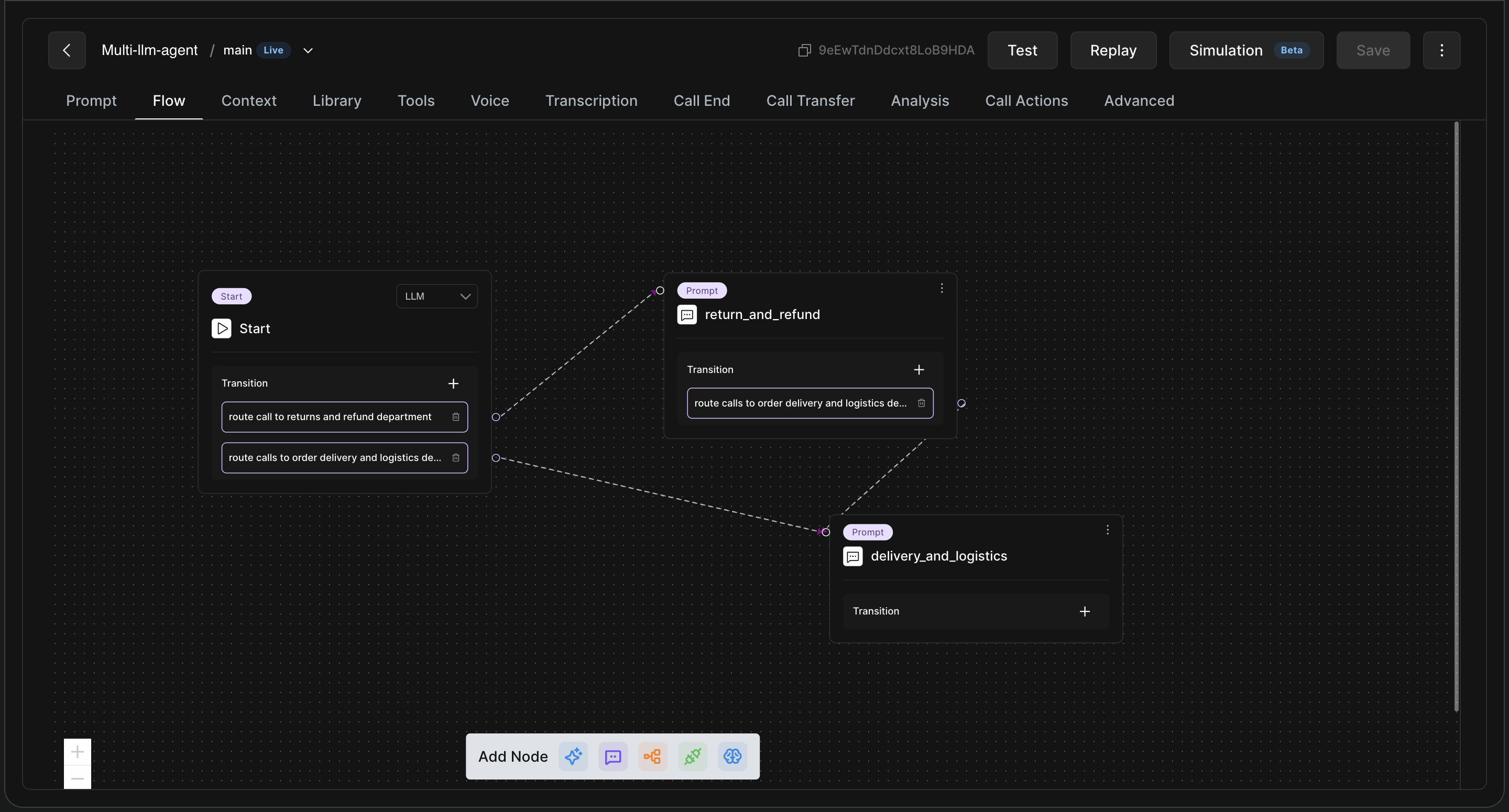
When you open the Flow tab, you will see a visual drag-and-drop canvas.
-
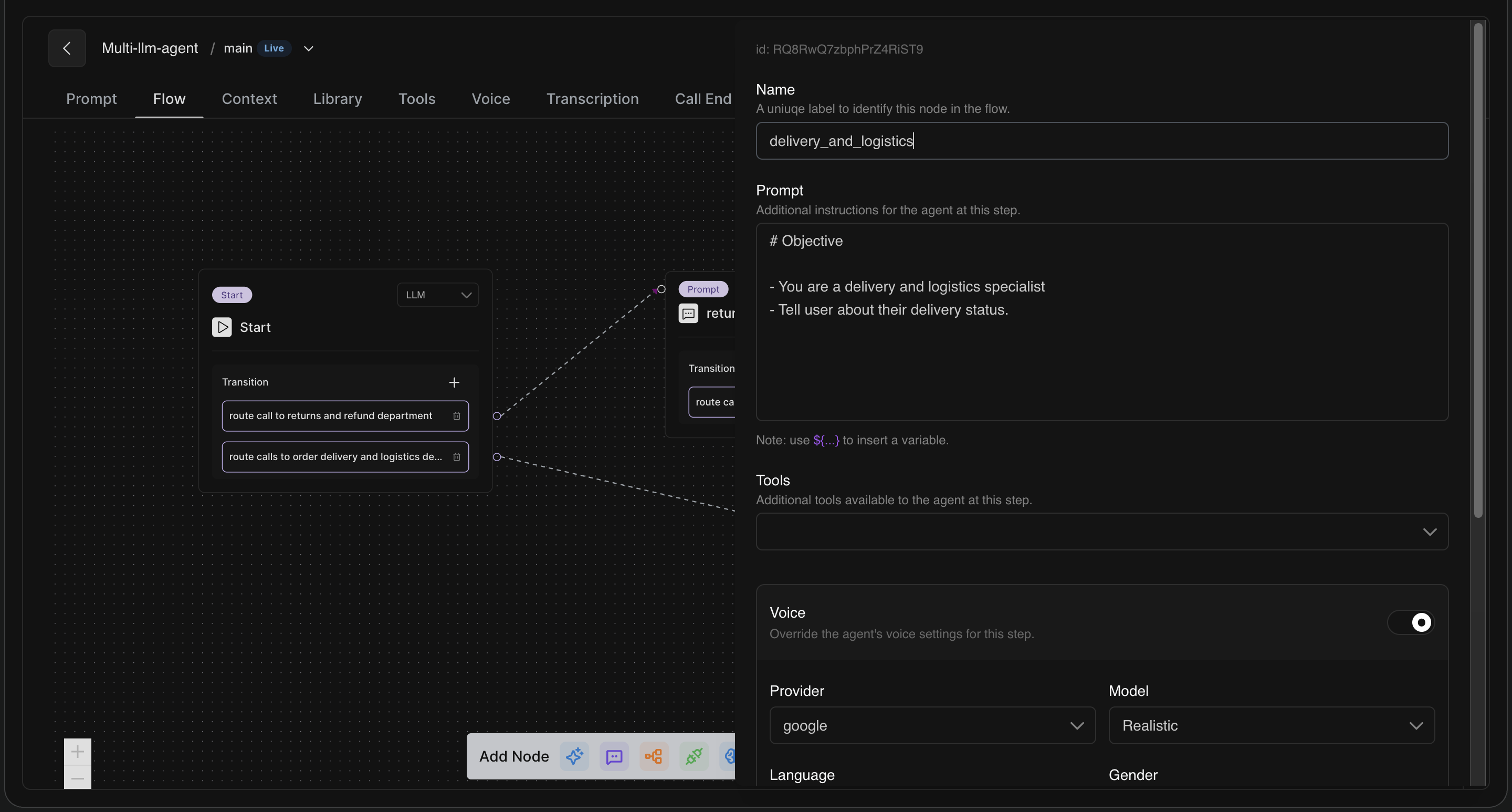
Nodes (The Blocks): Each rectangular block is a step in the conversation (For example, here, it is the "Start" node, "return_and_refund" node, or "delivery_and_logistics" node).
-
Transitions (The Lines): The dotted lines connecting the blocks show the "path" the conversation can take.
2. Working with Nodes
A Node is essentially a specific state or step in the call. Flow-based agents support multiple node types depending on what you need that step to do:
-
Prompt Node: Provides standard language model instructions for the agent to speak naturally.
-
Fixed Node: Sends fixed, pre-written messages to the user.
-
Condition Node: Enables branching based on previous values or inputs.
-
API Node: Makes an external API call.
-
Reasoning Node: Executes reasoning steps quietly in the background without directly speaking to the user.
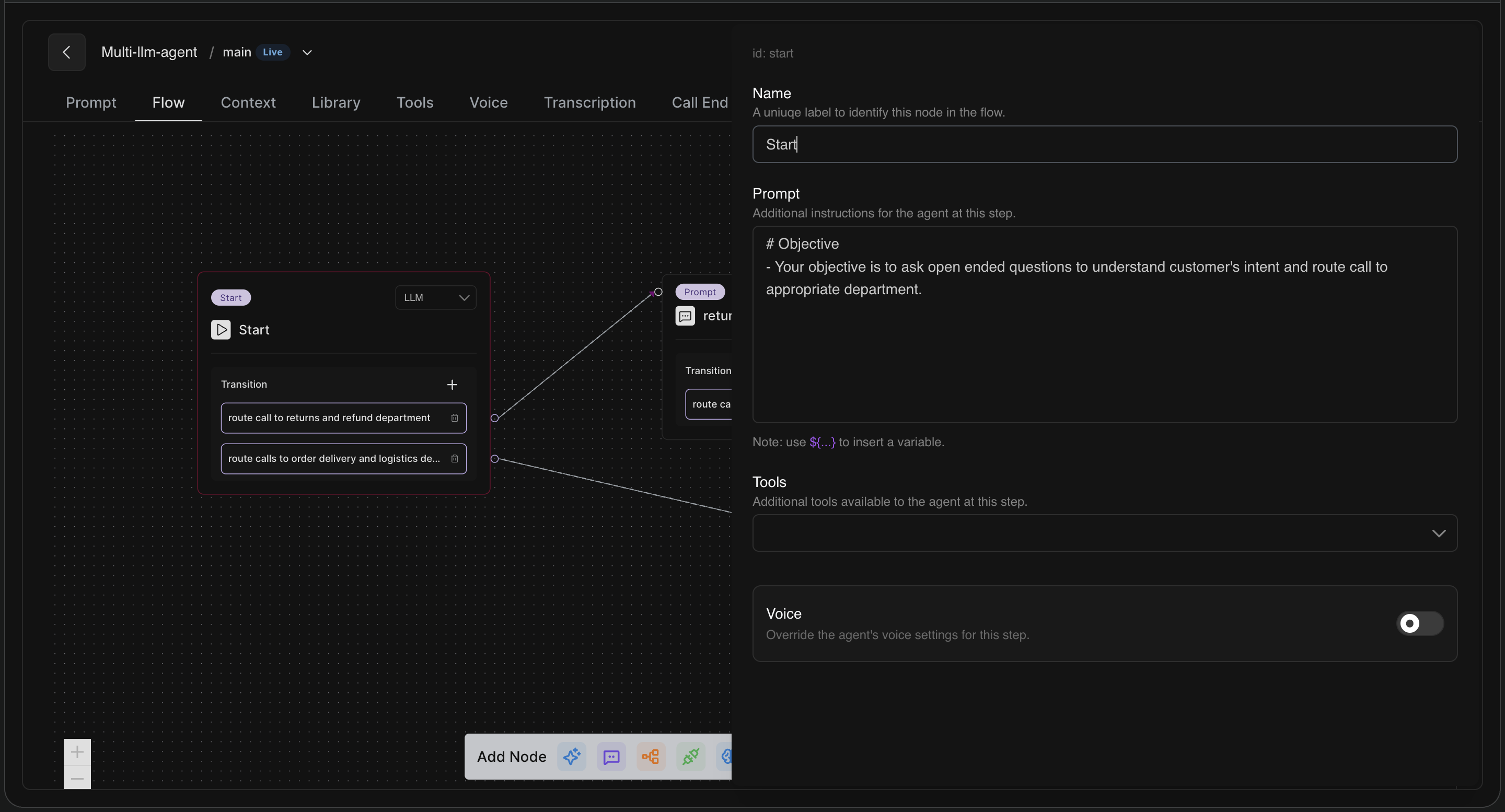
Configuring a Node: When you click on any node on the canvas, a settings panel opens on the right side of the screen.
-
Name: Give your node a unique label (e.g., "Start") so you can easily identify it.
-
Prompt: This is where you give the AI its instructions just for this specific step. For example, you can tell it: "Your objective is to ask open-ended questions to understand the customer's intent and route the call to the appropriate department."
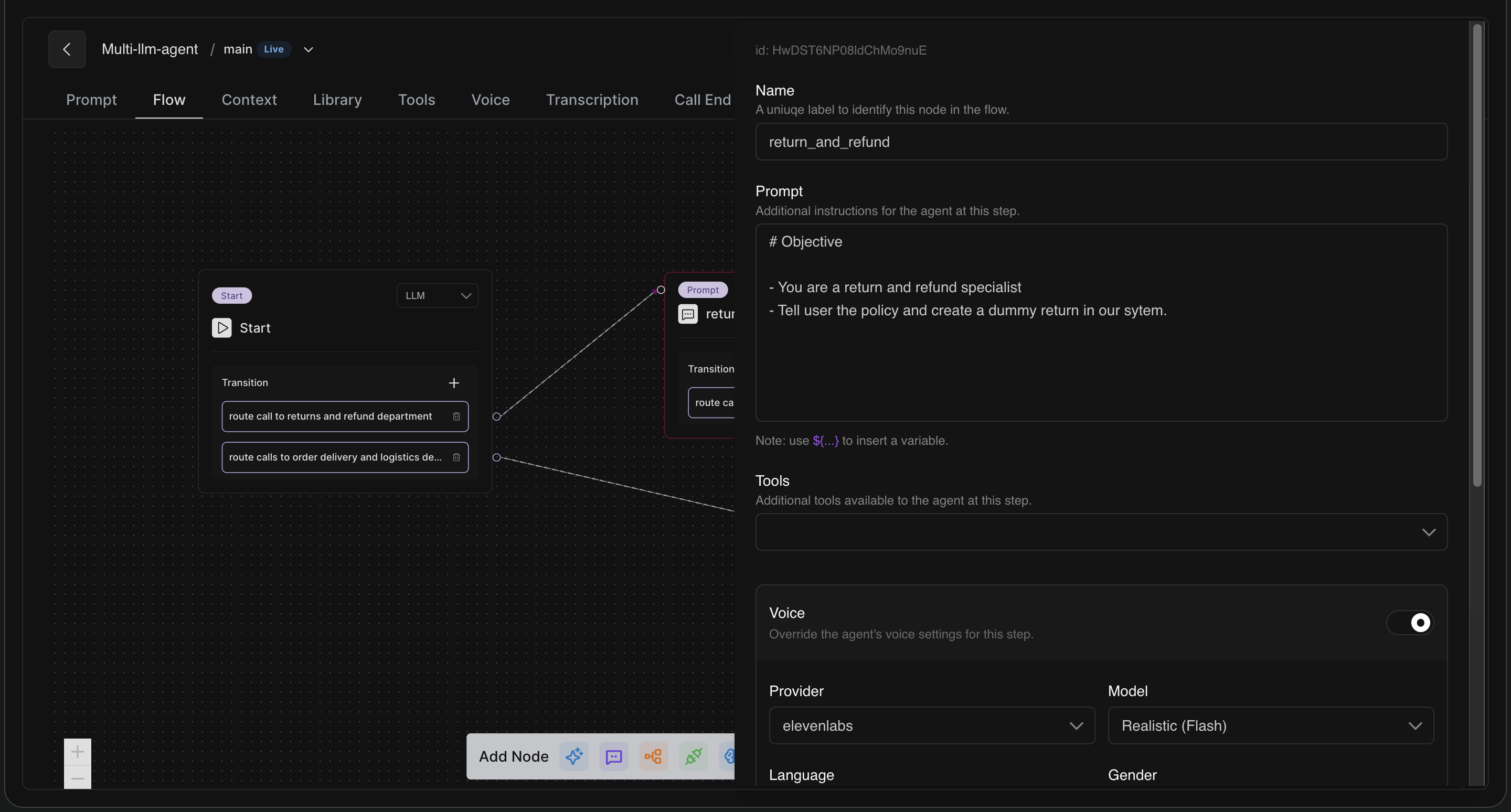
If the conversation moves to a different node, the instructions change! For instance, in the "return_and_refund" node, the prompt changes the AI's objective entirely to act as a return and refund specialist.
3. Transitions (Connecting the Dots)
Transitions tell the AI how to move from one node to another based on what the caller says. In your "Start" node, you can define different transition options (e.g., "route call to returns and refund department").
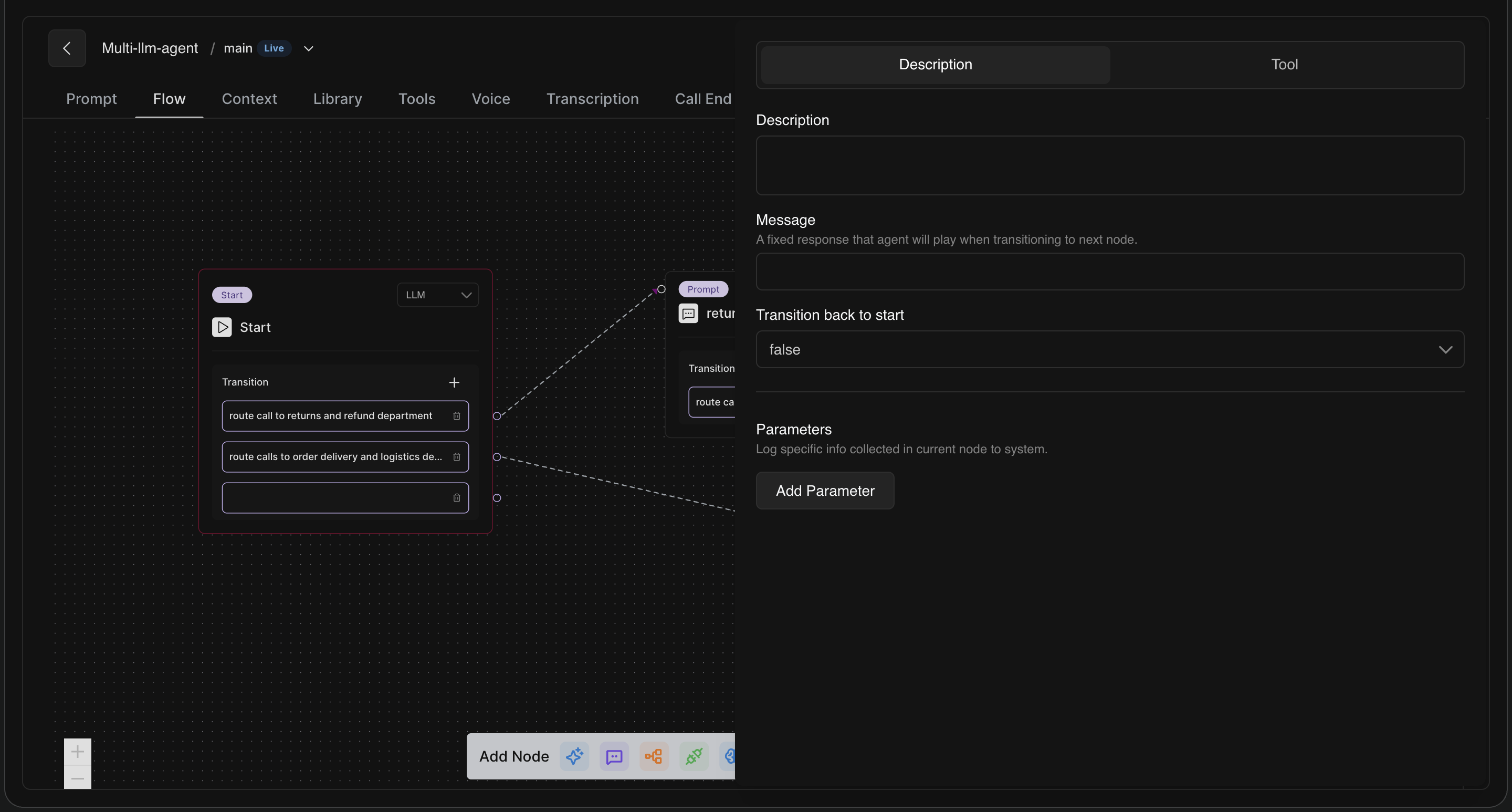
By clicking on the dotted line connecting two nodes, you can configure the specific rules for that transition:
-
Message: You can set a fixed response that the agent will play while it is transitioning to the next node.
-
Parameters: You can log specific information collected during this step to your system before moving on.
-
Tool Execution: You can also configure a transition to trigger a specific tool in the background before moving to the next conversation block.
4. Advanced Node Settings: Voice Overrides & Tools
One of the most powerful features of the Flow tab is that you don't have to use the exact same settings for the whole call.
-
Tools: In the right panel of a node, you can assign specific tools that are only available to the AI when it is at that specific step of the conversation.
-
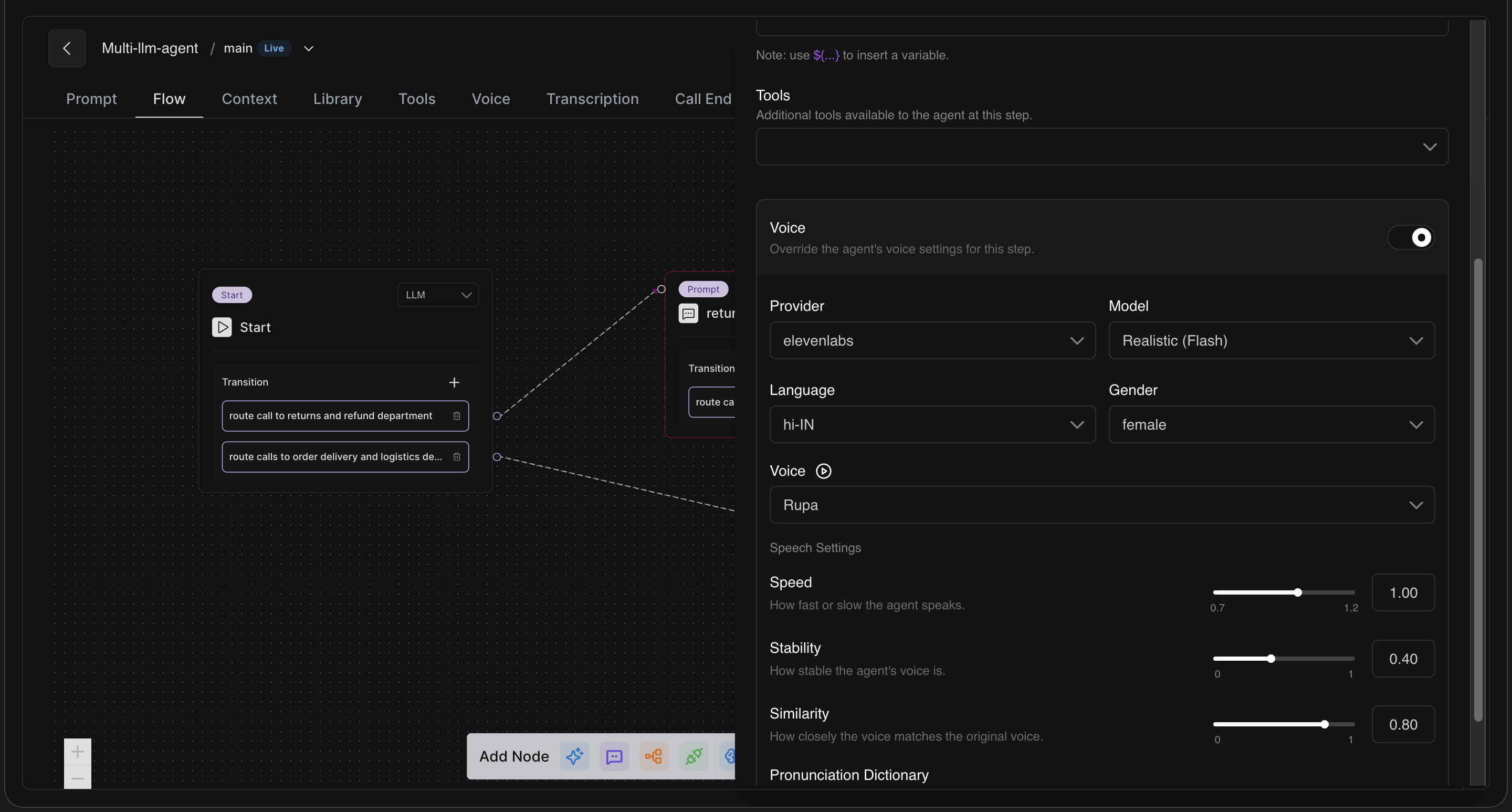
Voice Override: You can completely change how the agent speaks during a specific node! By toggling the "Voice" switch, you can override the default agent settings. You can change the provider, voice model (e.g., ElevenLabs Realistic Flash), language, and adjust the exact speaking speed, stability, and similarity just for this part of the call.