Billing, Pricing & Usage
Billing
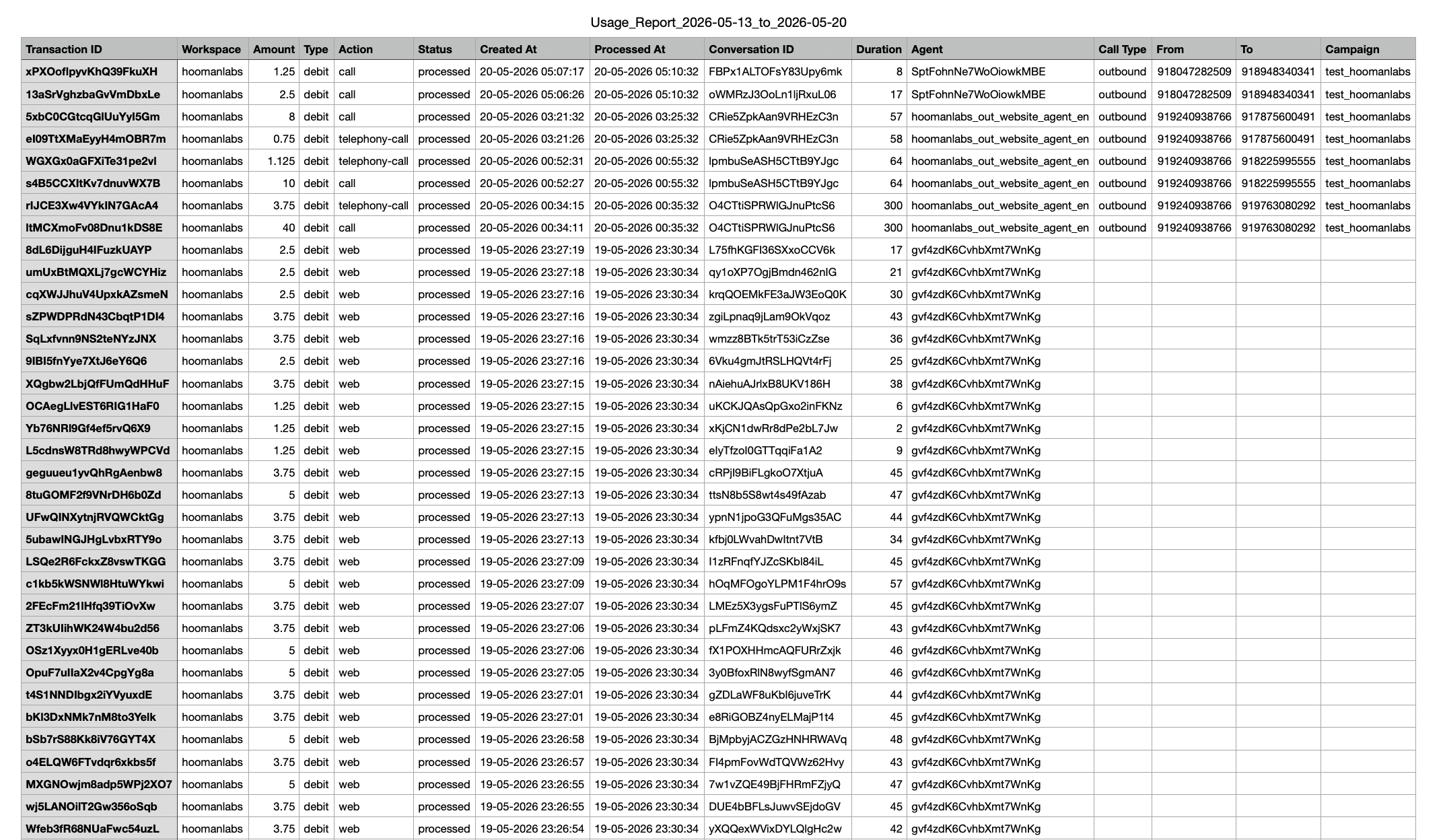
HoomanLabs operates on a prepaid model. When you sign up, a trial organization is created with initial promo credits (₹1000 INR / $12 USD) for testing.
-
Add Credits: Recharge your account balance here.
-
Balance Alerts: It is highly recommended to set up threshold alerts. If your balance drops below these numbers, you will be notified, preventing unexpected service interruptions.
-
Negative Balances: Because usage is calculated every few minutes, if an active call runs long or a monthly phone number rental auto-renews without sufficient funds, your balance may temporarily go negative, pausing new calls. The negative amount will simply be deducted from your next recharge.
-
History: View your recharge history, promo credits, and generate invoices for your accounting team (ensure your GST/tax info is added).
After a recharge, it can take up to 5 minutes for the credits to reflect. Please wait and refresh before contacting support.
Pricing
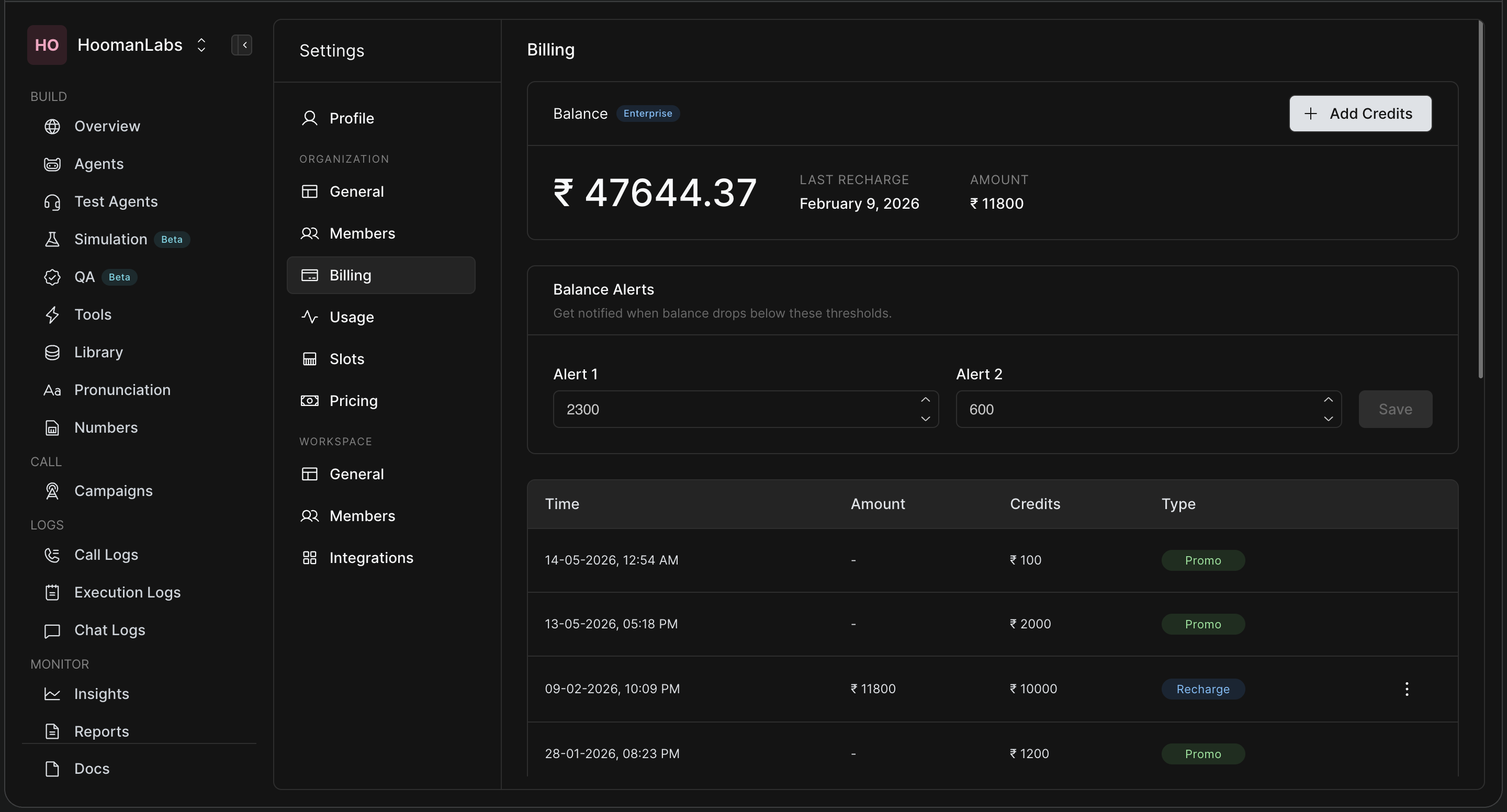
Transparent breakdown of what you are paying for.
-
Voice Agent Pricing: View per-minute costs based on the agent type (Standard, Premium, Fixed).
-
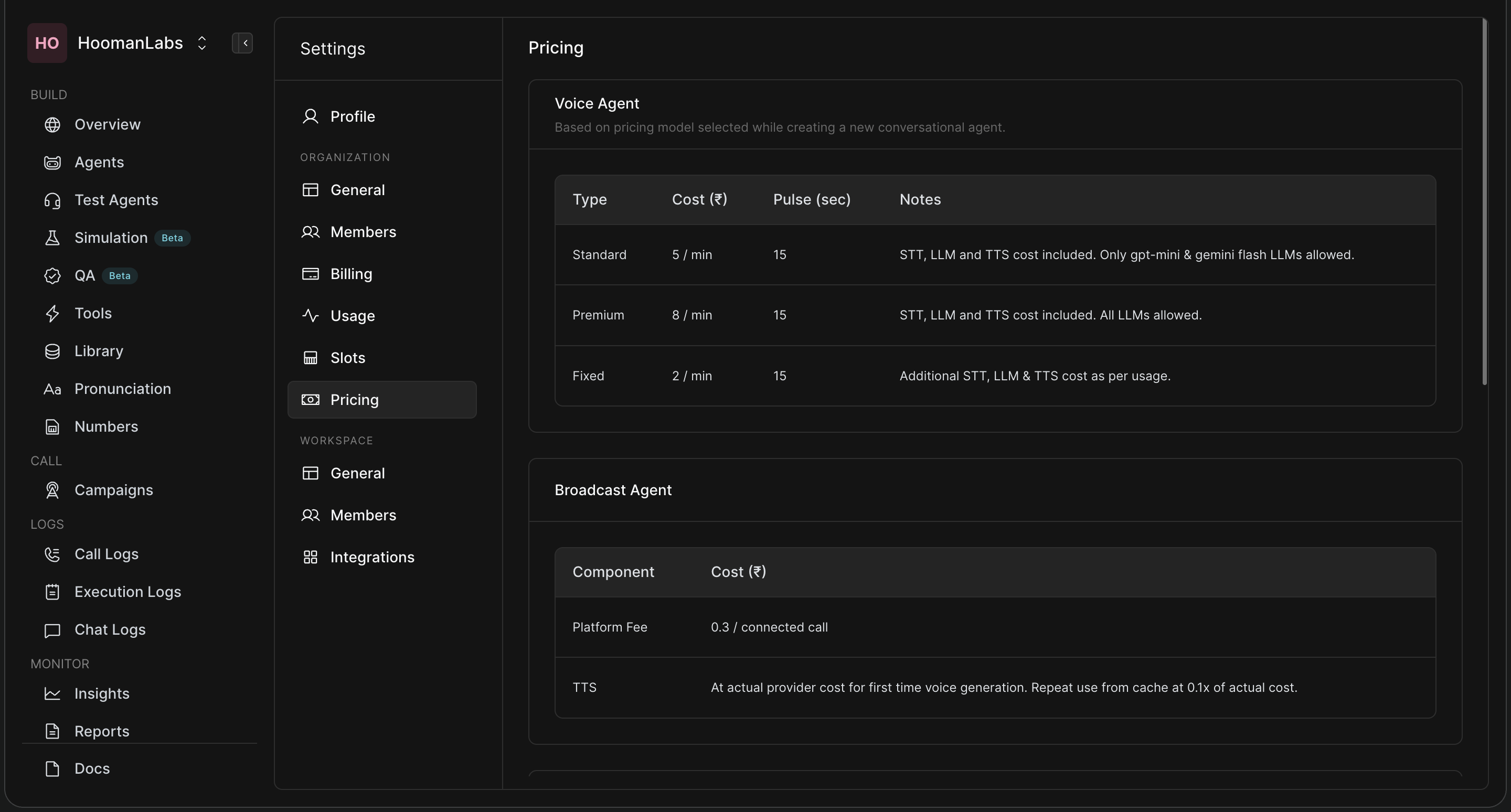
Telephony Costs: View the rates for different providers (Twilio, Plivo, Exotel) and regions, including pulse rates and monthly number rental fees.
-
Cost Calculator: A handy widget at the bottom allows you to estimate the exact cost of a call based on the agent type, telephony provider, and expected duration.
Usage
Track your expenditure in detail.
-
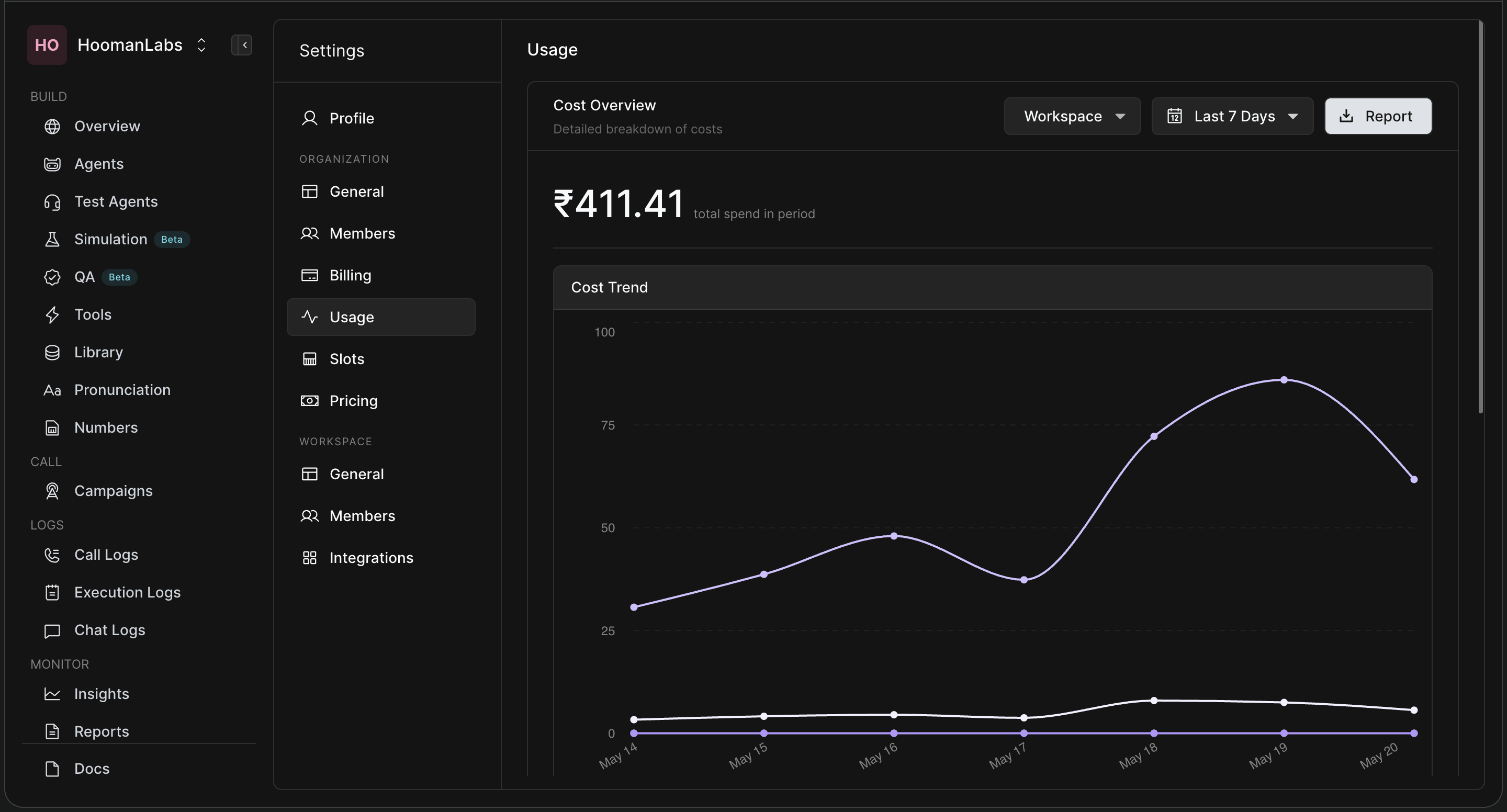
Cost Overview: View a visual graph of your spend trend over time, filterable by specific workspaces and date ranges.
-
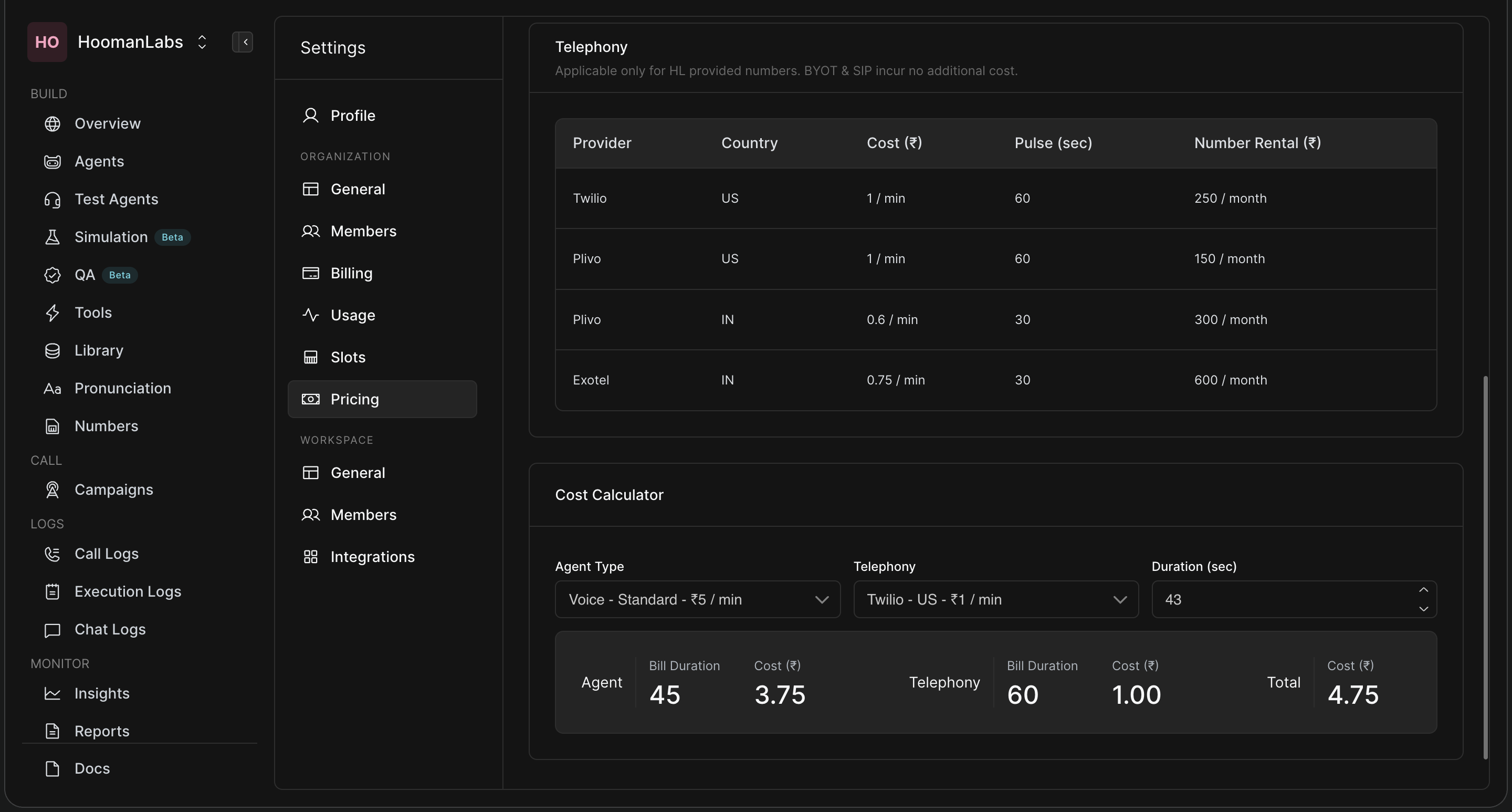
Detailed Reports: Click the Report button to select a date range and download a comprehensive CSV breakdown of every transaction, duration, call type, and agent involved.
Understanding the Detailed Usage Report
When you click the Report button and download your usage data, you will receive a highly granular CSV file. This report breaks down every single transaction and credit deduction on your account.
Here is a breakdown of the key columns to help you audit your spending:
-
Action: This tells you exactly what you are being billed for. You will typically see:
-
call: The cost for the AI Voice Agent's processing time (STT, LLM, TTS). -
telephony-call: The separate cost passed through from the telecom provider (e.g., Twilio, Exotel) for the actual phone line connection. Note: A single phone call will generate two separate line items in this report—one for the agent (call) and one for the connection (telephony-call). -
web: The cost for text or voice interactions happening via a web widget rather than a phone line.
-
-
Conversation ID: A unique string tied to that specific interaction. If you notice a high cost or an anomaly, you can copy this ID and search for it in your Call Logs or Chat Logs to review the exact transcript and recording.
-
Amount: The specific credit value deducted for that single line item.
-
Duration: The length of the interaction in seconds. Note that billing often works on pulse rates (e.g., 15-second or 60-second pulses), so the amount charged is calculated based on this duration mapped against your Pricing settings.
-
Agent & Campaign: Identifies exactly which AI agent handled the interaction and which campaign it belonged to, allowing you to calculate the ROI of specific initiatives.
-
Call Type, From & To: For phone interactions, this shows whether it was inbound, outbound or a web action alongside the source and destination phone numbers.