Twilio
How to Connect a Twilio Telephony Account
Phase 1: Initiate Setup in the Application
-
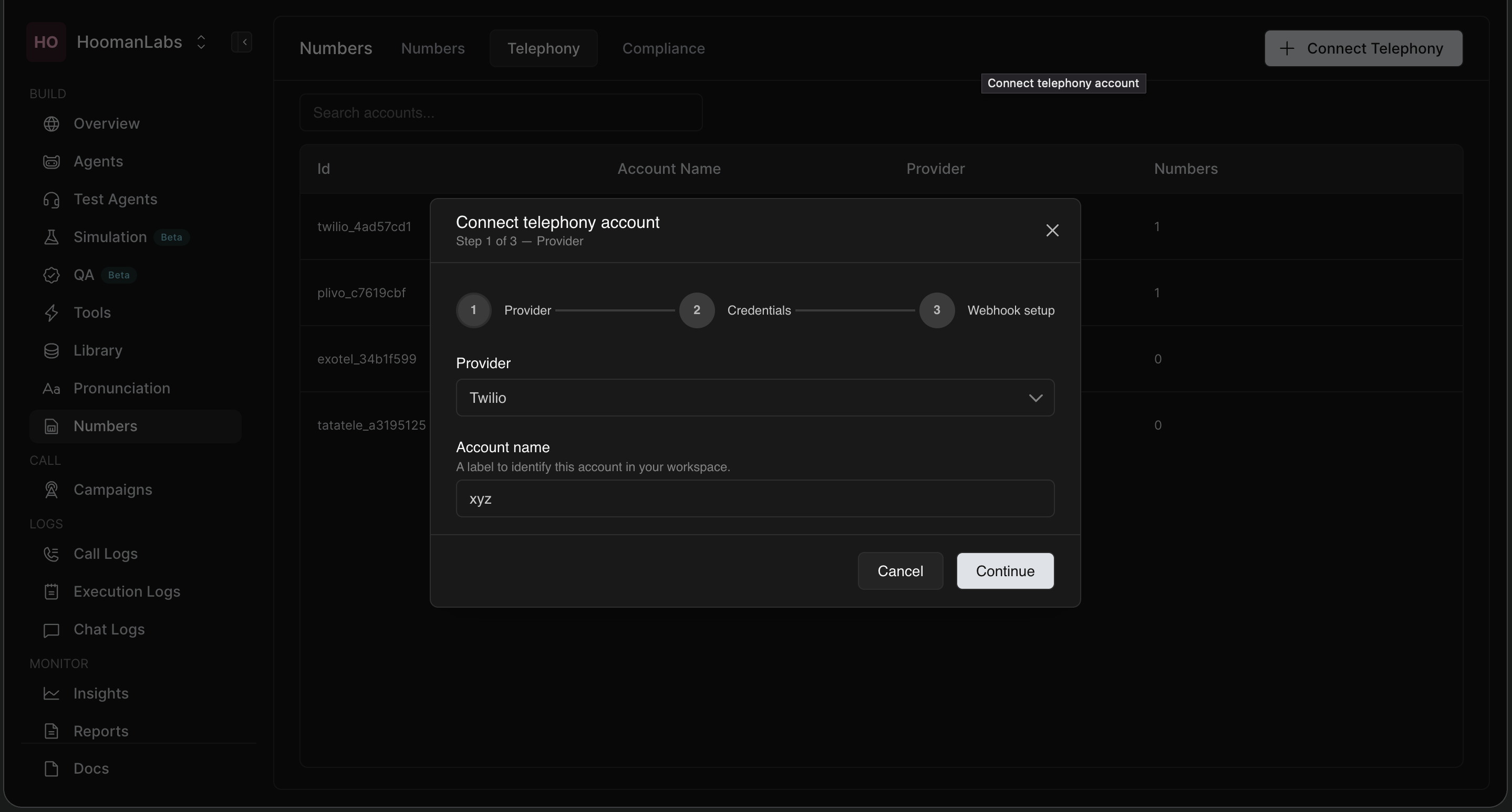
In your workspace, navigate to the Numbers section on the left-hand menu.
-
Click the Telephony tab at the top of the page.
-
Click the + Connect Telephony button in the top right corner.
-
In the modal that appears, select Twilio from the Provider dropdown menu.
-
Enter an Account name (e.g., "xyz" or a descriptive name) to identify this connection in your workspace.
-
Click Continue.
Phase 2: Retrieve Credentials from Twilio
-
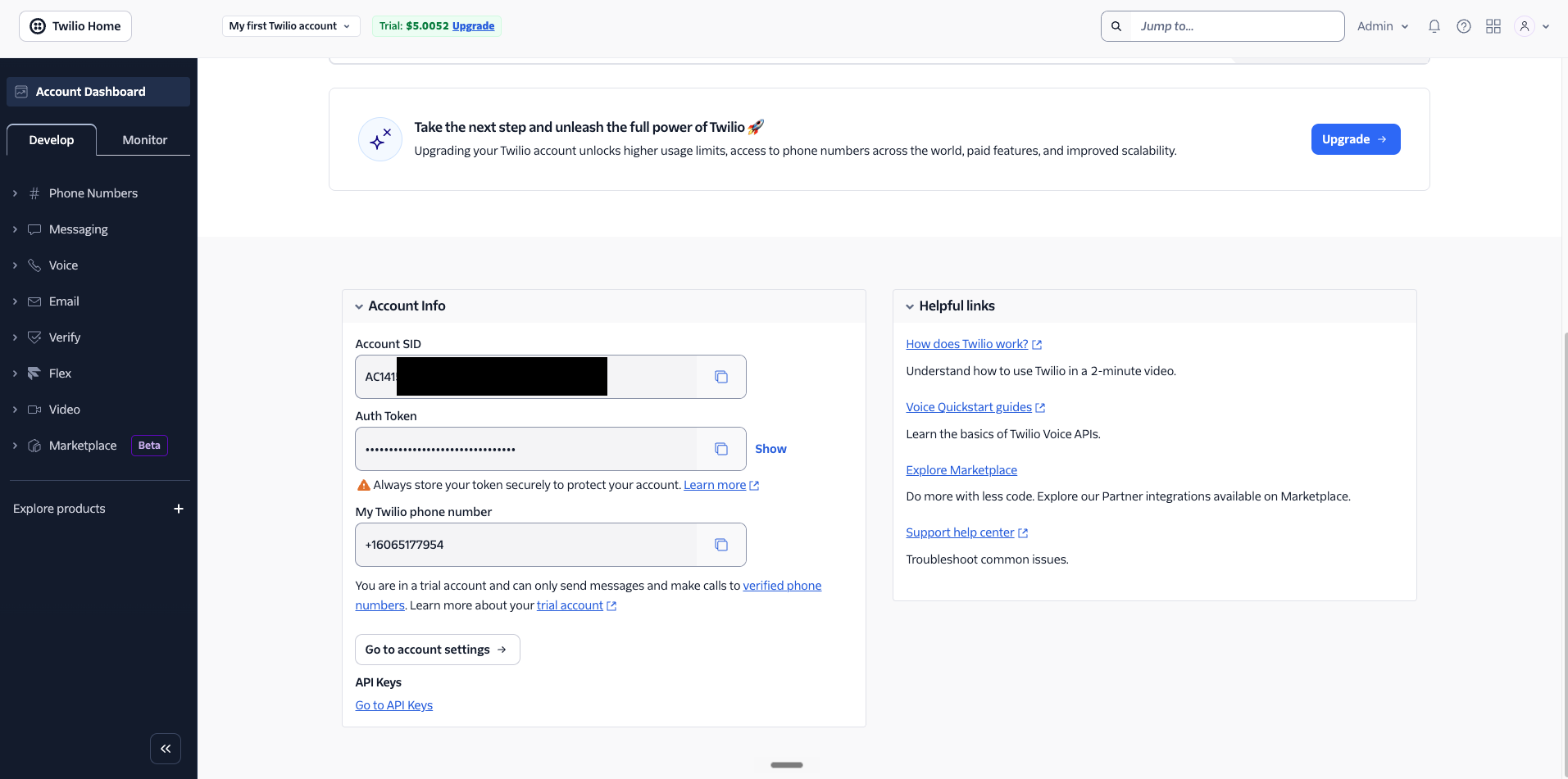
In a separate browser tab, log in to your Twilio Console (console.twilio.com).
-
On your main Twilio dashboard, scroll down to the Account Info section.
-
Locate your Account SID and Auth Token. You may need to click "Show" or a similar eye icon to reveal the hidden Auth Token.
-
Copy both of these credentials.
Phase 3: Finalize the Connection
-
Switch back to your application's setup window.
-
In "Step 2 - Credentials" of the setup modal, paste the Twilio Account SID into the ID field and the Auth Token into the token field.
-
Click Continue (or Connect) to finalize the integration.
Once connected, you will be able to manage your Twilio numbers directly through your workspace!