Call Actions
The Call Actions tab allows you to define webhook actions that trigger automatically based on specific events during or after a call.
This feature enables real-time integration with your business systems. It is typically used to push call details into your CRM, log interactions, create support tickets, or trigger downstream actions like sending a follow-up email or SMS once a call concludes.
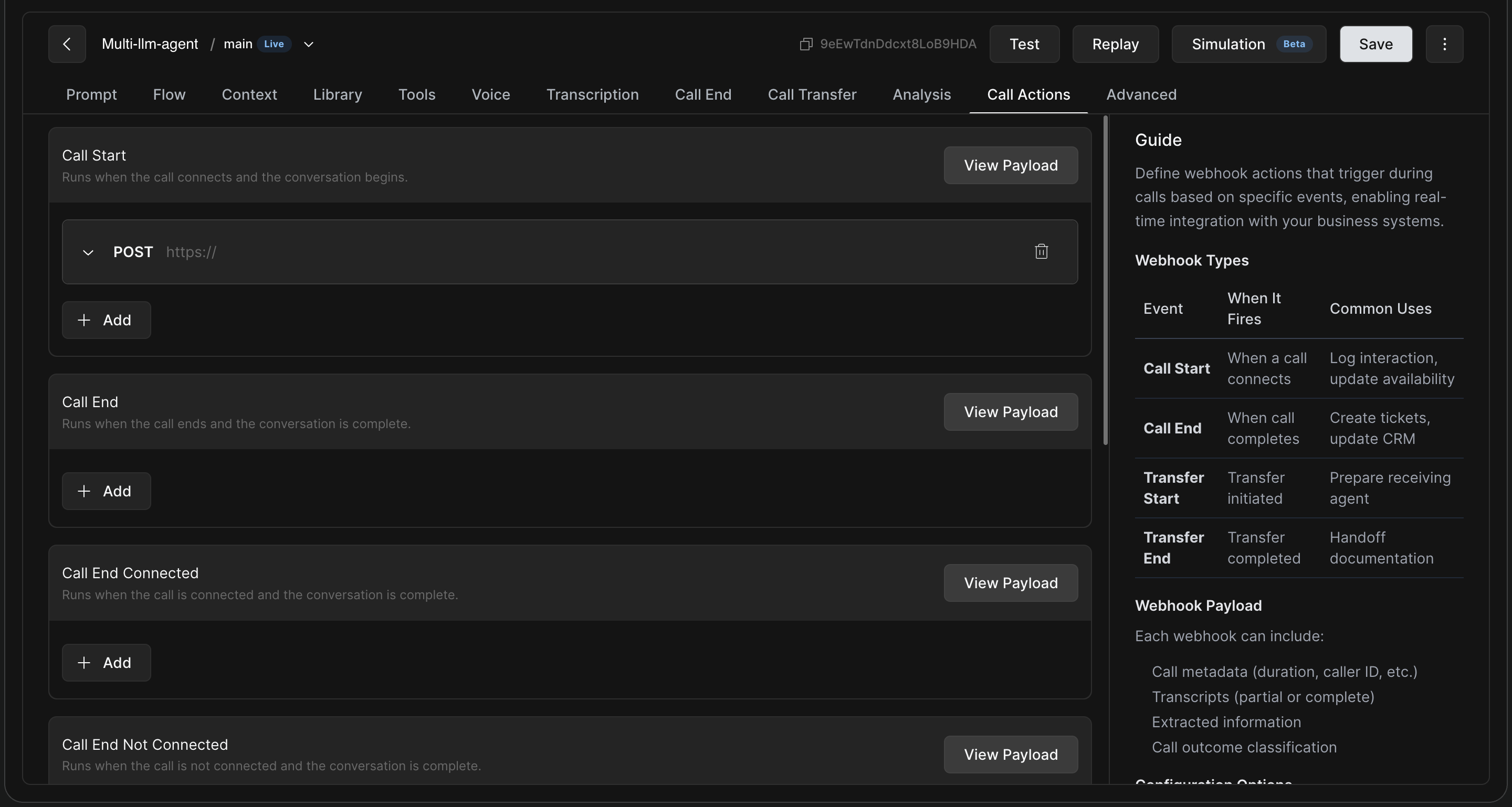
To configure these webhooks, navigate to Agents -> Select Agent -> Call Actions.
1. Choose Your Webhook Event
Unlike the old system which only triggered after a call, you can now set up multiple actions tied to specific moments in the call lifecycle. Click + Add under any of the following events to create a new webhook:
-
Call Start: Runs the moment the call connects and the conversation begins.
-
Call End: Runs when the call ends, regardless of whether it connected or not.
-
Call End Connected: Runs only when a call was successfully connected and the conversation is complete.
-
Call End Not Connected: Runs only if the call was not connected (e.g., failed, busy, no answer).
-
Transfer Start: Runs when the transferred call is picked up by the receiving party.
-
Transfer End: Runs when the transfer is complete and the call has ended.
2. Configure the Endpoint Details
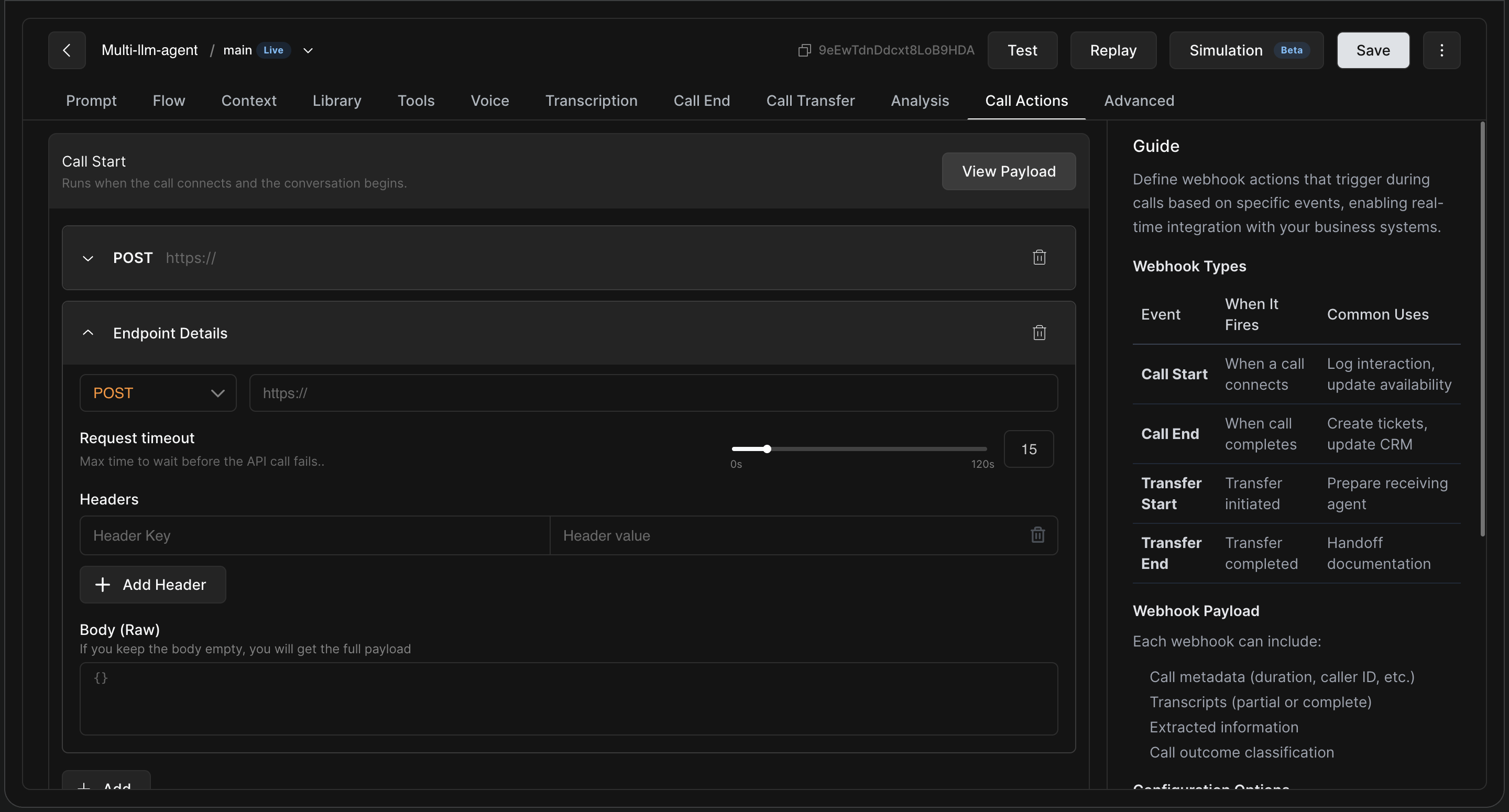
Once you add an action, expand the Endpoint Details section to define how HoomanLabs communicates with your server:
-
Method: Select the HTTP verb (
GET,POST, orPUT) expected by your endpoint. -
URL: Enter your full endpoint URL (e.g.,
https://api.example.com/hook). You can append query parameters here using variables, like?id=${callInfo.callSid}. -
Request Timeout: Use the slider to set the maximum wait time (in seconds) before HoomanLabs gives up on the request. The default is 15 seconds.
-
Headers: Add any necessary HTTP headers. If you are sending a JSON payload, you must include
Content-Type: application/json. Add any required authorization tokens here as well.
3. Customising the Payload
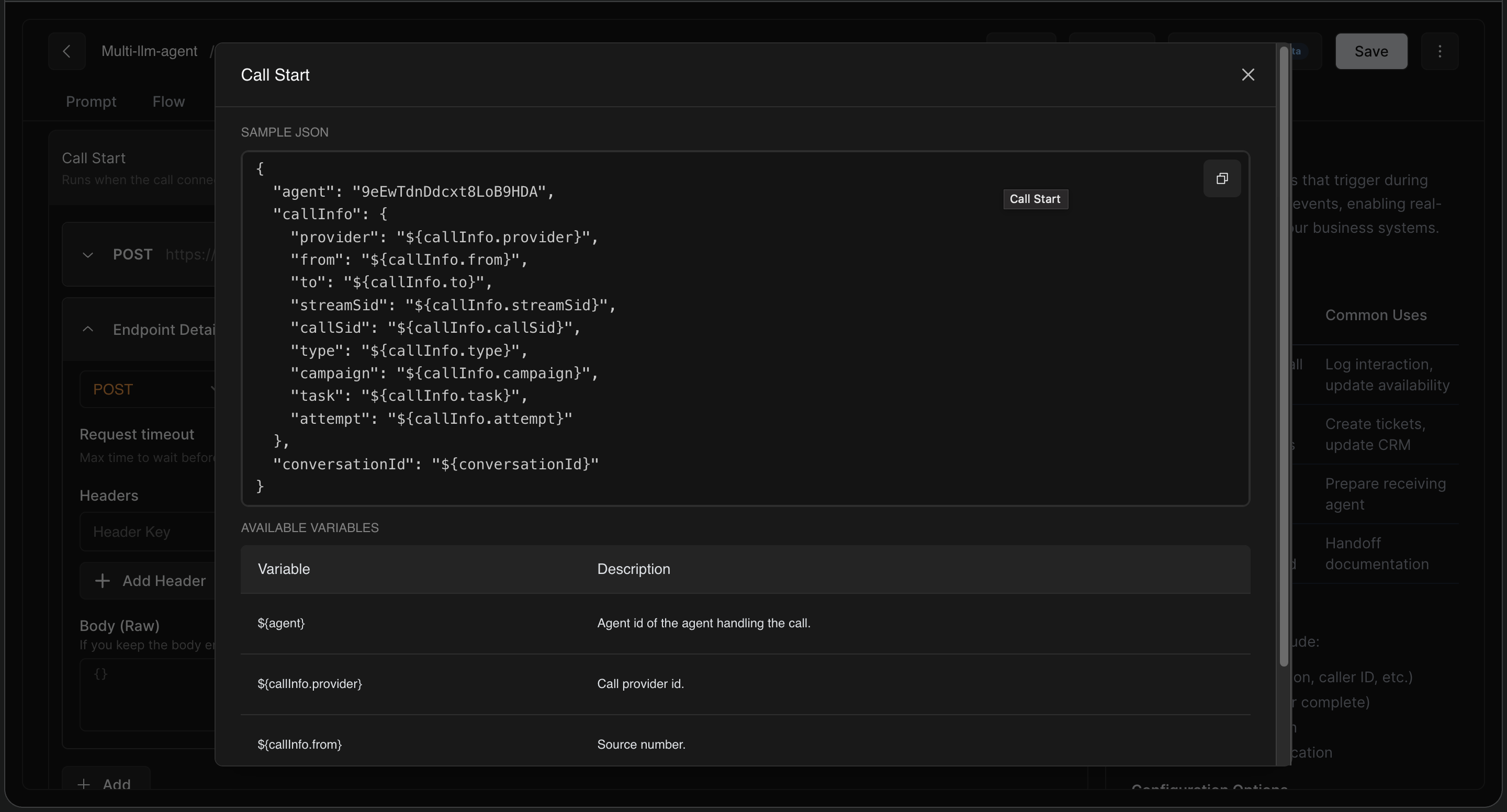
You can pass specific call data to your endpoint using the Body (Raw) field.
How to reference variables: Click the View Payload button next to your chosen event to see a sample JSON structure and a list of all available variables for that specific moment in the call.
-
Wrap variable names with
${ }(e.g.,${duration}). -
Use dot
.notation for nested values (e.g.,${analysis.results.summary}). -
Values are stringified by default, so omit quotes for numbers or booleans if constructing custom JSON.
Default Behavior: If you leave the Body (Raw) field completely empty, HoomanLabs will automatically send the entire default payload object to your endpoint.
Key Variables Available at Call End
When configuring end-of-call actions, you have access to a rich set of data. Any property can be referenced in the URL, headers, or body:
Key Variables Available at Call End
When configuring end-of-call actions, you have access to a rich set of data. Any property can be referenced in the URL, headers, or body:
|
Variable |
Description |
|
|
Call summary, structured data, transfer details, or input params of tool calls. (Replace |
|
|
Call metadata: from/to numbers, type (inbound/outbound), recording URL, callSid, endReason. |
|
|
All context variables passed in the task, Pre-Call API, and system defaults. |
|
|
The final outcome/disposition of the call (combined output of system-defined and LLM-defined outcomes). |
|
|
Agent talk time in seconds. |