Conversational Logs
Overview
Whether your agent interacted with a customer via an audio call or a text-based web chat, every interaction is securely tracked, transcribed, and analyzed in this centralized tab.
1. The Conversational Logs Dashboard
To view your history, look under the LOGS section on the left-hand menu and click Conversation Logs. You will be greeted by the master tracking table.
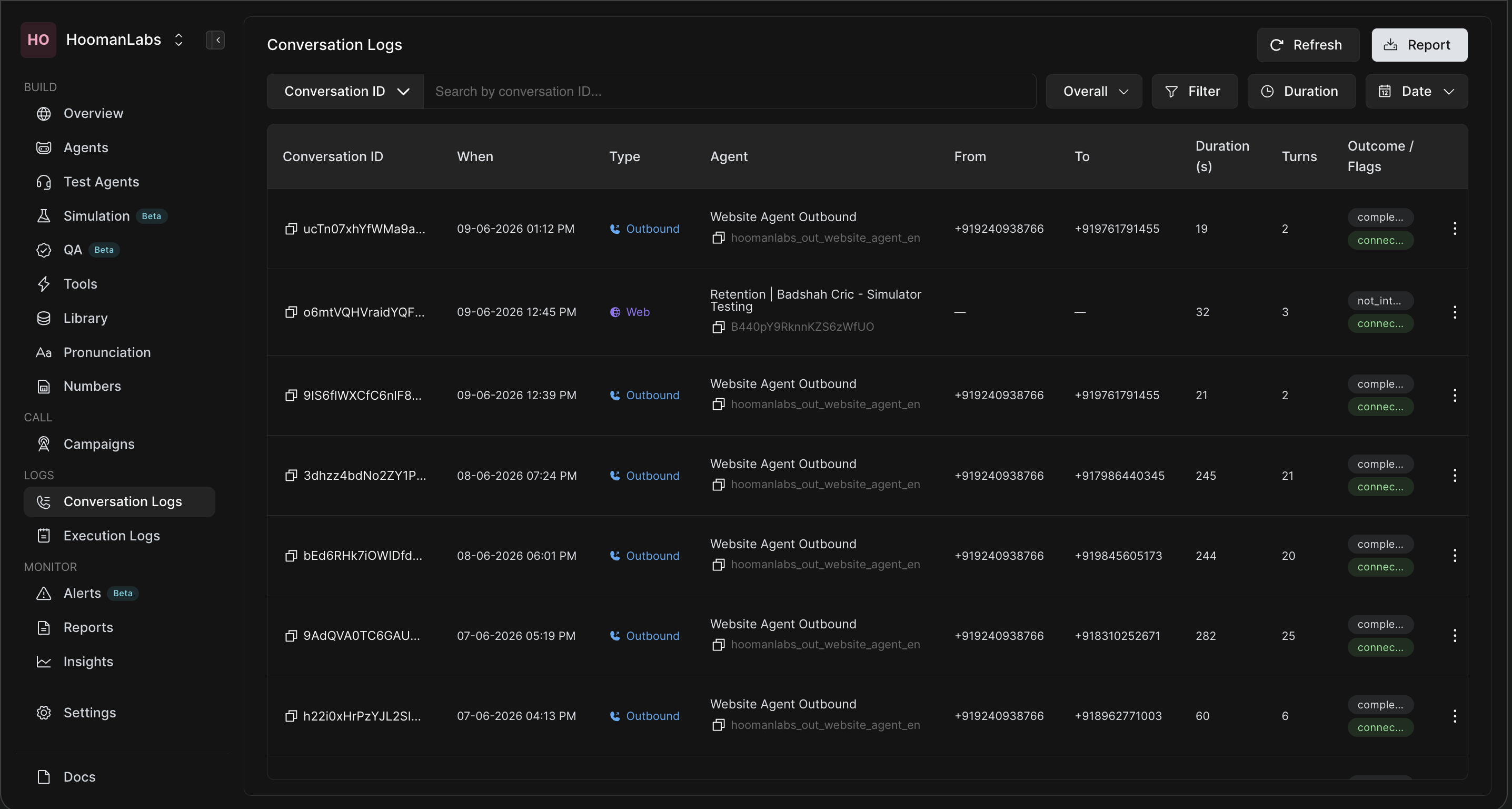
This table provides a high-level summary of every interaction:
-
Conversation ID: The unique cryptographic tracking code assigned to that specific session.
-
When: The exact timestamp showing when the conversation took place.
-
Type: The channel medium used. This displays explicit visual tags such as Outbound (with a phone icon) or Web (with a purple globe icon for web-based communications).
-
Agent: The name of the specific AI agent profile that handled the interaction.
-
From / To: The originating and destination endpoints (e.g., phone numbers involved in the call).
-
Duration (s): The total length of the interaction measured in seconds.
-
Turns: The total number of back-and-forth dialogue exchanges between the user and the AI agent.
-
Outcome / Flags: Instant color-coded tags summarizing how the conversation concluded (e.g.,
completed,not_interested,connected).
2. Searching and Filtering Logs
With large volumes of traffic, finding a specific conversation is straightforward using the control tools located across the top navigation bar.
Channel Type Dropdown
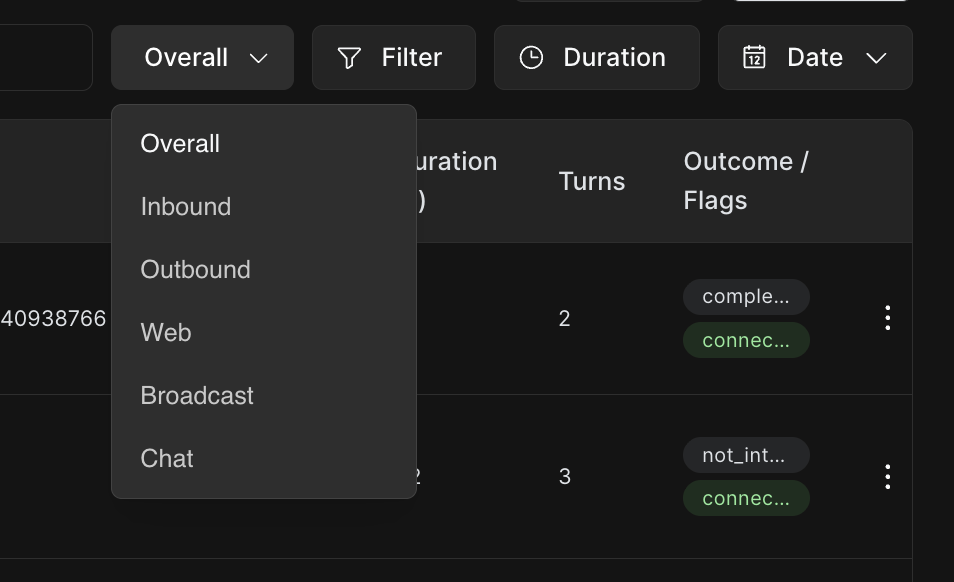
Filter your entire dashboard based on the mechanism of communication. Clicking the default Overall button opens a dropdown to isolate specific types:
-
Overall: Shows all logs.
-
Inbound / Outbound: Isolates telephony-based calls by direction.
-
Web / Chat: Isolates text-based simulator runs and web-widget interactions.
-
Broadcast: Displays mass-campaign outreach logs.
Advanced Filters
Click the Filter button to display configuration settings. Here, you can filter rows by selecting individual checkboxes for specific Agents or grouping by precise conversation Outcomes.
Duration Thresholds
Click Duration to establish minimum and maximum time filters. This lets you quickly screen out short accidental hangups (e.g., calls under 5 seconds) or examine unusually long customer sessions.
Date and Time Range Picker
Click Date to narrow your search to specific windows. You can select standard historical presets (such as Today, Yesterday, Last 24 hours, Last 7 Days, This month) or use the calendar pop-up to pin down custom start and end dates with exact hour and minute time boundaries.
3. Deep-Diving Into an Individual Conversation
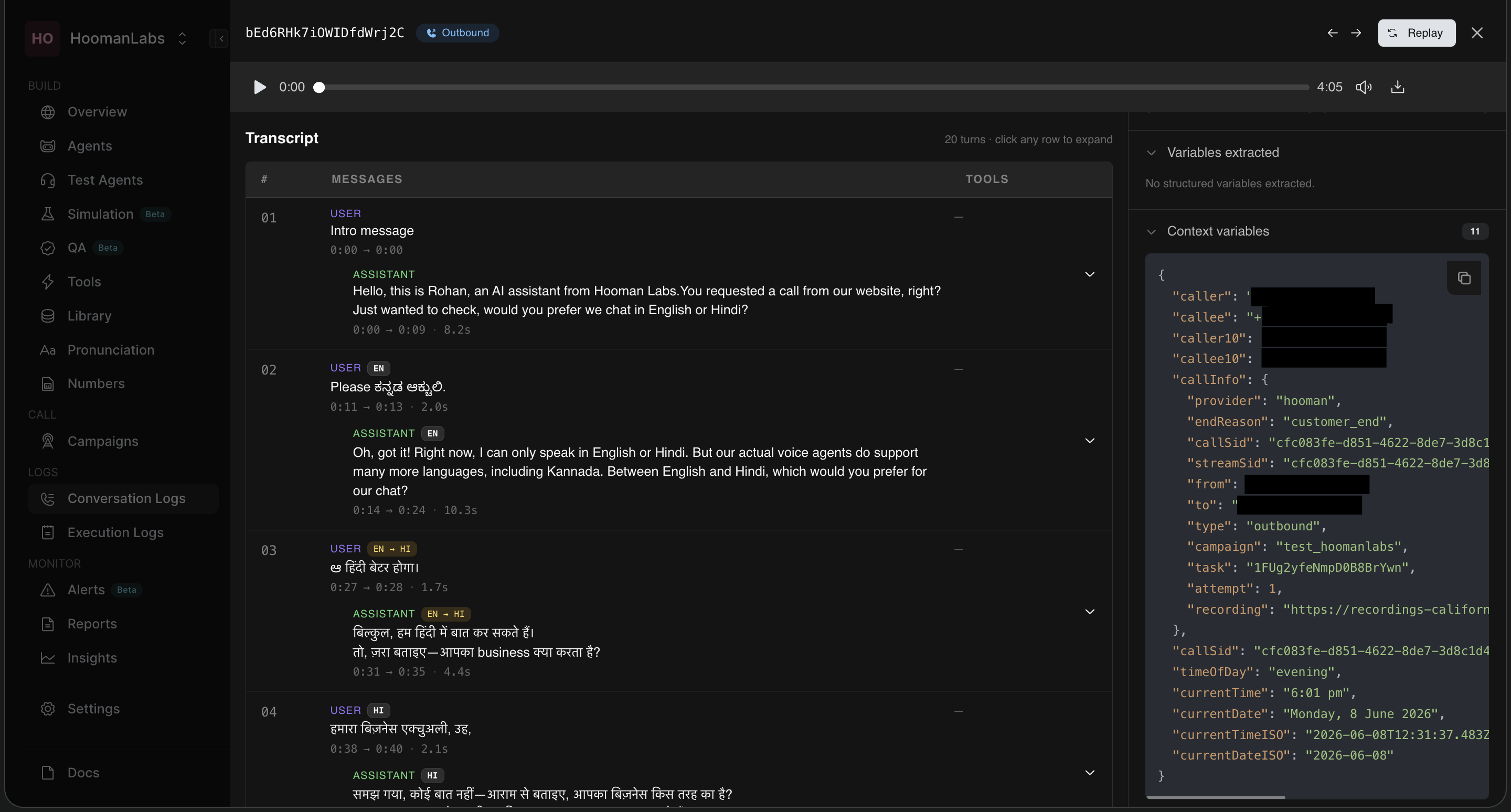
Clicking on any log entry row in the dashboard opens a detailed, multi-panel review workplace designed for diagnostics, auditing, and optimization.
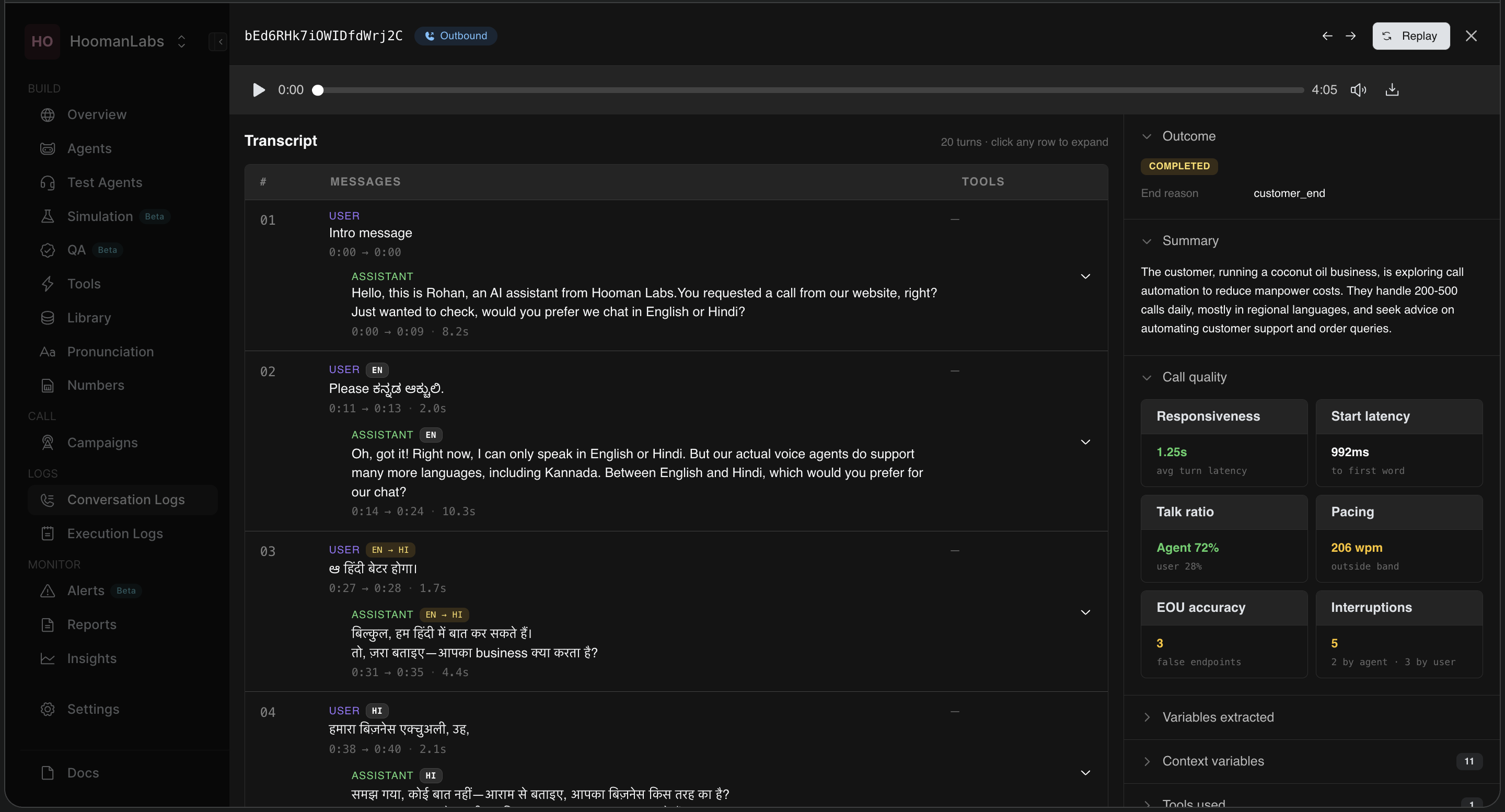
The Transcript Workspace (Left Panel)
This area presents the sequential chat or voice conversation script layout.
-
Each block is tagged by the speaker (
USERorASSISTANT) alongside precise conversation timers. -
Multilingual Language Tags: The system automatically identifies spoken languages turn-by-turn, displaying convenient contextual tags (such as
ENfor English,HIfor Hindi, or combinedEN-HImatrices) indicating if a customer code-switched or mixed languages mid-sentence.
Smart Analysis & Call Quality (Right Panel)
The collapsible right-hand workspace organizes post-call intelligence into clean metrics:
-
Outcome: Displays the final state of the interaction (e.g.,
COMPLETED) along with the specific technical end reason (customer_end,agent_dropped, etc.). -
Summary: A concise, automatically generated overview capturing the customer’s business context, explicit requests, and the logical resolution path.
-
Call Quality Scorecard: Evaluates performance parameters across critical categories:
-
Responsiveness: The average turn latency taken by the agent to respond.
-
Start Latency: The precise time delay before the very first word was spoken.
-
Talk Ratio: A breakdown percentage displaying how much the agent spoke versus the customer.
-
Pacing: Measured in words per minute (wpm), highlighting whether the delivery fell safely inside or outside natural conversational thresholds.
-
EOU (End of Utterance) Accuracy & Interruption Counters: Tracks false endpoints and counts user vs. agent interruptions to help fine-tune voice activity detection.
-
Context Variables and Metadata
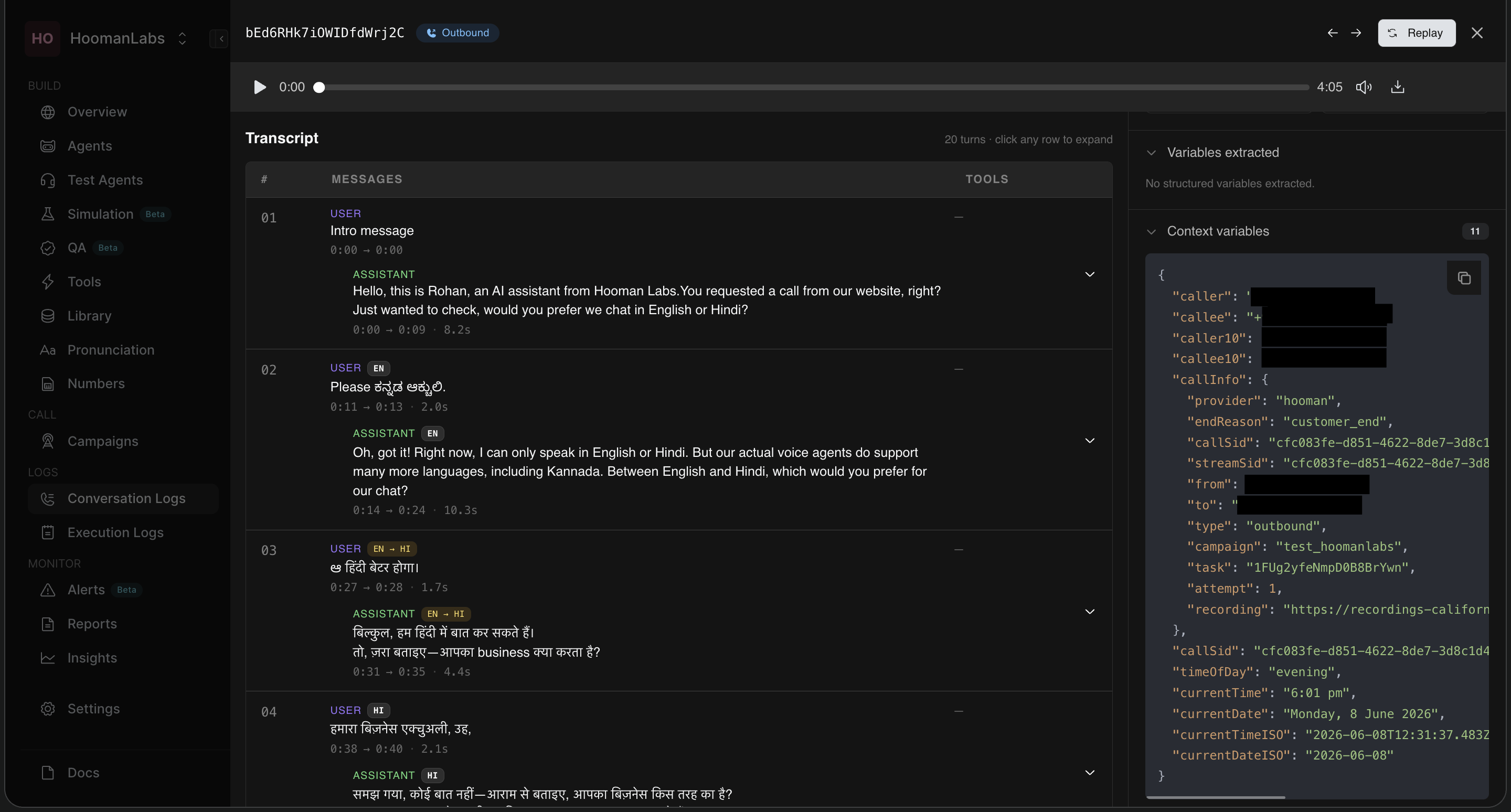
Scrolling down the right analysis workflow exposes deep system data:
-
Context Variables: A raw JSON code editor view mapping system variables utilized during execution. This includes caller/callee indices, unique
callSidIDs, custom CRM recording endpoints, and regional ISO date/time configurations.
-
Tools Used: Lists the specific background functions or integration paths triggered by the agent during the interaction (e.g., tracking an
end_calltool firing with execution timing logs). -
Metadata: Essential platform logs detailing underlying developer fields such as channel profiles, campaigns, directions, and precise temporal markers.