Agent Configuration (new)
This section provides a high-level overview of how to create and configure a voice agent on Hooman Labs to handle phone calls. Agents can be set up to follow a simple conversational prompt or utilize a more advanced flow system.
1. Creating a New Agent
To get started with a new agent:
-
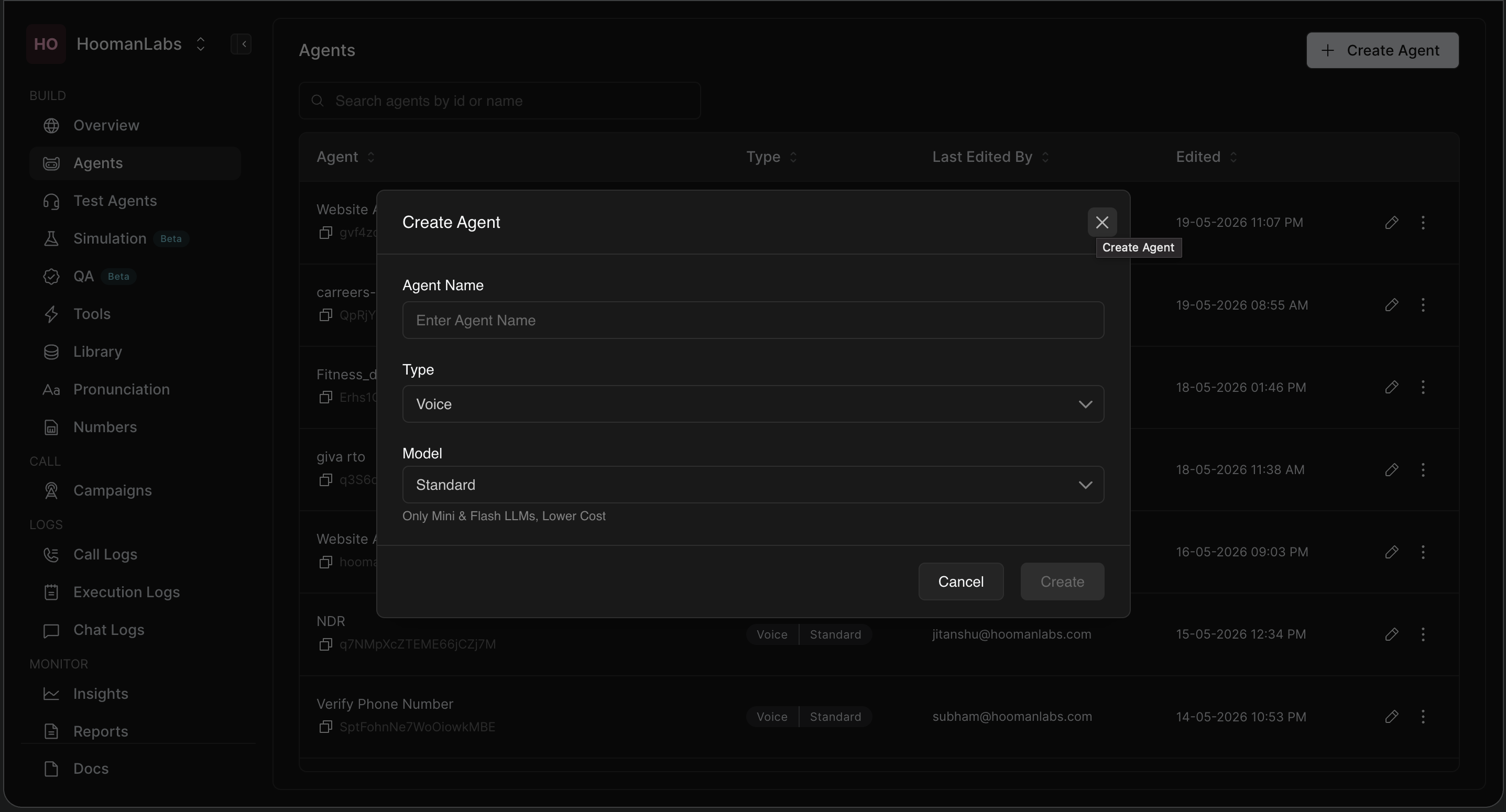
Navigate to Agents from the left-hand Build menu and click + Create Agent in the top right corner.
-
Enter the Agent Name.
-
Select the Type (e.g., Voice).
-
Select the Model tier:
-
Standard: Utilizes smaller models (e.g., Mini & Flash LLMs) for lower cost.
-
Premium: Utilizes more capable models for complex conversations.
-
-
Click Create to begin configuring the agent.
2. Configuration Tabs
Once an agent is created, you configure its behavior using the top navigation tabs. The new interface groups settings logically across the following sections:
2.1 Prompt
The core workspace for single-prompt agents or the baseline persona for your agent.
-
Intro Message: Define the opening line the agent speaks when the call connects.
-
Delay before speaking: Adjust the slider (0.0s to 10s) to set how long the agent waits before delivering the intro message.
-
Interruptions: Toggle on/off to allow or prevent users from interrupting the intro message.
-
Prompt: Write the detailed base instructions (supports Markdown). Define the agent's role, persona, tone of voice, knowledge boundaries, and how to handle edge cases.
-
LLM Model & Temperature: Select the specific LLM based on capability needs and adjust the temperature (e.g., 0.1-0.3 for more consistent, focused responses).
2.2 Flow
Use this tab for building a flexible flow system where each step (node) can have its own prompt, tool, or transition logic. Ideal for branching conversations with multiple stages.
2.3 Context, Library & Tools
-
Context: Set up system-wide context or variables.
-
Library: Attach reference documents the agent can use to pull information (RAG).
-
Tools: Enable tools the agent can trigger during the conversation (e.g., calculators, specific API connectors).
2.4 Voice & Transcription
-
Voice: Manage how the agent speaks, including TTS model, voice selection (accent/gender), speed, and pitch tuning.
-
Transcription: Control how speech is converted to text, including STT model selection and endpoint logic.
2.5 Call Operations (Call End & Call Transfer)
-
Call End: Configure how and when a call should naturally terminate, including the end prompt and message.
-
Call Transfer: Set rules and conditions for when the AI should route the call to a human agent.
2.6 Analysis
Enable post-call analytics to automatically generate a Call Summary, determine the Outcome, and extract specific structured information from the conversation.
2.7 Call Actions
Manage external data exchanges. Configure webhooks and API calls to fetch customer-specific context before a call begins, or to push call summaries, outcomes, and data to your CRM/backend after the call ends.
2.8 Advanced
Control operational behaviors such as Idle Settings (inactivity timeouts), Voicemail Detection, and Max Call Duration limits.
3. Testing and Saving
The new interface provides built-in tools at the top right of the screen to validate your configuration before it goes live.
-
Save: Click to save your current configuration to the active branch (e.g.,
main Live). -
Test / Simulation (Beta): Use these tools to run test conversations against your prompt and flow settings.
-
Replay: Review past test executions.