Advanced Settings
The Advanced tab lets you fine-tune how your agent behaves in edge cases like voicemails, user silence, and maximum call lengths. These safeguards help keep calls concise, professional, and cost-effective.
To access these settings, navigate to Agents -> Select Agent -> Advanced.
1. Voicemail Detection
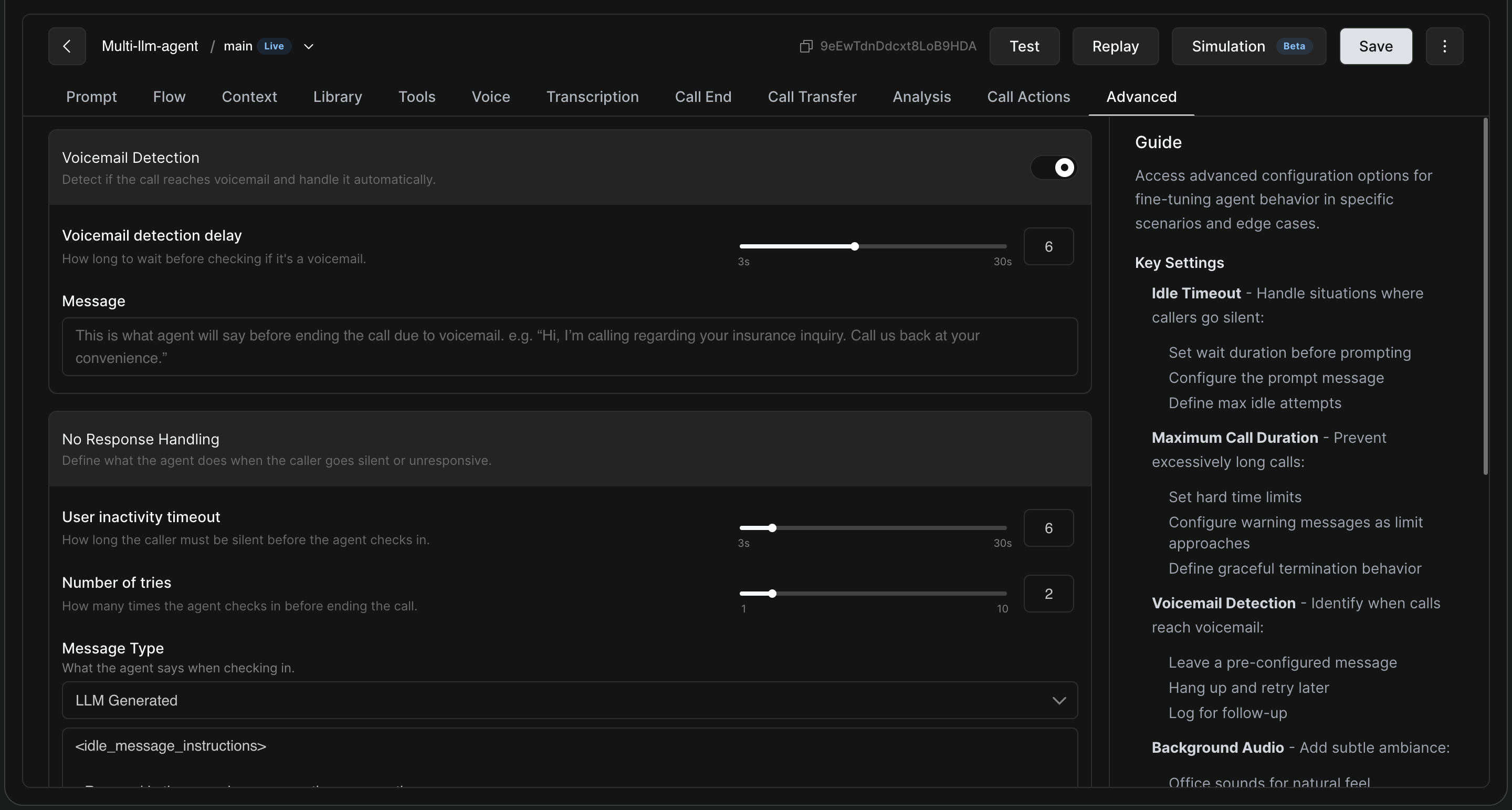
Automatically detect if a call reaches a voicemail or answering machine and handle it gracefully to save time.
-
Voicemail Detection: Toggle the switch to enable an ML model that listens at the start of the call to identify automated greetings.
-
Voicemail Detection Delay: Use the slider to set how long (in seconds) the agent should wait and listen before making the decision (ranging from 3s to 30s).
-
Message: Define exactly what the agent should say before hanging up (e.g., "Hi, I'm calling regarding your insurance inquiry. Please call us back at your convenience.").
2. No Response Handling (Idle User)
Define what the agent does when the caller goes completely silent or unresponsive. This prevents the AI from waiting indefinitely.
-
User Inactivity Timeout: Use the slider to set how long (in seconds) the caller must be silent before the agent triggers an idle check-in. Tip: Give users breathing room. Very low timeouts (under 5s) feel abrupt.
-
Number of Tries: Use the slider to define how many times the agent will attempt to re-engage the user before ultimately ending the call.
-
Message Type: Choose how the agent responds.
-
Fixed: Play a specific pre-written message (e.g., "Are you still there?").
-
LLM Generated: Provide specific instructions (using the
<idle_message_instructions>tag) to let the AI generate a dynamic, context-aware message. For example, you can instruct it to escalate urgency with each consecutive idle trigger or clearly signal when it is ending the call on the final attempt.
-
3. Max Call Duration
Set an upper time limit on the total call length to prevent excessively long conversations and control costs.
-
Call Duration Limit: Use the slider to set a hard time limit in minutes (e.g., 10m). The call will automatically disconnect once this limit is reached.
-
Message: Enter the final message the agent will say right before terminating a call that hits the max duration (e.g., "We've reached the maximum time limit for this call, so I'll need to disconnect now. Thank you for your time.").
4. Agent Information
Configure foundational settings for your agent's environment and version control.
-
Version Name: Label your current agent build (e.g.,
main,v2-sales, etc.) for easy tracking. -
Timezone: Select the agent's operating timezone. This ensures that any time-based logic in your prompts—such as business hours detection, appointment scheduling, or time-sensitive greetings ("Good morning" vs. "Good evening")—works correctly based on your target region.
Tracking Advanced Terminations in Post-Call Data
If a call ends because one of these advanced safeguards was triggered, you can identify the exact reason using your Call Actions or Webhooks.
Check the ${callInfo.endReason} variable in the post-call object. It will return one of the following values:
|
Value |
Reason |
|
|
Call was ended by the Voicemail Detection safeguard. |
|
|
Call was ended because the No Response timeout and maximum retries were reached. |
|
|
Call was ended because it hit the Max Call Duration limit. |