Call Analysis
The Call Analysis feature enables powerful automated analysis of the call transcript once a conversation ends. Dedicated LLMs process the transcript to generate valuable insights, perfect for CRM updates, lead qualification, or supervisor review.
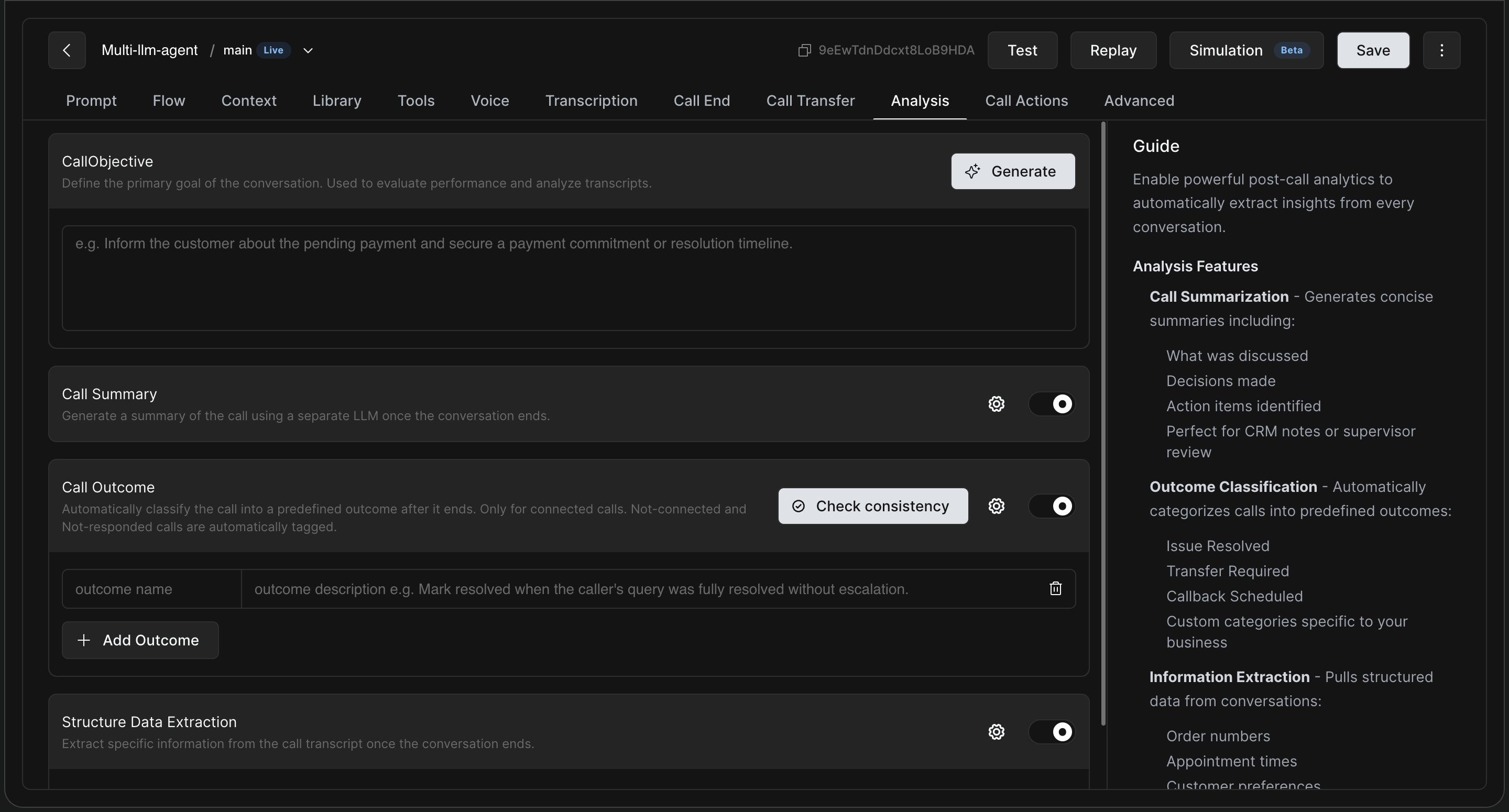
To access these features, navigate to Agents -> Select Agent -> Edit -> Analysis.
1. Call Objective
Start by defining the primary goal of the conversation in the Call Objective box. This sets the baseline used to evaluate the AI's performance and analyze the resulting transcripts.
-
Example: "Inform the customer about the pending payment and secure a payment commitment or resolution timeline."
-
You can also use the Generate button to have the system suggest an objective based on your overall agent prompt.
2. Call Summary
Toggle Call Summary to instruct a separate LLM to generate a concise summary of the conversation after it ends.
-
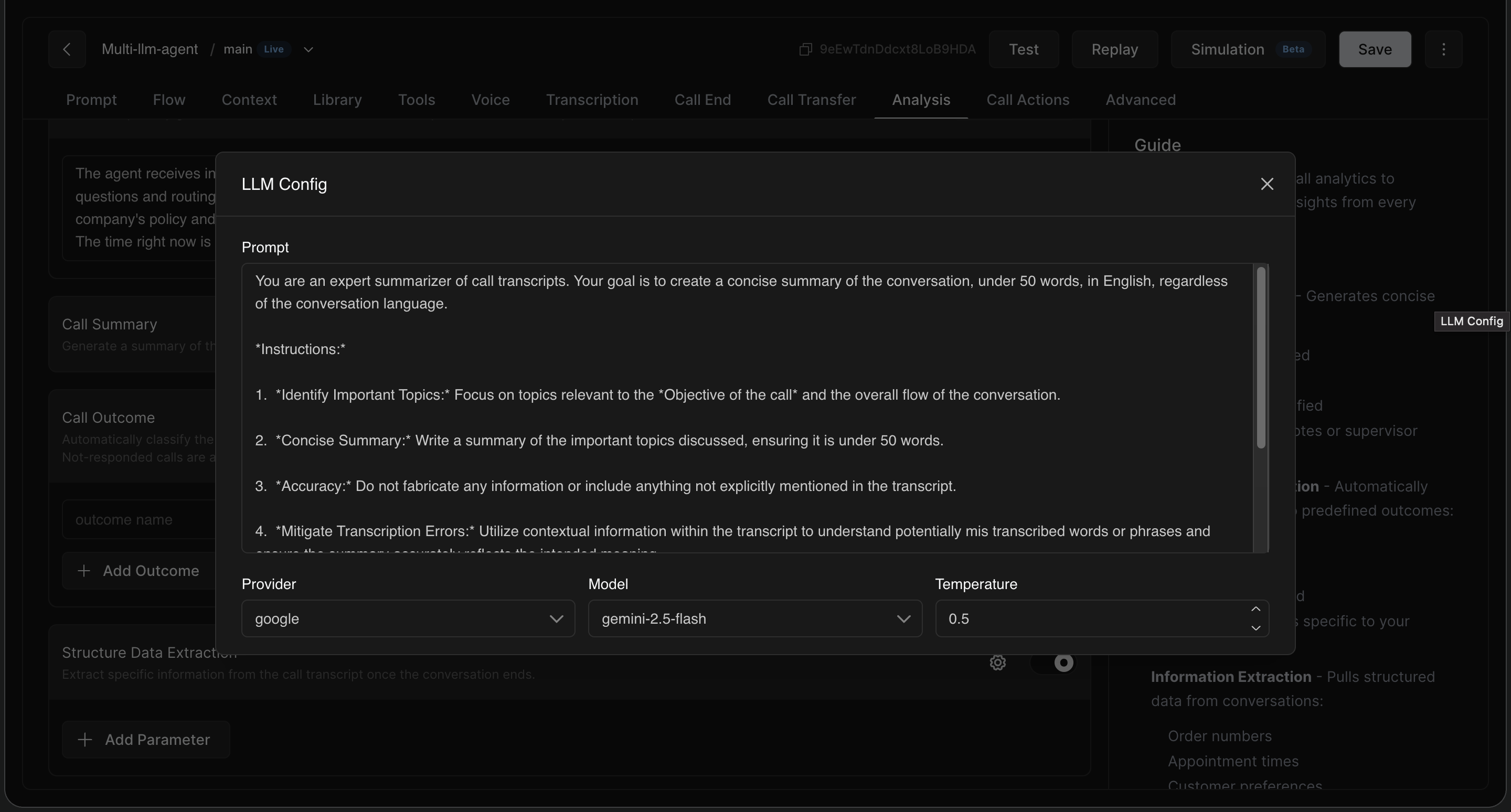
How it works: Provide specific instructions via a prompt (e.g., "Summarize the customer's query, resolution provided, and next steps."). The output is then available in the post-call object as
${analysis.results.summary}. -
Advanced Settings: Click the gear icon to select which specific LLM model should be used for summarization and adjust the Temperature to control the balance between creativity and precision.
3. Call Outcome
Toggle Call Outcome to automatically classify connected calls into predefined categories, or "dispositions." This is typically used to classify intents, route workflows, and generate reports (e.g., Issue Resolved, Callback Scheduled).
-
Defining Outcomes: Click + Add Outcome to create categories.
-
Descriptions are crucial: Keep your descriptions short, precise, and instructional. For example, instead of just naming an outcome
busy_callback, describe it as: "User was busy but agreed to a callback with suggested time or range." -
Best Practices: Ensure your outcomes are Mutually Exclusive and Collectively Exhaustive (MECE). Each call should fit into one and only one outcome. Add a generic
otherlabel to capture outliers. You can click Check consistency to have the system review your outcome logic.
(Note: The system automatically tags certain outcomes without using an LLM, such as failed, no-answer, voicemail, or agent_transfer based on call metadata.)
Testing Outcome Consistency
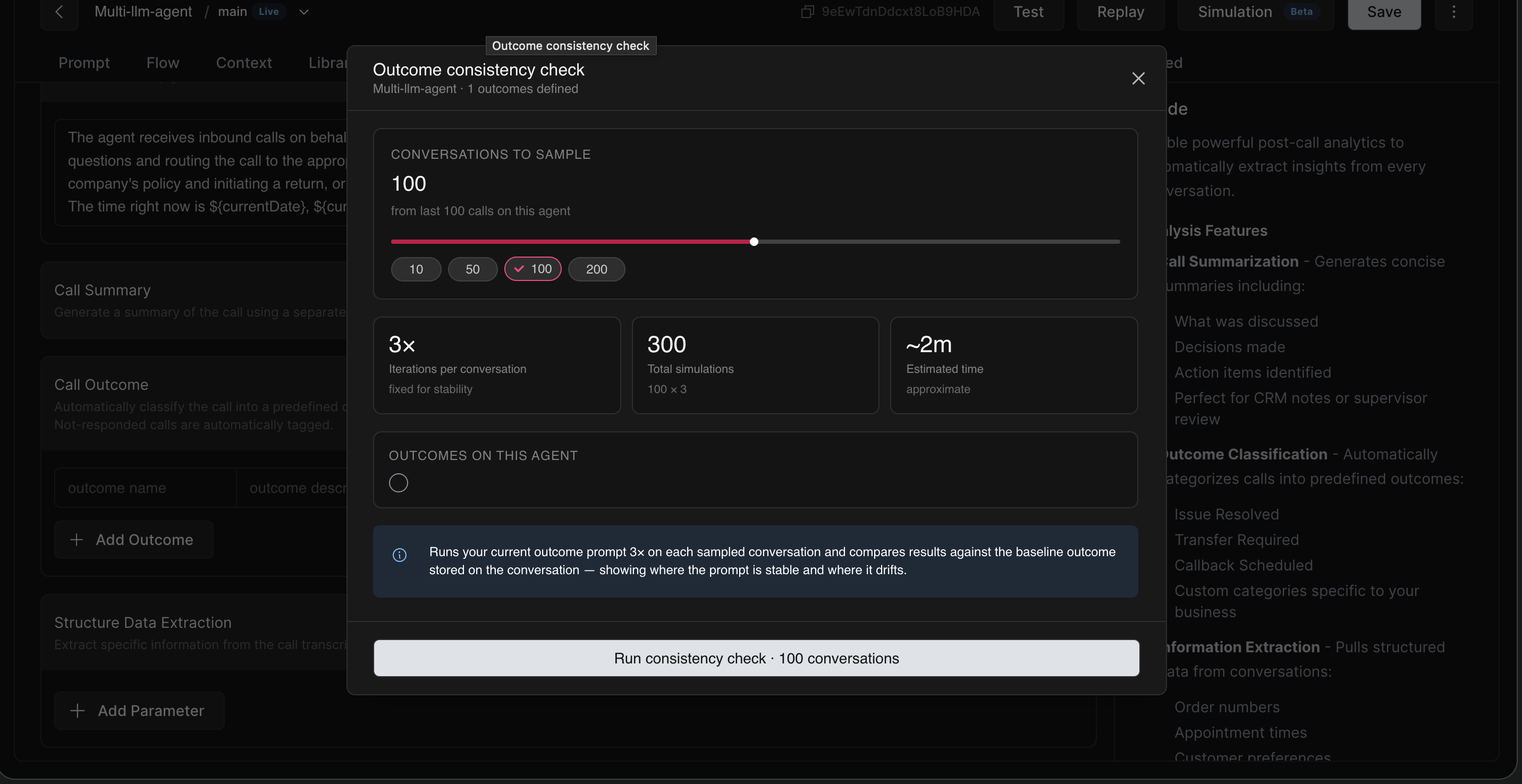
To ensure your outcome labels and descriptions are clear and reliable, HoomanLabs includes an Outcome consistency check tool. Because AI models can sometimes interpret vague instructions differently from one run to the next, this feature tests your outcome logic for stability and highlights where your descriptions might be causing confusion (or "drift").
How to run a consistency check:
-
In the Call Outcome section, click the Check consistency button.
-
Select Sample Size: Use the slider under "Conversations to Sample" to choose how many recent, past conversations you want to test (10, 50, 100, or 200).
-
Review the Simulation Details: The system will automatically calculate the scope of the test:
-
Iterations per conversation: The system runs your outcome prompt 3 times on each single transcript. This strict repetition proves whether the AI consistently arrives at the same conclusion.
-
Total simulations: The sample size multiplied by 3 (e.g., 100 calls × 3 = 300 total simulations).
-
Estimated time: An approximate timer for how long the background test will take (e.g., ~2m).
-
-
Click Run consistency check at the bottom of the window.
4. Structured Data Extraction
Toggle Structure Data Extraction to automatically pull specific structured data points from the transcript. This is ideal for extracting order numbers, budget amounts, or appointment times.
For each parameter, define:
-
Name: The variable name (e.g.,
budget). -
Type: Select
string,number, orboolean. -
Required: True/False.
-
Description: Clear guidance for the model (e.g., "Customer’s preferred budget in INR. Use digits only.").
-
Validation (Optional): Regex formula to enforce formatting.
Pro-Tip for Extraction: Always include fallback instructions in your parameter description (e.g., "If user doesn't mention budget, return 'NA'") to ensure the model doesn't hallucinate information that isn't in the transcript.
5. Using Analysis Variables in Post-Call Workflows
The outputs generated by these features are injected into the post-call object. You can reference them in your webhooks or CRM integrations using the following formats:
|
Field Source |
How to Reference |
Notes |
|
Summary text |
|
Available only when the call is connected. |
|
Outcome |
|
Always available (includes system-defined outcomes). |
|
Extracted info |
|
Replace |