Library
Libraries are collections of documents and information that your agent can search and reference to provide accurate, up-to-date responses. This enables your agent to handle a wider range of complex or policy-driven queries confidently, reducing hallucinations by grounding responses in verified company knowledge.
Common Library Types
-
Product Catalogs: Specifications, pricing, and availability.
-
FAQ Documents: Common questions and answers.
-
Policy Documents: Terms, conditions, and procedures.
-
Knowledge Bases: Technical documentation and guides.
1. Creating and Managing Your Library
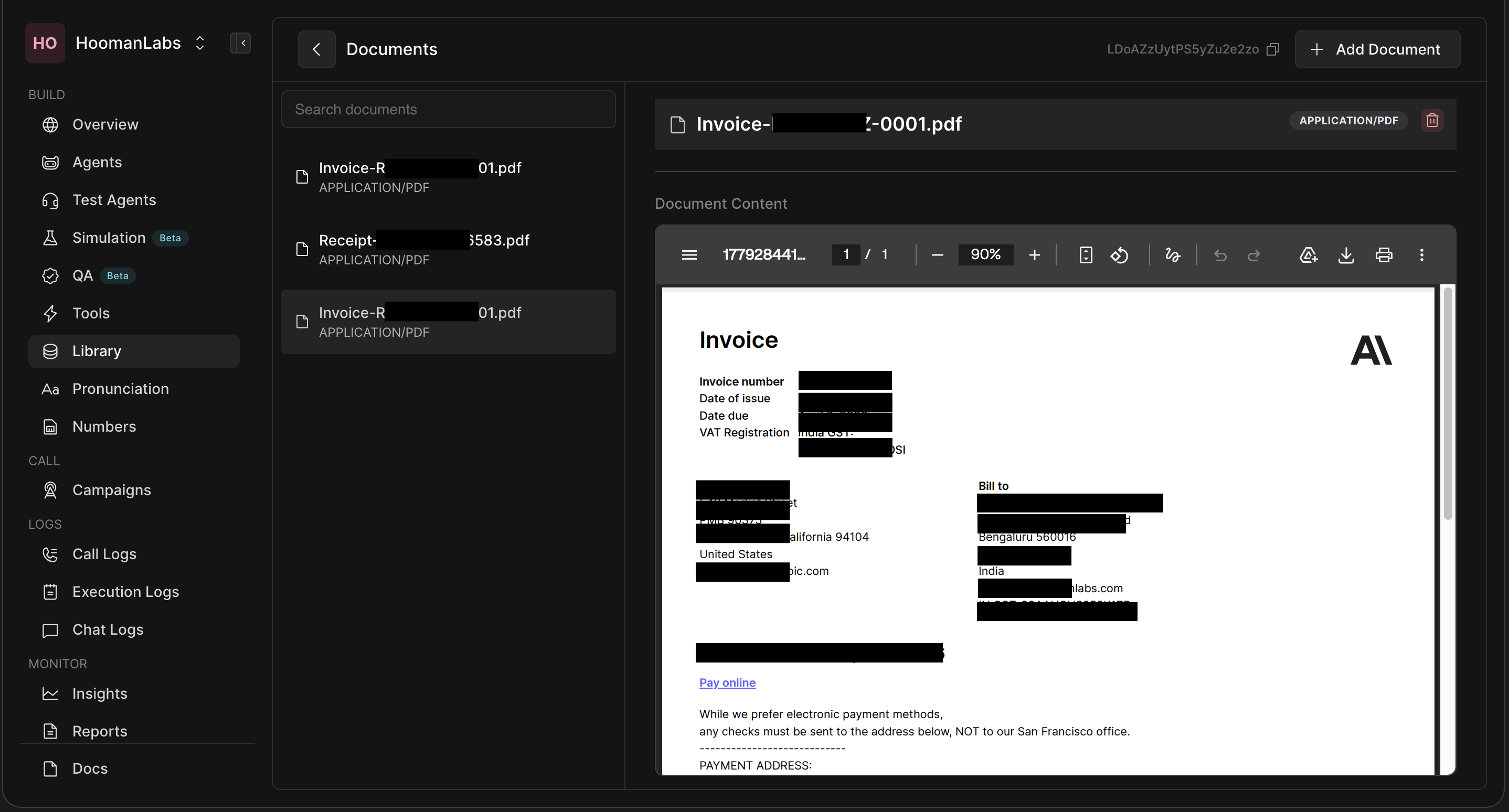
Before your agent can access documents, you need to upload them to your central workspace.
-
Navigate to the main Library: On the far-left main navigation menu (under "BUILD"), click on Library.
-
Add Documents: Click the + Add Document button in the top right. You can upload files (like PDFs of invoices, receipts, or policy manuals) or create new text documents.
-
Manage Content: Use the built-in document viewer to review the content of your uploaded PDFs or text files to ensure the formatting is clear and readable for the AI.
2. Enabling the Library in Your Agent
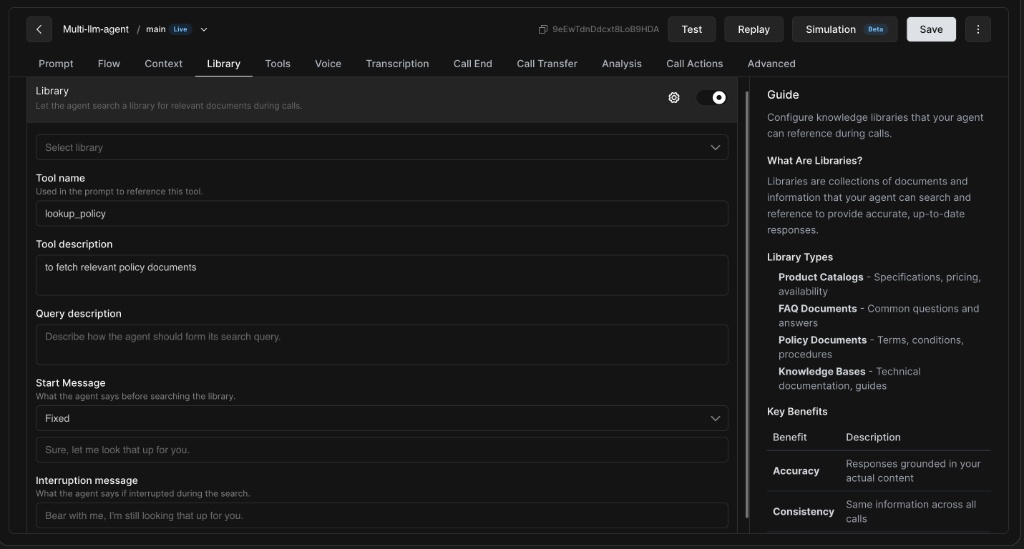
To allow a specific agent to use the documents you uploaded, navigate to Agents -> Select Agent, and click on the new Library tab in the top navigation bar.
-
Enable Library: Toggle the switch in the top right corner to turn the library feature on for this agent.
-
Select Library: Use the dropdown to choose which specific collection of documents this agent should have access to.
-
Tool Name: Give the search function a recognizable name (e.g.,
lookup_policy). This is the internal name the agent uses to trigger the search. -
Tool Description: Explain what this tool does so the agent knows when to use it (e.g., "to fetch relevant policy documents").
-
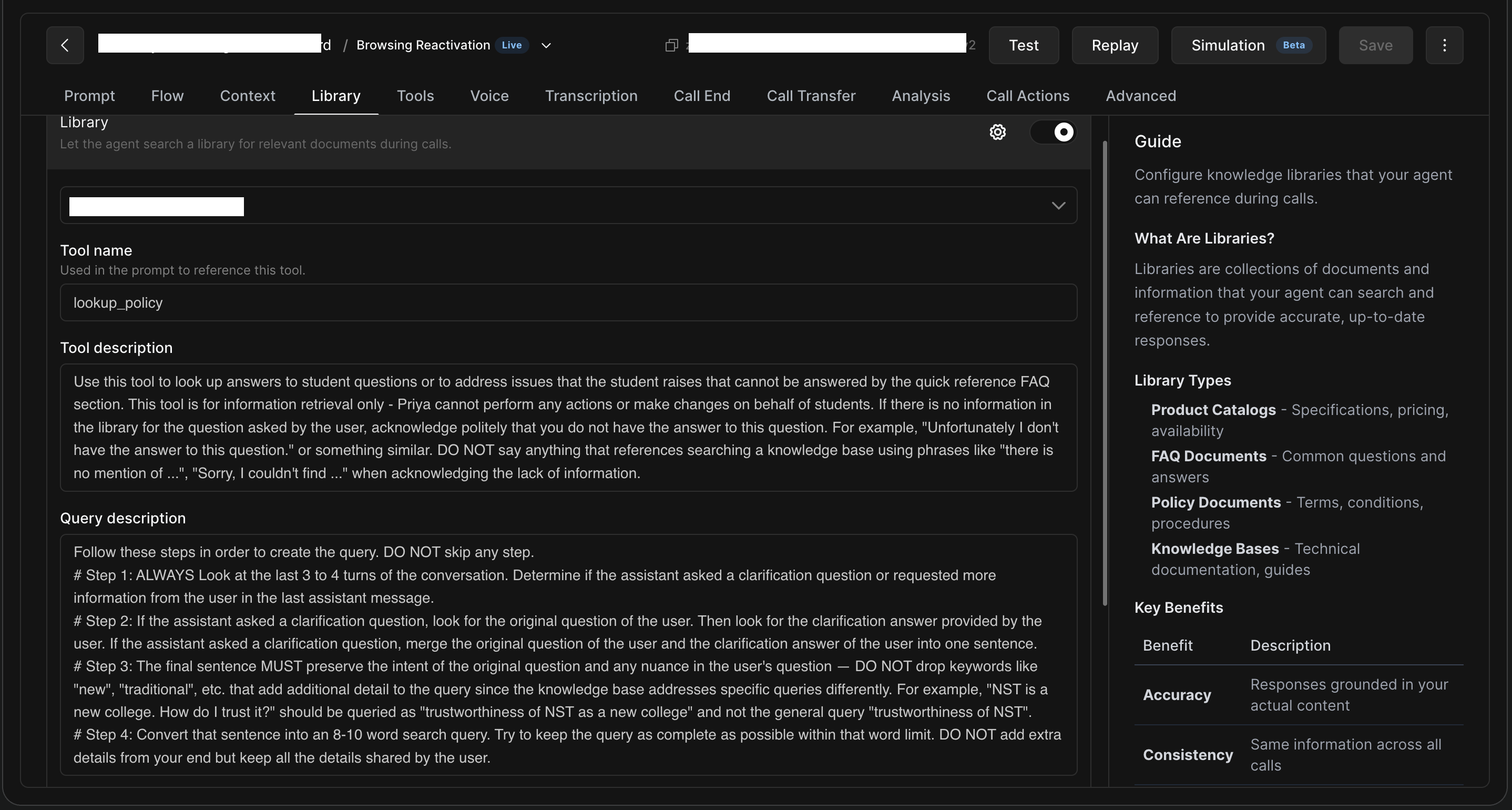
Query Description: Describe exactly how the agent should format its search query to get the best results from the documents. (Important Feature)
-
Start Message (Optional): Define a fixed message the agent will speak aloud to the caller before it starts searching (e.g., "Sure, let me look that up for you.").
-
Interruption Message (Optional): Define what the agent should say if the caller tries to speak while the AI is actively searching the documents (e.g., "Bear with me, I'm still looking that up for you.").
3. Best Practices for High Accuracy
-
Keep content current: Regularly update library documents. Delete outdated versions and upload the newest ones so your agent always has the latest facts.
-
Structure clearly: Well-organized content retrieves better. Ensure your PDFs or text docs have clear headings and logical sections.
-
Avoid duplication: Single source of truth for each topic. Do not upload multiple documents that contradict each other.
-
Test retrieval: Verify the agent finds relevant content. Use the "Test" or "Simulation" buttons to ask sample questions and ensure the agent references the right documents.