Pronounciation
The Pronunciation tab allows you to teach your AI agent exactly how to say specific words, names, or acronyms. This ensures that industry-specific terms, complex product names, and regional dialects are spoken correctly during calls.
Instead of the agent guessing how to say a difficult word, you can create a dictionary rule to enforce the exact phonetic sound.
1. Creating a New Pronunciation Dictionary
Before adding rules, you need to create a dedicated dictionary (like a folder) to group related terms together (e.g., "Hospital Terms", "Real Estate", or "Colleges").
-
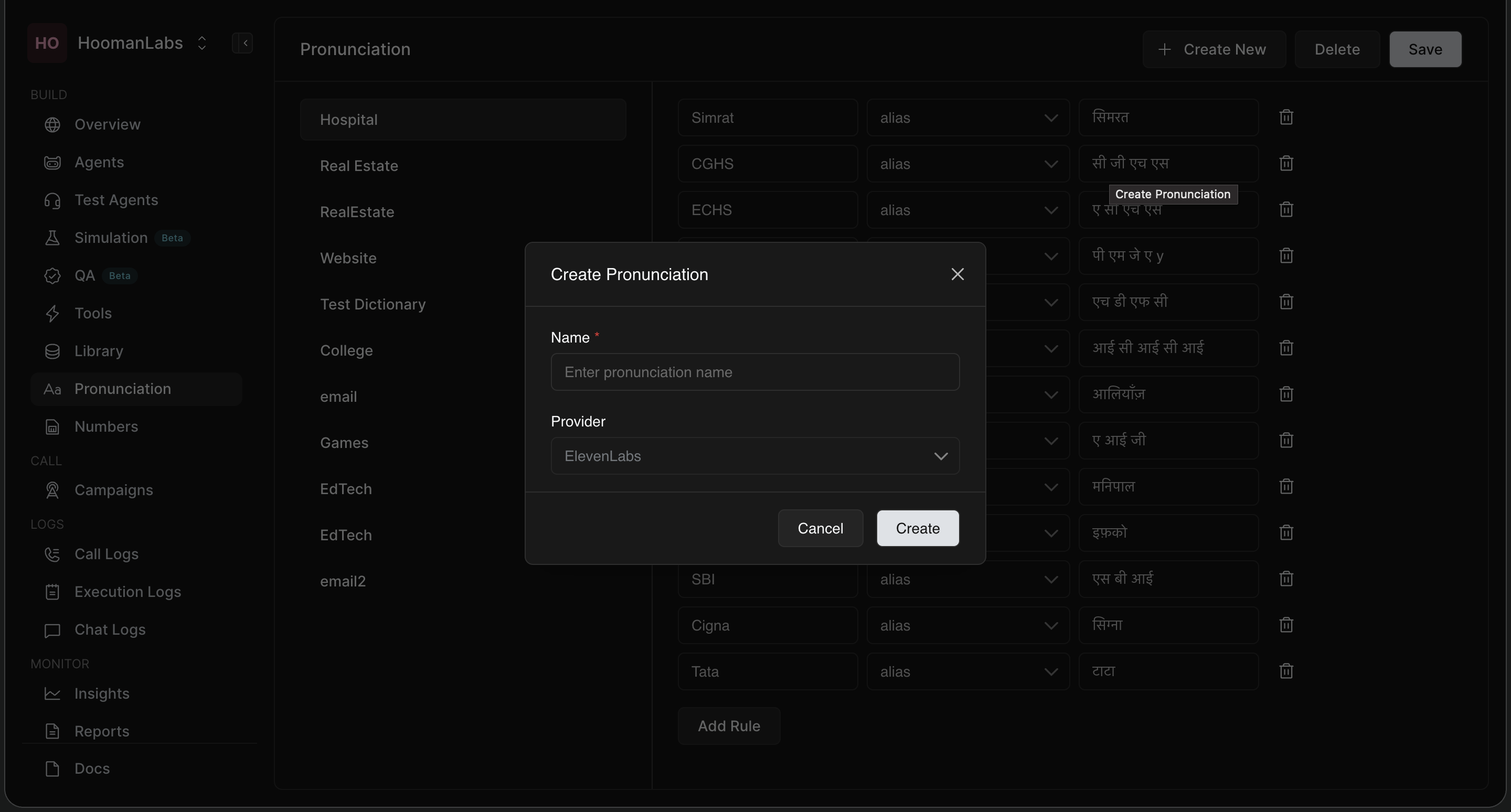
Navigate to Pronunciation under the "BUILD" menu on the left-hand sidebar.
-
Click the + Create New button in the top right corner.
-
In the pop-up modal:
-
Name: Give your dictionary a clear, identifiable name.
-
Provider: Select the Text-to-Speech (TTS) provider (e.g., ElevenLabs) that this dictionary will be compatible with.
-
-
Click Create.
2. Adding Pronunciation Rules
Once your dictionary is created, you can start adding specific words to it.
-
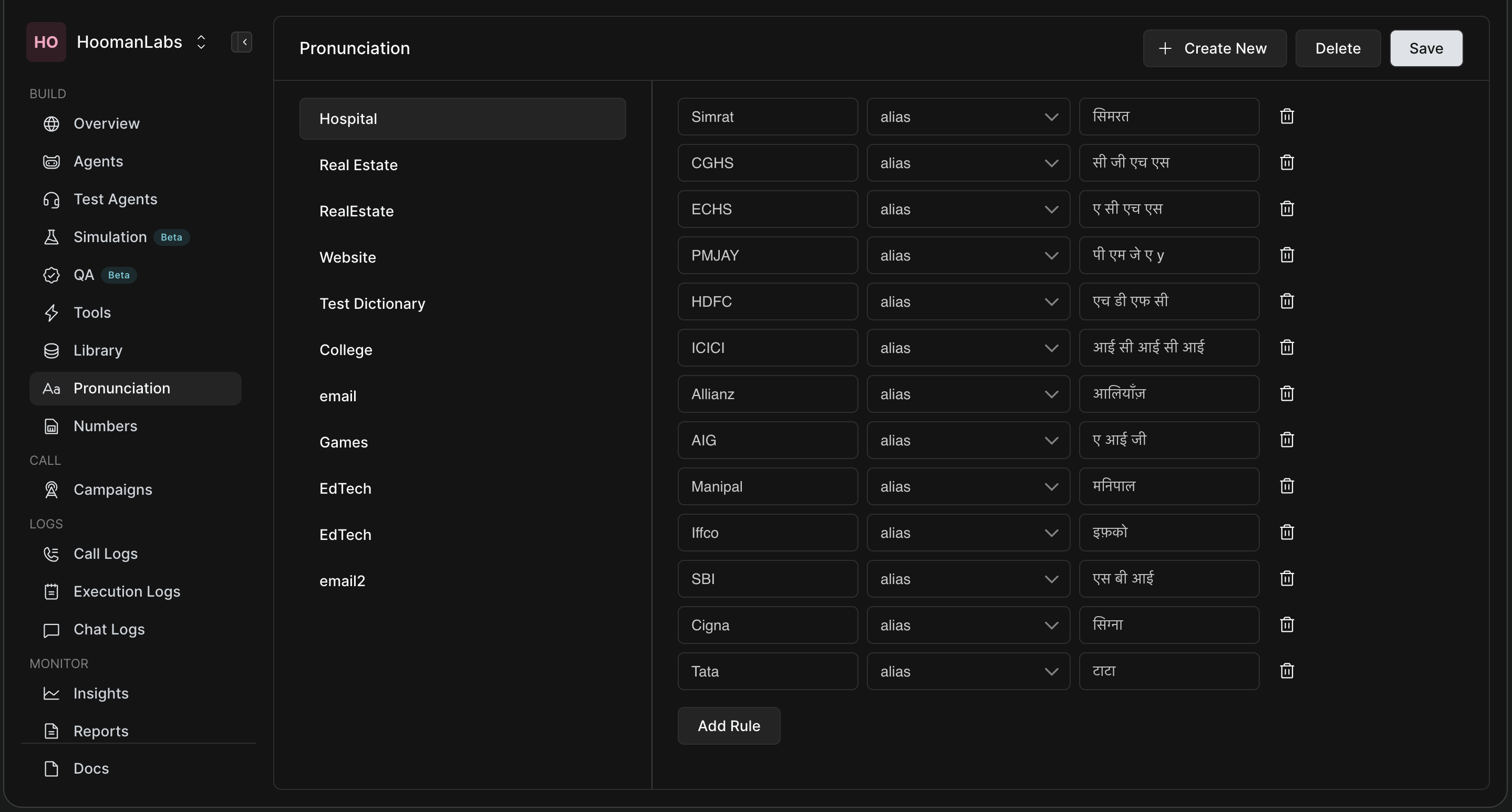
Select your dictionary from the list on the left (e.g., "Hospital").
-
Click the Add Rule button at the bottom of the right-hand panel.
-
Fill out the rule row using the three available fields:
-
Target Word (Left Box): Type the exact word or acronym as it will appear in your agent's prompt or text (e.g., "HDFC", "Simrat", "SBI").
-
Rule Type (Middle Dropdown): Choose how you want to dictate the pronunciation.
-
Replacement/Phoneme (Right Box): Enter the specific phonetic replacement.
-
3. Understanding Rule Types (Alias vs. Phoneme)
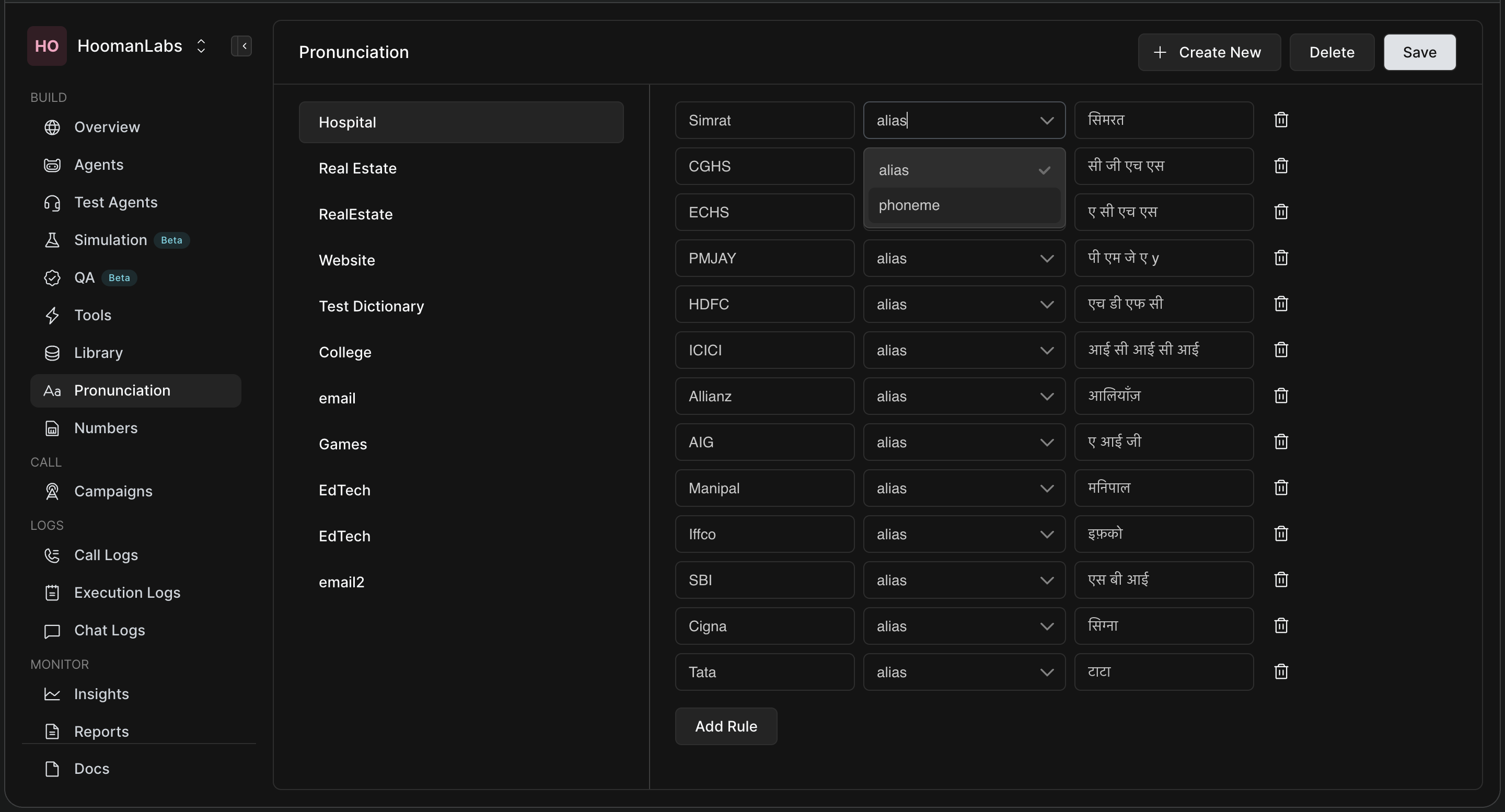
When setting up how a word should sound, you have two distinct options in the dropdown menu:
-
Alias: This is the simplest and most common method. It tells the agent to read the word as if it were written differently. You can spell the word out phonetically or use a different script to force the correct native pronunciation.
-
Example: To make the agent say the acronym "SBI" as individual letters, you might replace it with the Hindi alias "एस बी आई".
-
Example: "HDFC" can be set to "एच डी एफ सी".
-
-
Phoneme: This is for advanced users. It allows you to use standard phonetic alphabetic codes (like the International Phonetic Alphabet or specific engine phonemes) to dictate the exact micro-sounds of the word.
4. Applying the Dictionary to Your Agent
Creating the dictionary here makes it available in your workspace, but you must apply it to your agent to activate it!
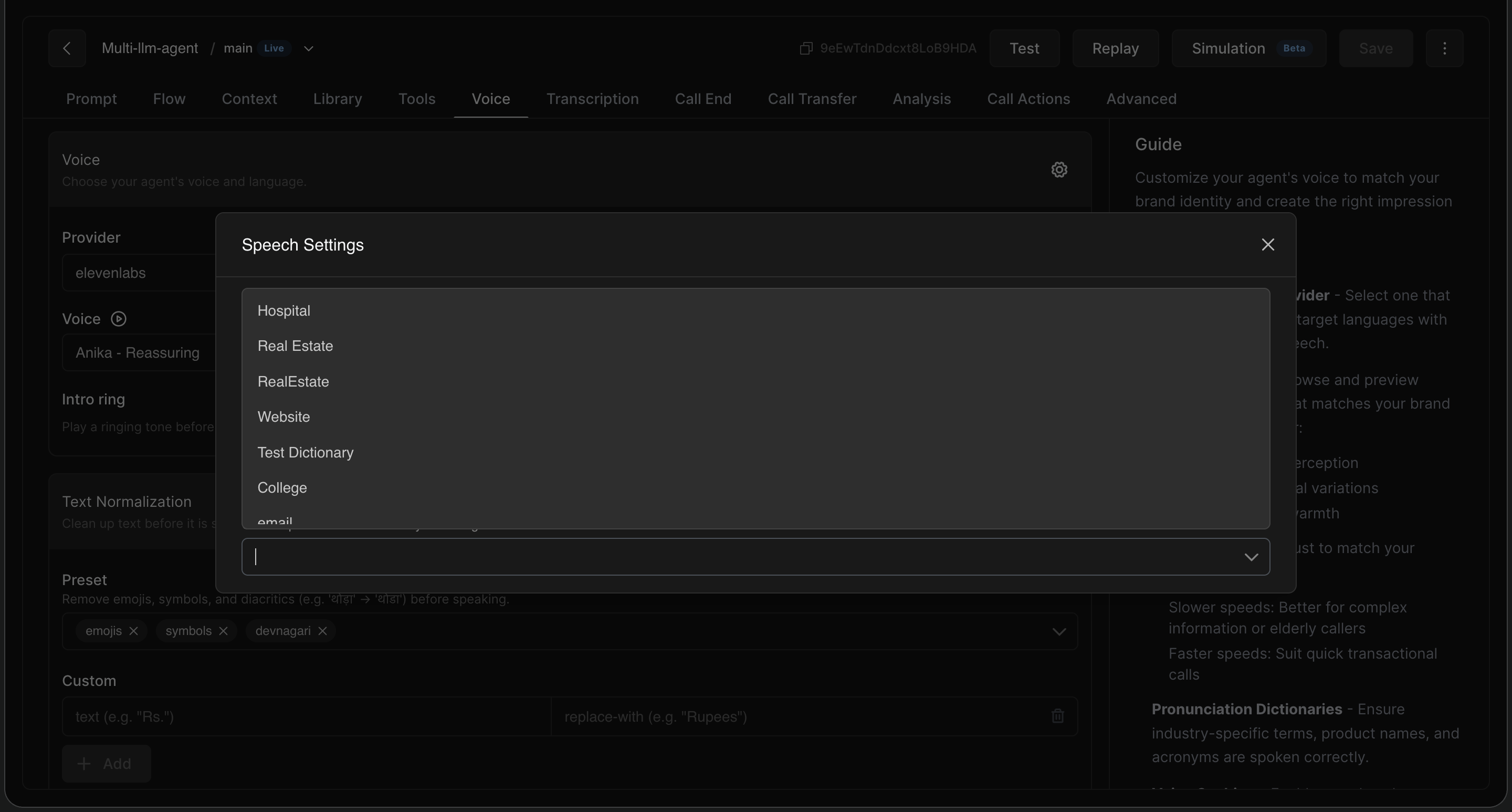
To do this:
-
Go to your Agent Configuration page.
-
Navigate to the Voice tab.
-
Open the advanced speech settings (gear icon) and select the specific Pronunciation Dictionary you just created to apply those rules to the agent's speech. Remember to hit Save!