Tools
Tools enable your agents to make external API calls during a conversation to fetch data, send data, and take actions. This extends your agent's capabilities beyond simple conversation, allowing them to:
-
Look up information in real-time (e.g., checking order status or inventory)
-
Perform calculations (e.g., pricing, shipping estimates)
-
Execute business logic
-
Interact with external systems (e.g., booking appointments, updating CRM tickets)
Enabling & Configuring Tools in Your Agent
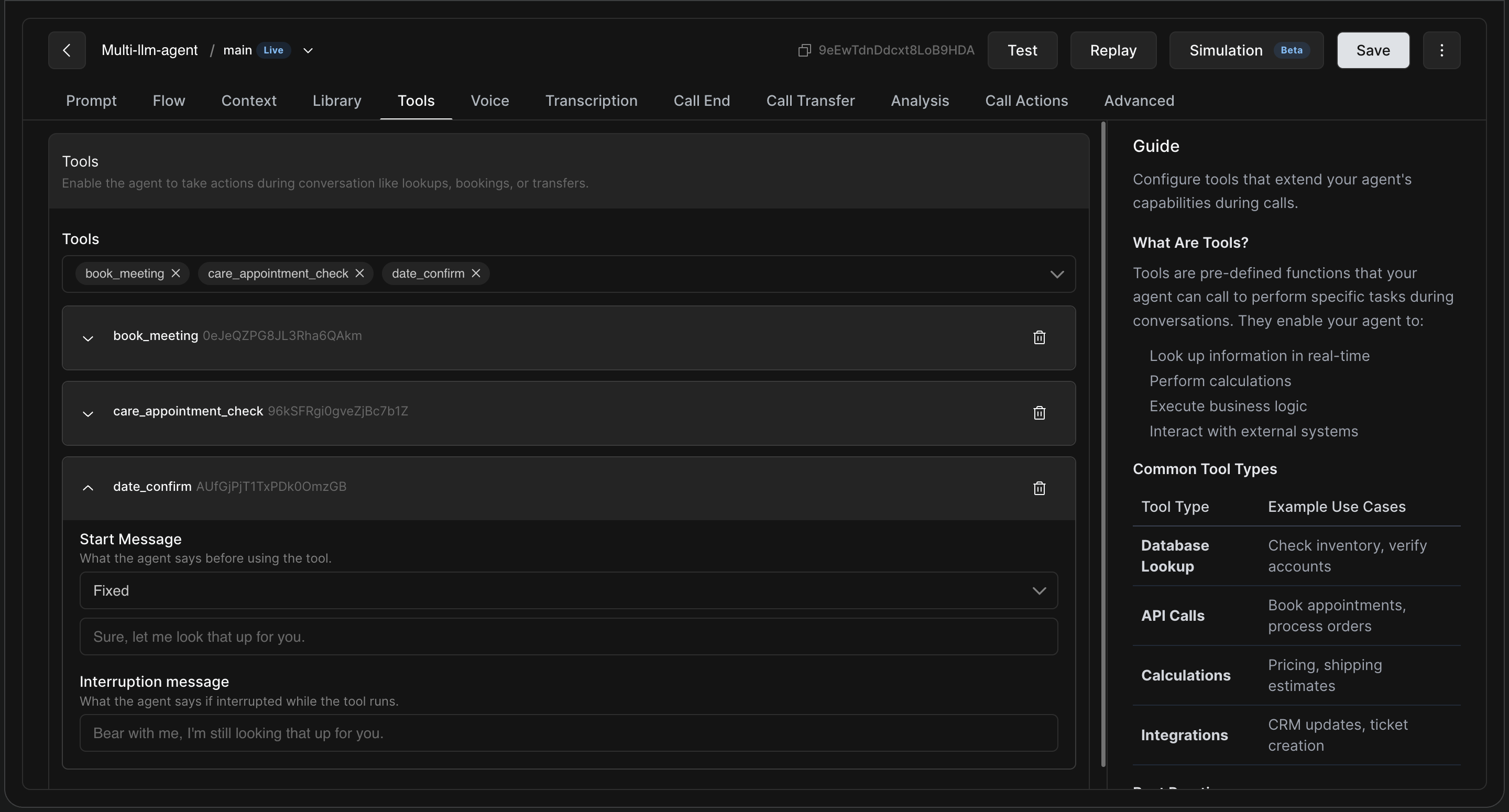
You can manage the tools available to your agent directly from the Tools tab in the main agent builder.
-
Select Tools: Use the dropdown to select and enable pre-configured tools for your agent (e.g.,
book_meeting,care_appointment_check). -
Configure Tool Messages: Expand any enabled tool to customize how the agent communicates while the tool is executing. Tools take time to run, so managing silence and interruptions is crucial for a natural experience.
|
Message Type |
Purpose |
Example |
|---|---|---|
|
Start Message |
What the agent says before using the tool. You can set this to a "Fixed" string or provide instructions for the LLM to generate it contextually. |
"Sure, let me look that up for you." |
|
Interruption message |
What the agent says if the user tries to interrupt while the tool is running. Tools are uninterruptible, so this acknowledges the user while the system finishes. |
"Bear with me, I'm still looking that up for you." |
Using Tools in Your Agent Flow
How and where you use a tool depends on whether your agent is a Single Prompt Agent or a Multi Prompt (Flow) Agent.
Single Prompt Agent Tools added to the agent are accessible globally throughout the entire conversation.
Multi Prompt Agent (Flow-based) In multi-prompt agents, tools can be configured more flexibly:
-
Inside a node: The tool is available to the agent only while it's in that specific node. Invoking the tool does not cause a node switch. (Use case: Checking eligibility or fetching customer details while staying in the same conversational step). Tools added to the global node are available across all nodes.
-
Transition: When invoked, the tool triggers the transition. The tool output then becomes available in the destination node. (Use case: Routing logic based on tool output—e.g., verifying KYC, then deciding which node to go to next).
Creating a New Tool
To create a new tool from scratch, you will need to define its parameters, API configuration, and response handling.
1. Tool Basics
|
Field |
Description |
Example |
|
Name |
An explanatory name for the tool |
|
|
Category |
Logical grouping |
custom |
|
Description |
Clear explanation of what the tool does and when the agent should use it. |
Use to fetch order history using registered phone number. |
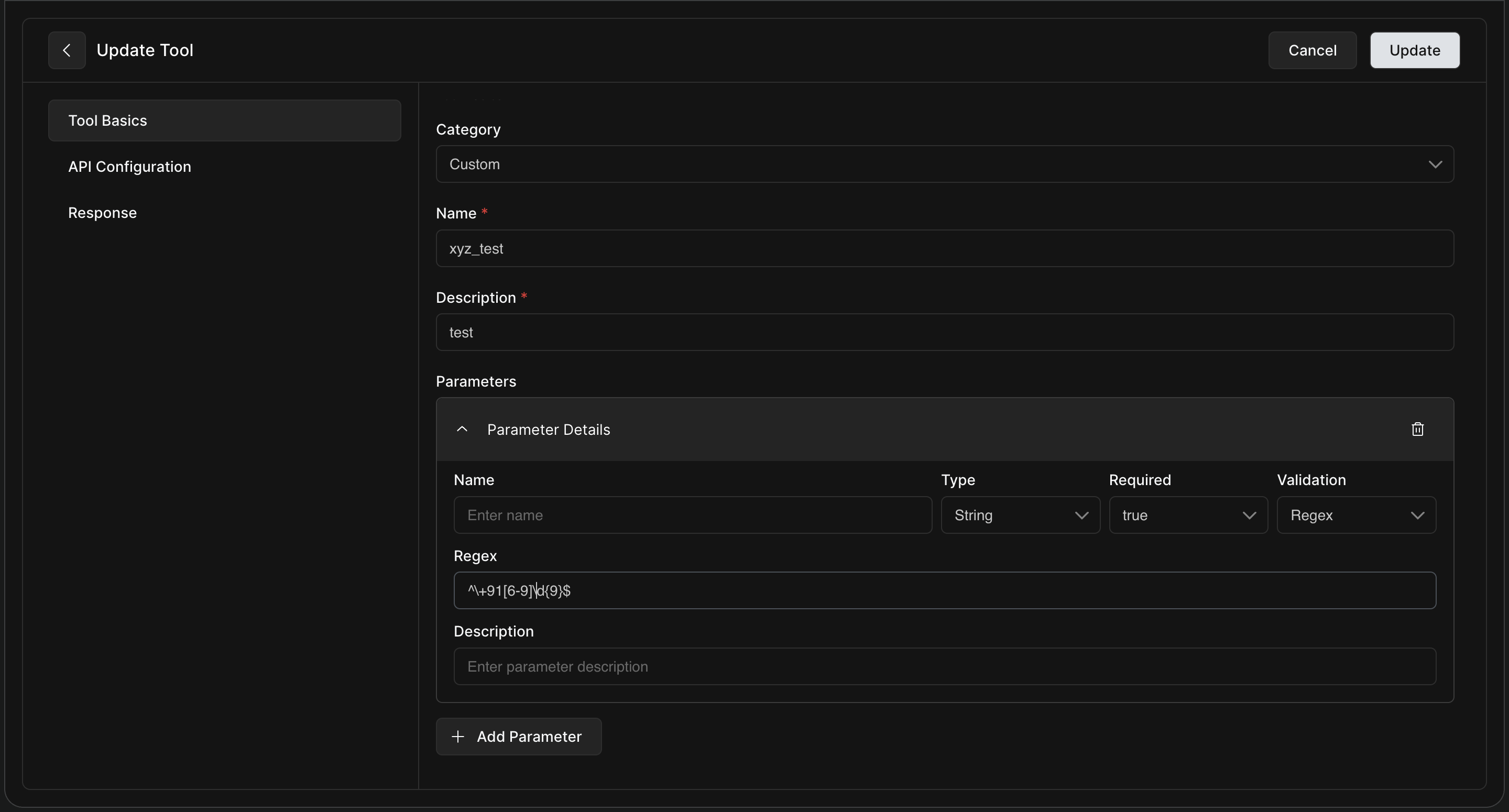
2. Parameters
Define the inputs your API expects. The agent passes these during runtime.
|
Field |
Description |
Example |
|
Name |
Parameter name |
|
|
Type |
|
|
|
Required |
Whether this parameter is mandatory |
|
|
Validation |
Optional regex formula for strict input validation |
|
|
Description |
What this input represents and how it's used |
Valid 10 digit phone number without country code. |
Pro-Tip for Validation:
-
Use regex to enforce strict formats (e.g.,
^GI\d{4}$ensures an order ID starts with GI followed by 4 digits). -
Use string(enum) when you want the agent to pick from a predefined list of values like
delivered,cancelled, etc.
3. API Configuration
Configure how the agent calls your external API. Use the ${variable} syntax to inject parameters into the Body or URL.
|
Field |
Description |
Example |
|
Method |
HTTP method |
POST |
|
URL |
Endpoint to call |
|
|
Timeout |
Milliseconds before aborting |
15000 |
|
Headers |
Key-value headers |
|
|
Body (Raw) |
JSON body to inject parameter variables. |
|
4. Response Variable Mapping
Specify which parts of the API response the agent should memorize. Use dot notation for nested keys.
|
Variable name (agent) |
JSON path in response |
|
|
|
|
|
|
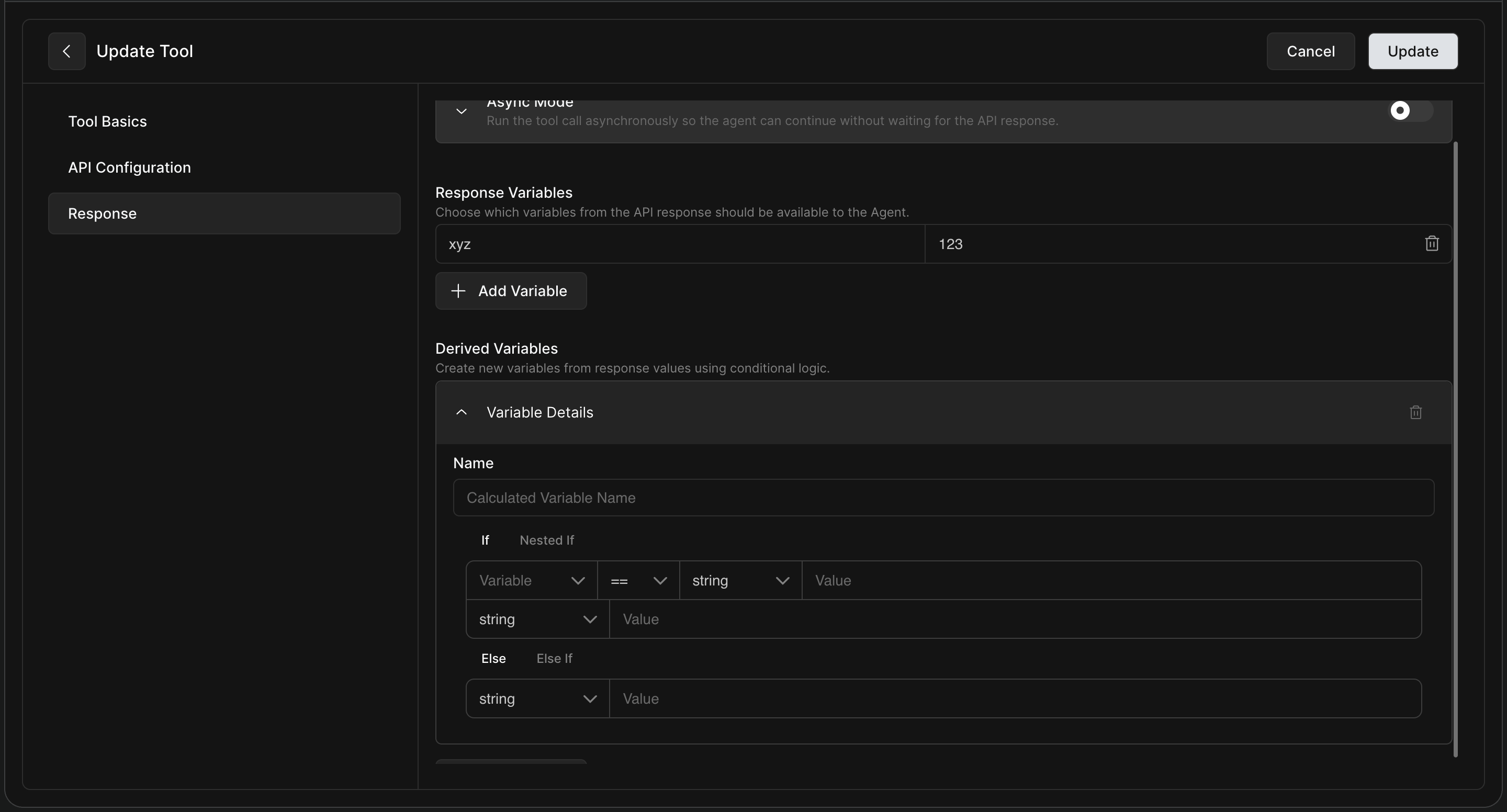
5. Calculated Variables
Use logic to derive new variables strictly from response variables. This helps classify data for better LLM prompting without needing external backend logic.
-
Calculated Variable:
highValueCustomer -
Logic: If
lifetimeSpend> 10000 ➔true, elsefalse
Special Built-in Endpoints
If you do not need to hit an external API, you can use HoomanLabs' internal tools:
|
Endpoint |
Purpose |
Example |
|
|
Returns input as-is |
Echo tool input to validate it directly in a flow. |
|
|
Perform reliable arithmetic on input parameters. |
Let the agent calculate totals, discounts, or percentages reliably (since LLMs struggle with math). |