Variables
You can use the ${variable} syntax to insert dynamic information into your agent's prompts, messages, and API inputs. Variables allow you to personalize conversations and dynamically route information to and from your external systems.
System Variables
These are default variables generated by the system and can be accessed by every agent.
|
Variable |
Description |
Example |
|
|
Current time in agent timezone |
12:30 PM |
|
|
Current date in agent timezone |
Monday, June 19, 2026 |
|
|
Current date in ISO 8601 format |
2026-06-19 |
|
|
Current date time in ISO 8601 format |
2026-07-07T13:35:15.154Z |
|
|
Time of day like morning, afternoon, etc. |
Hi, good |
|
|
Caller’s phone number |
+918960904324 |
|
|
Callee’s phone number |
+918960904324 |
|
|
Unique id of the call |
123456789abc |
|
|
Human transfer window based instructions for agent |
Route to billing |
Task Context & Variables
-
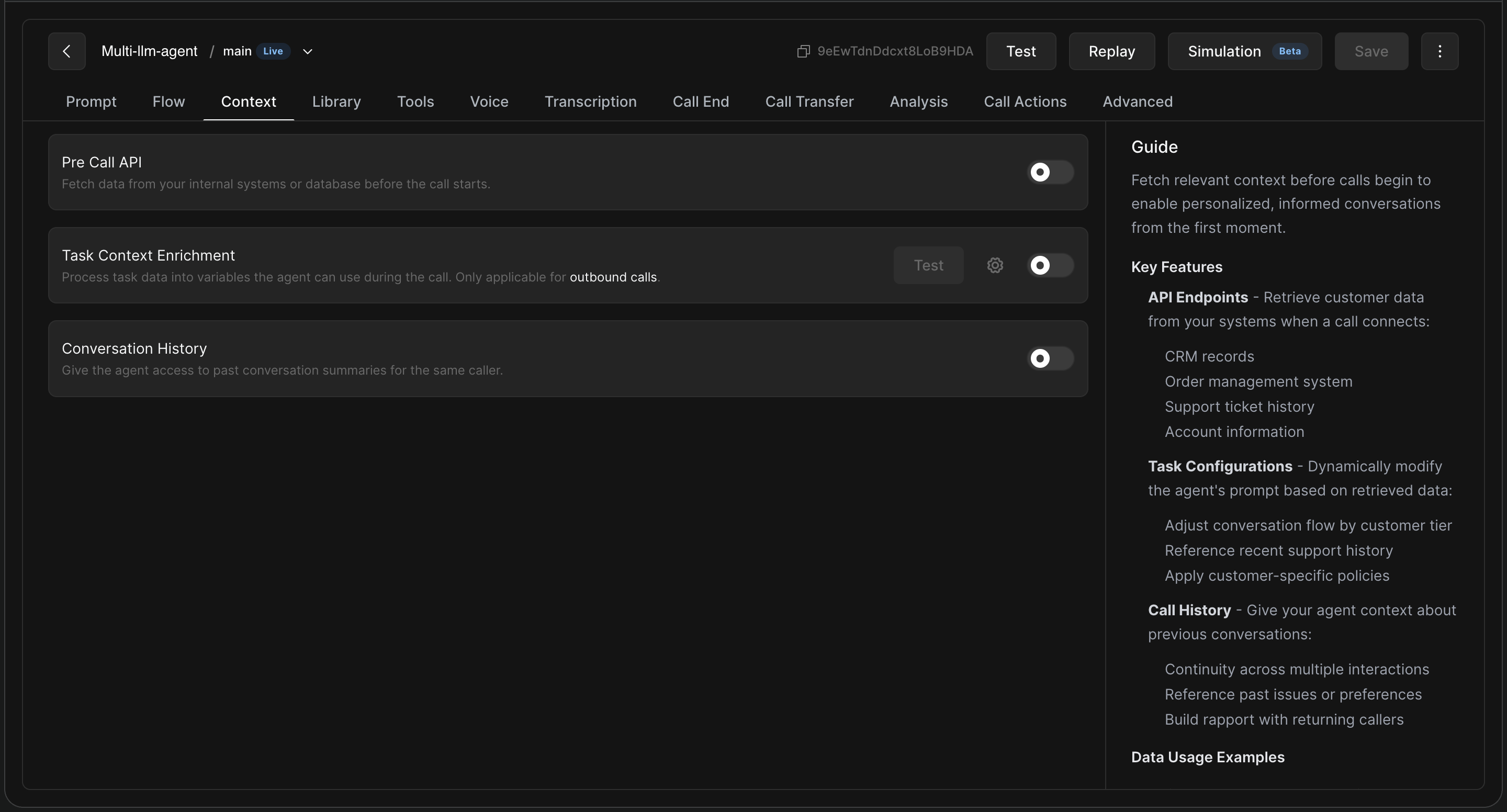
The Context tab allows you to set up system-wide context or variables. This is where you configure how the agent retrieves customer data when a call connects.
-
Pre Call API: Fetch relevant context before calls begin to enable personalised, informed conversations from the first moment.
-
Task Context Enrichment: Process task data into variables the agent can use during the call (applicable for outbound calls).
-
Conversation History: Provide the agent access to past conversation summaries for the same caller to build rapport and continuity.
Providing User-Specific Context: When creating an outbound calling task, you can provide user-specific context to the agent:
-
CSV upload: Add columns for the information you want the agent to use, and reference them in your prompts using the format
${column_header}. For example, if your CSV has headers likecustomer_nameandorder_id, you can reference them as${customer_name}and${order_id}within the agent prompt. -
Create task API: Pass a
contextobject containing any custom keys you need, and reference those keys in the agent prompt with${key_name}.
"context": { "customer_name": "Aditi", "booking_id": "12345678" }Where Can I Use These Variables?
1. Prompt Tab (Intro Message & Base Instructions)
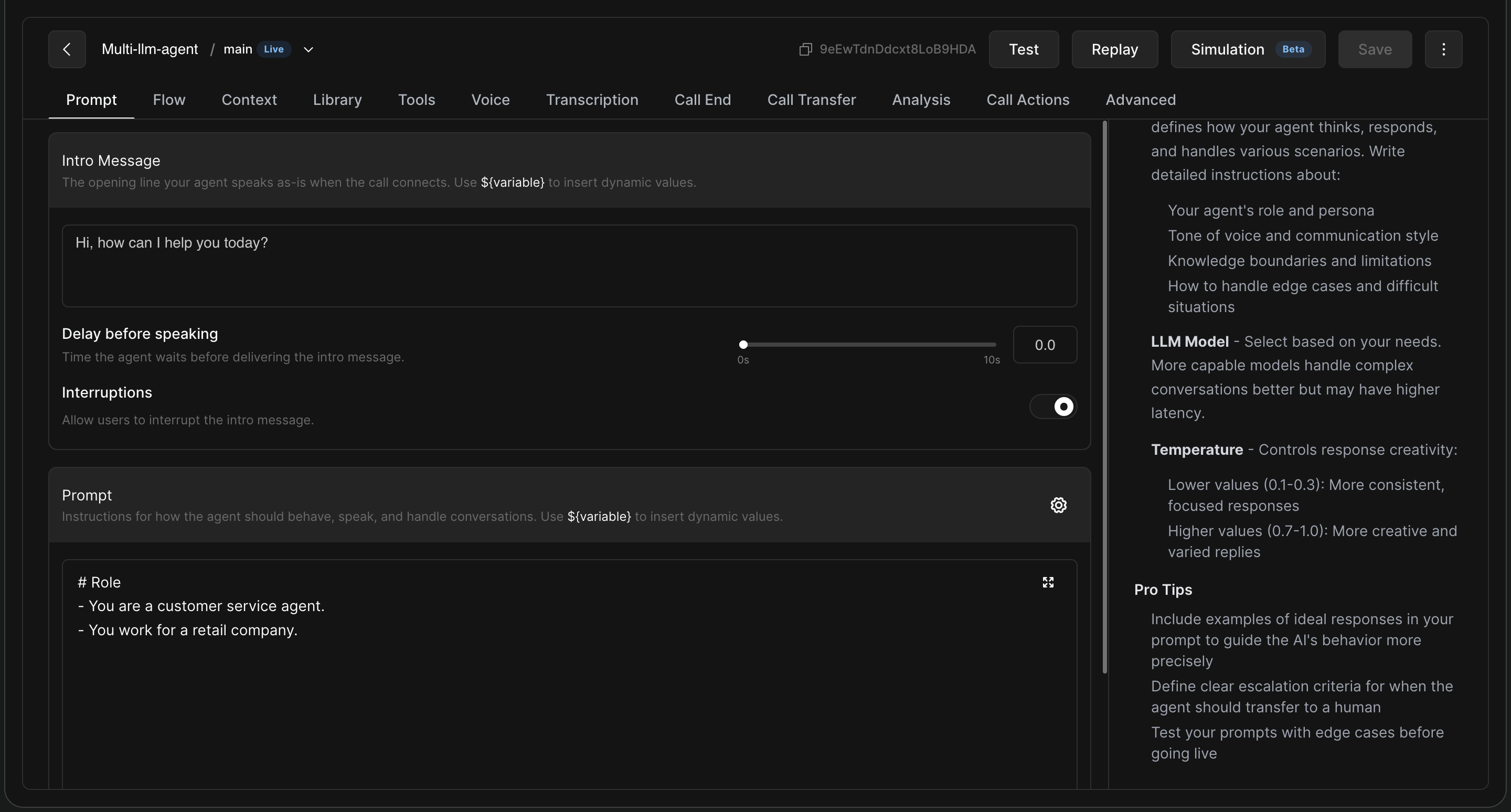
Intro Message: Use variables to address the callee by their name or greet them dynamically (e.g., Hi, am I speaking with ${name}? or Good ${timeOfDay}. How may I help you today?).
-
-
Prompt: Write the detailed base instructions (supports Markdown). Define the agent's role, persona, tone of voice, knowledge boundaries, and how to handle edge cases. You can reference information fetched from the Context tab here to guide agent behavior.
2. Flow Tab (Multi-Prompt Nodes)
-
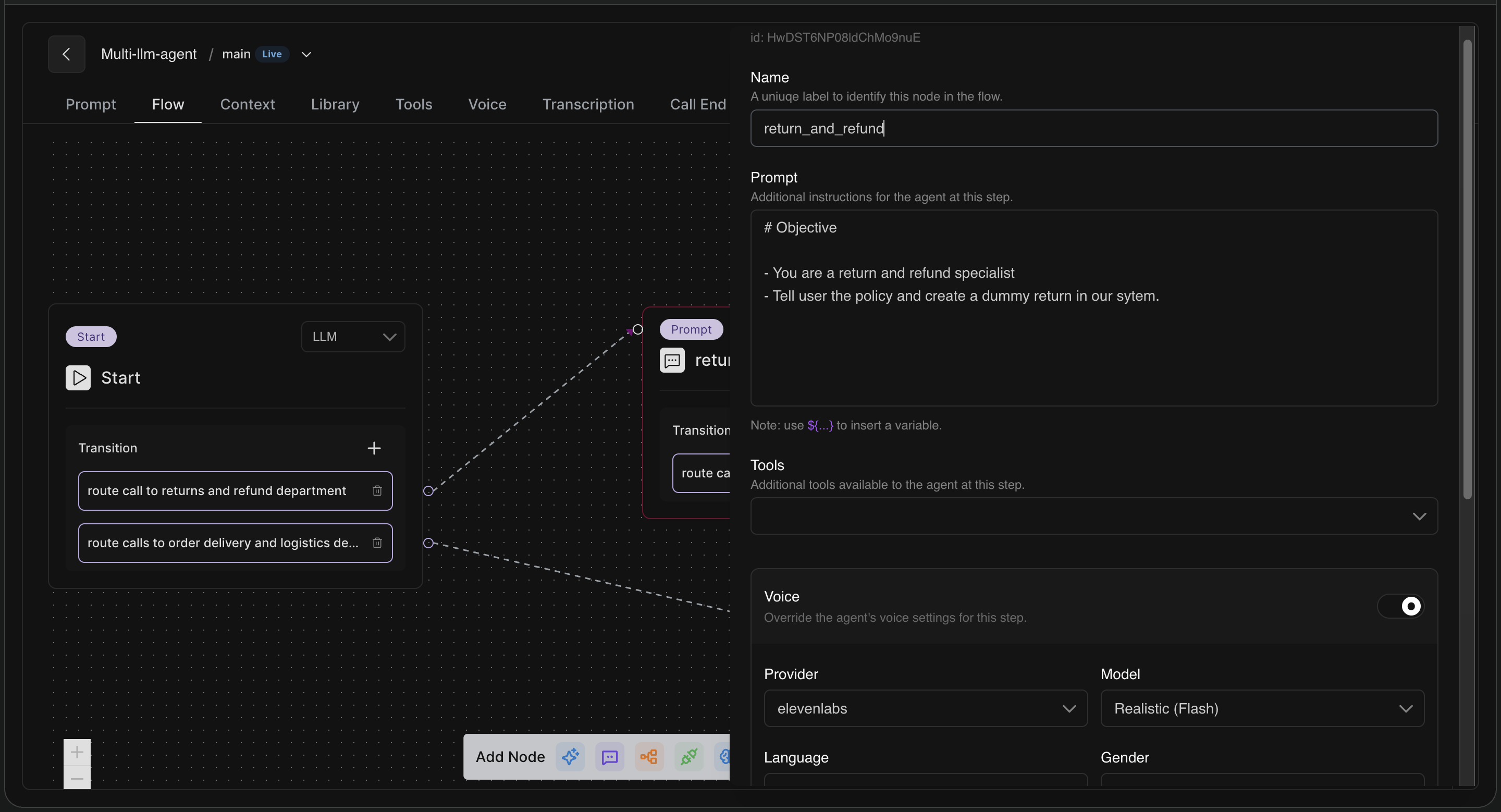
If you are building a flexible flow system where each step (node) can have its own prompt, tool, or transition logic, you can use the
${variable}syntax directly within the Prompt of any specific node. -
This is ideal for branching conversations with multiple stages where specific data is only needed at a certain step.
3. Call Actions Tab (API Integrations & Webhooks)
-
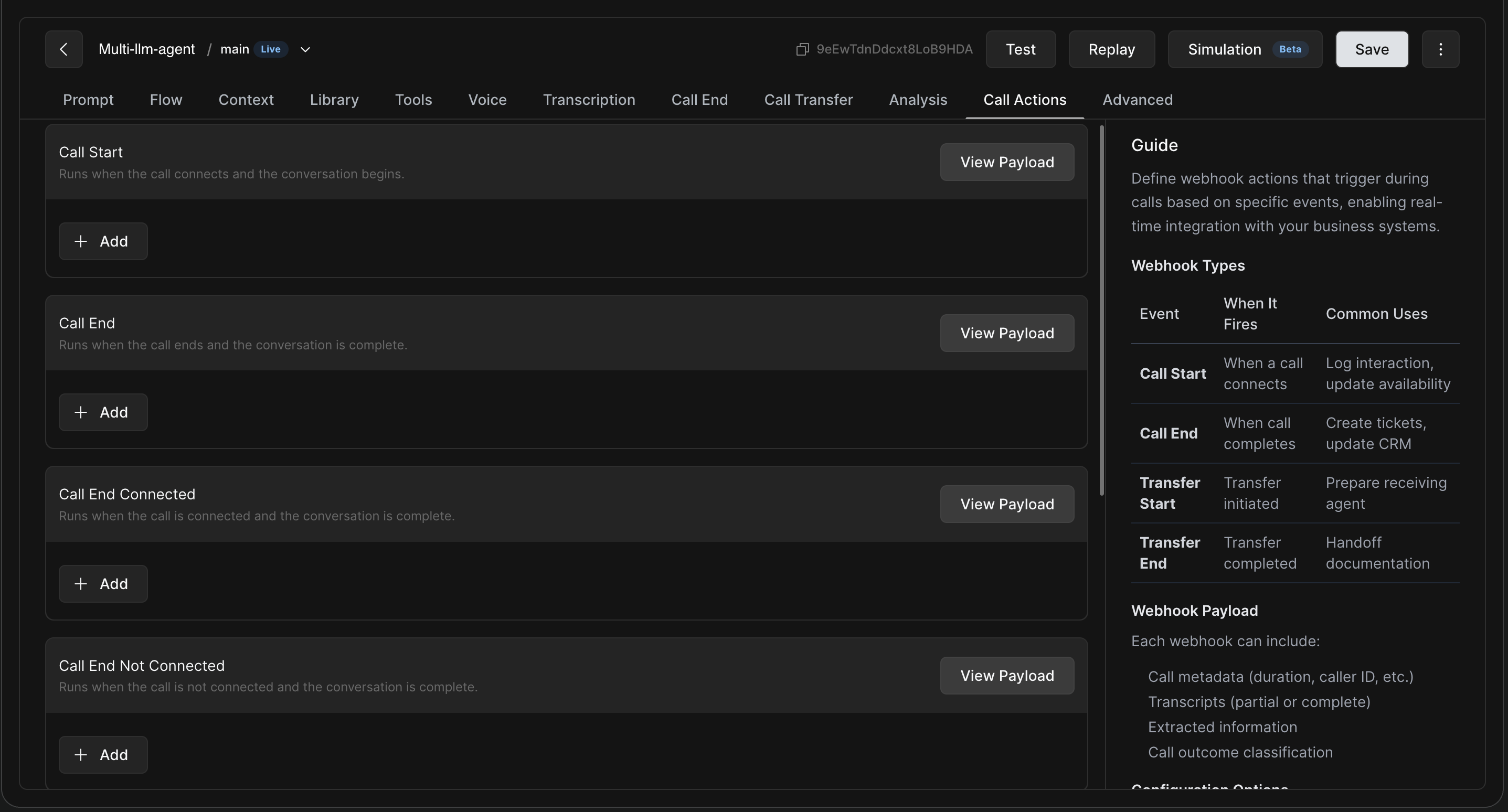
The Call Actions tab manages external data exchanges and replaces the older Pre-Call API and Post-Call API sections.
-
Configure webhooks and API calls to fetch customer-specific context before a call begins.
-
Push call summaries, outcomes, and data to your CRM/backend after the call ends.
-
You can utilize a fully customizable payload with
${variable}syntax to structure the exact data your external systems need.
Best Practices for Prompting with Variables
Remember, variables are replaced with actual values before going to the LLM. You must write instructions that will still make complete sense post-substitution.
Example: Reschedule Order Delivery
## Customer and order information
customer name - ${name}
failed delivery date - ${last_delivery_date}
reason for failed delivery - ${reason}
customer address - ${address}

- Confirm the reason for failed delivery and collect a new delivery date.Writing Clear Logic: Be careful when using variables as conditional triggers in your prompt text.
-
Variable:
${customerType} -
Possible values: "regular" or "premium"
-
Unclear instruction post-variable substitution:
Instruction: If ${customerType} is premium then use path A else path B. How LLM receives it (if value is "regular"): If regular is premium then use path A else path B.
-
Clear instruction post-variable substitution:
Instruction: The customer's tier is ${customerType}. If the tier is "premium", use path A. Otherwise, use path B. How LLM receives it: The customer's tier is regular. If the tier is "premium", use path A. Otherwise, use path B.