Campaigns
Campaigns automate outbound calling at scale. Each phone number you supply becomes an individual task that your agent will dial.
Overview
-
What it is? A campaign is a set of call tasks generated from your contact list.
-
What it does? Creates tasks, places calls, retries when needed, and records outcomes.
-
What you configure? Who to call, when to call, retry rules, and priority.
Campaign types
Choose a type based on how your contact list is structured.
|
Batch |
Realtime |
|---|---|
|
Upload a CSV of contacts and launch all calls in one go. Best for static, pre-assembled lists. |
Push contacts one-by-one via API as they arrive. Best for live lead streams or instant follow-up triggers. |
Guide for Batch Campaigns
Use when you have a static list of numbers to call. For example, a list of leads along with their contact details in a .csv file.
How to create Batch Campaigns?
-
Go to
Campaigns → Batchand click+ Create Campaignfollowed byBatch. -
Fill out the Basics:-
Field
Purpose
Name
Internal label (e.g., Abandoned Cart Recovery 12 Jan)
Agent
Which AI agent will place the calls
Calling Number
Caller ID shown to recipients
Priority
Normal(default) orLow,High -
Upload CSV (up to 5K rows).:
• First column header must bephoneand phone numbers must have respective country codes.
• Provide context to agent in other columns as per your requirements and reference them in your prompt using column headers. (e.g.,${name},${orderId}). -
Time settings
• Timezone: Controls schedule & calling hours.
• Start Time: Start now or schedule to start later.
• End Time: Campaign stops and archives any pending tasks.
• Calling Hours: Daily calling window (e.g., 10:00–20:00). Calls pause outside this window. -
Retries (Follow-ups)
Set the number of retries for the campaign. Each retry happens after the set interval from the last call within allowed hours. -
Slot Allocation
A Slot is just a unit of concurrent calling capacity:
One slot = One simultaneous call that your org/workspace can run at a time.So if your organisation has 6 total slots, across all workspaces, you can only have 6 calls in progress at the same time. The 7th call will have to wait until one of the running calls finishes.
Select the number of slots you want to allocate to each campaign.
Teams can divide their total calling capacity across multiple campaigns and run them in parallel depending upon the total number of slots you have for the organisation.Hard Slot
Soft Slot
A hard slot is a strict cap: if a workspace has 5 hard slots, it will never run more than 5 concurrent calls, even when other allocated slots become free and are available to use for calling.
A Soft Slot is a temporary cap: Lets say, if a workspace has 5 slots allotted in the start, but eventually if 3 more slots get free from some other workspace, it will combine both of them and start using 8 slots to complete the tasks even faster.
-
Follow up settings
Setting
Purpose
Retries
0= single attempt.≥1= additional attempts allowed.Retry Interval
Gap from the last attempt’s end‑time before the next retry.
Retry Conditions
Which call outcomes should be retried (see table below).
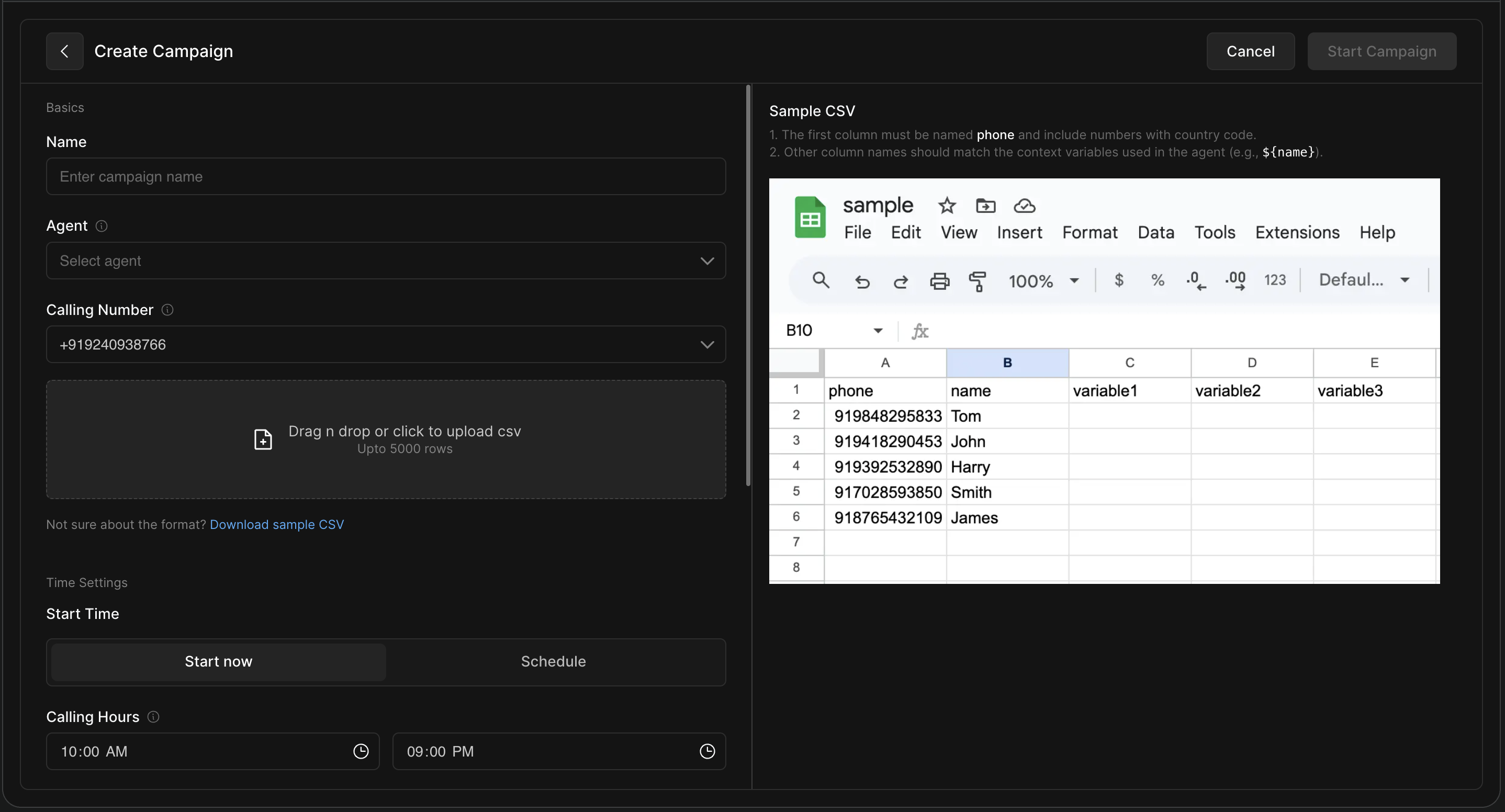
Every CSV row becomes a task with identical config (agent, caller ID, retry rules, etc.) only the callee’s number and context differs.
Guide for Realtime Campaigns
Ideal for on‑demand or event‑driven calls (e.g., instant lead follow‑up). Example use case:- A user fills a google form. Your AI agents then receives the information and calls the user back after a certain interval of time immediately.
How to Create Realtime Campaigns?
-
Go to
Campaigns → Realtimeand click+ Create Campaignfollowed byRealtime. -
Fill the Campaign Name, Select your Agent and Slot Limits.
-
Click
Create– this generates a Campaign ID and a sample JSON body for create task API input. -
Use the Create Task API to push tasks dynamically (check API reference)
{
  "phone": "+9189xxxxxxxx",      //phone number to call
  "from": "+9180xxxxxxxx",       //your agent's number
  "agent": "agent_id",
  "start": 1000,                 //10 AM
  "end": 1800,                   //06 PM
  "timezone": "Asia/Kolkata",
  "startAfter": 1748629800000,   //start time for 1st attempt
  "endAfter": 1748629800000,     //end time for this task
  "priorities": [                //attempt wise priority
    100,
    50,
  ],
  "retries": 2,                  //total attempts
  "intervals": [                 //gap between attempts
    180000
  ],
  "retryOutcomes": [             //outcomes for re-attempt
    "voicemail"
  ],
  "context": {                   //context for agent
    "name": "Tarun"
  },
  "campaign": "campaign_id"
}JSON generated while creating a realtime campaign on dashboard is just a sample and can be changed at task level. Only campaign id and status are maintained at campaign level.
Batch vs Realtime campaigns
|
Aspect |
Batch |
Realtime |
|---|---|---|
|
Campaign creation |
CSV upload (bulk) |
2 Steps:
|
|
Task config |
Same for all rows, except phone and context |
Only campaign id is same, rest of the config can vary per task (agent, caller ID, context) |
|
Ideal for |
Static lists |
Continuous lead streams, immediate follow up post form fill on website |
Understanding follow-up settings
Retry outcome options
|
Outcome(s) |
Auto‑included? |
Notes |
|---|---|---|
|
|
Yes |
User did not pick or call could not be placed. |
|
|
Yes (if agent uses this outcome) |
User provides a specific time for callback. |
|
|
No |
Voicemail detected. |
|
|
No |
Call connected but user silent. |
|
Any custom outcome |
No |
Defined in call analysis. |
Retry intervals
-
Next attempt time =
last_attempt + retry_interval. -
If that time falls outside Calling Hours, the attempt waits until the next window starts.
The interval array length in create task API is always retries - 1.
Priority system
Tasks follow a two-layer priority system —
-
Between attempts (within a task).
-
Between tasks (within a campaign or across campaigns).
Layer 1 — between attempts (within a task)
-
In batch campaigns, all first attempts fill the top priority list. Second attempts run only after all first attempts are done.
-
In realtime campaigns, you can set a custom priority strategy per task.
Layer 2 — between tasks and campaigns
-
High priority campaigns run ahead of Normal ones.
-
Within the same priority level, tasks are scheduled by their next eligible time.
-
If a contact requests a specific callback time, that task jumps to the front of the queue at that time.
For Example:
Your workspace has a concurrency limit (e.g., 5 simultaneous calls) and you upload 100 numbers in a batch campaign.
-
The system randomly selects five tasks for their first attempt (equal priority).
-
After any call ends, another first‑attempt task starts until all first attempts are done, then second attempts begin.
Callback override
If a user requests a specific callback time, that task becomes top priority at the scheduled moment, outranking all other tasks.
Campaign statuses
Campaigns display these statuses:
|
Status |
Meaning |
|---|---|
|
|
Waiting for start time, all tasks in queue |
|
|
Active calling, at least 1 task started |
|
|
Manually paused, at least 1 task in paused status |
|
|
All tasks completed or archived due to end time |
|
|
Manually archived |
Waiting for start time, all tasks in queue
|
|
Active calling, at least 1 task started |
|
|
Manually paused, at least 1 task in paused status |
|
|
All tasks completed or archived due to end time |
|
|
Manually archived |
Campaign monitoring
Once a campaign is created, you can monitor all individual tasks within it. From the Campaigns page, clicking on a campaign opens the Task view, where each row corresponds to a task generated from your CSV (in batch campaigns) or API call (in realtime campaigns).
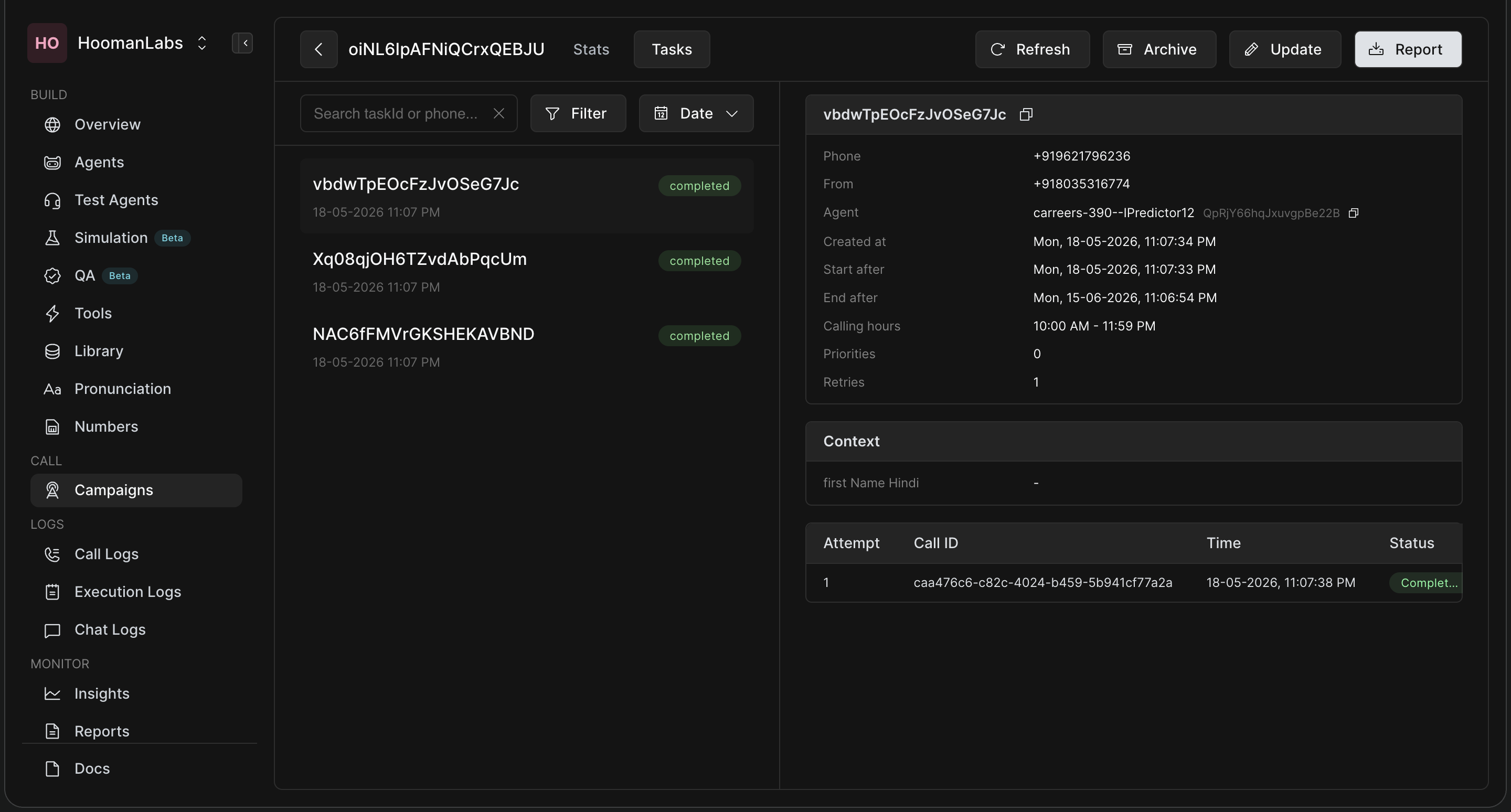
Calls
This tab displays a table listing all call attempts for the selected task.
Each row in the table includes:
-
Call ID
-
Start Time
-
Attempt number
-
Status
Clicking to expand any row opens full call details—just like the Call Logs page. This includes:
-
Call metadata (agent, from/to, timestamp, duration, provider, cost, etc.)
-
Audio recording and playback
-
Transcript of the conversation
-
Conversation analysis and outcome
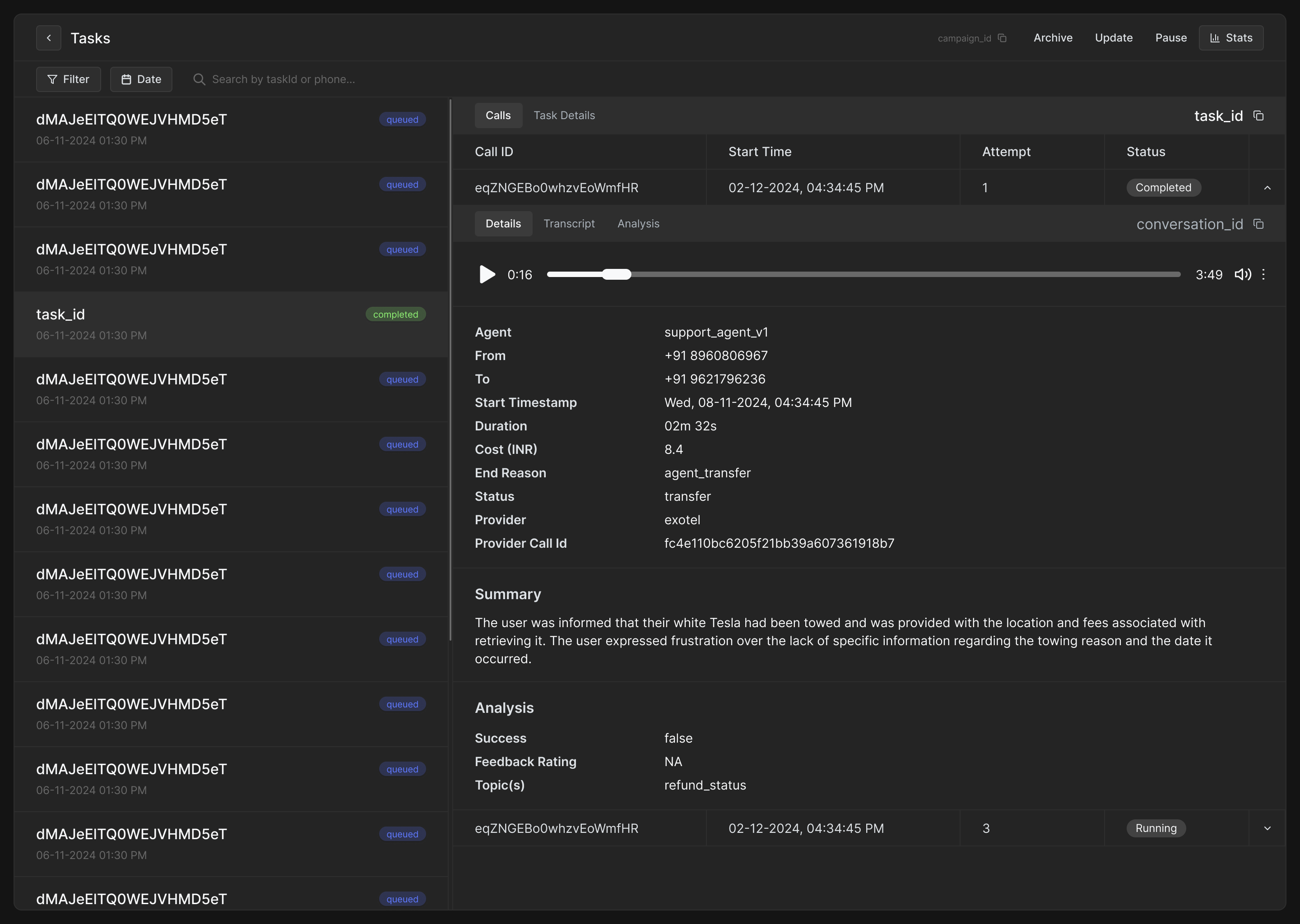
Task details
This tab displays the configuration used for the task. It's helpful for:
-
Verifying what was submitted via CSV or API (context variables, retry intervals, max retries, retry conditions, etc.)
-
Troubleshooting call behavior (e.g., priority mismatch, retry delay)
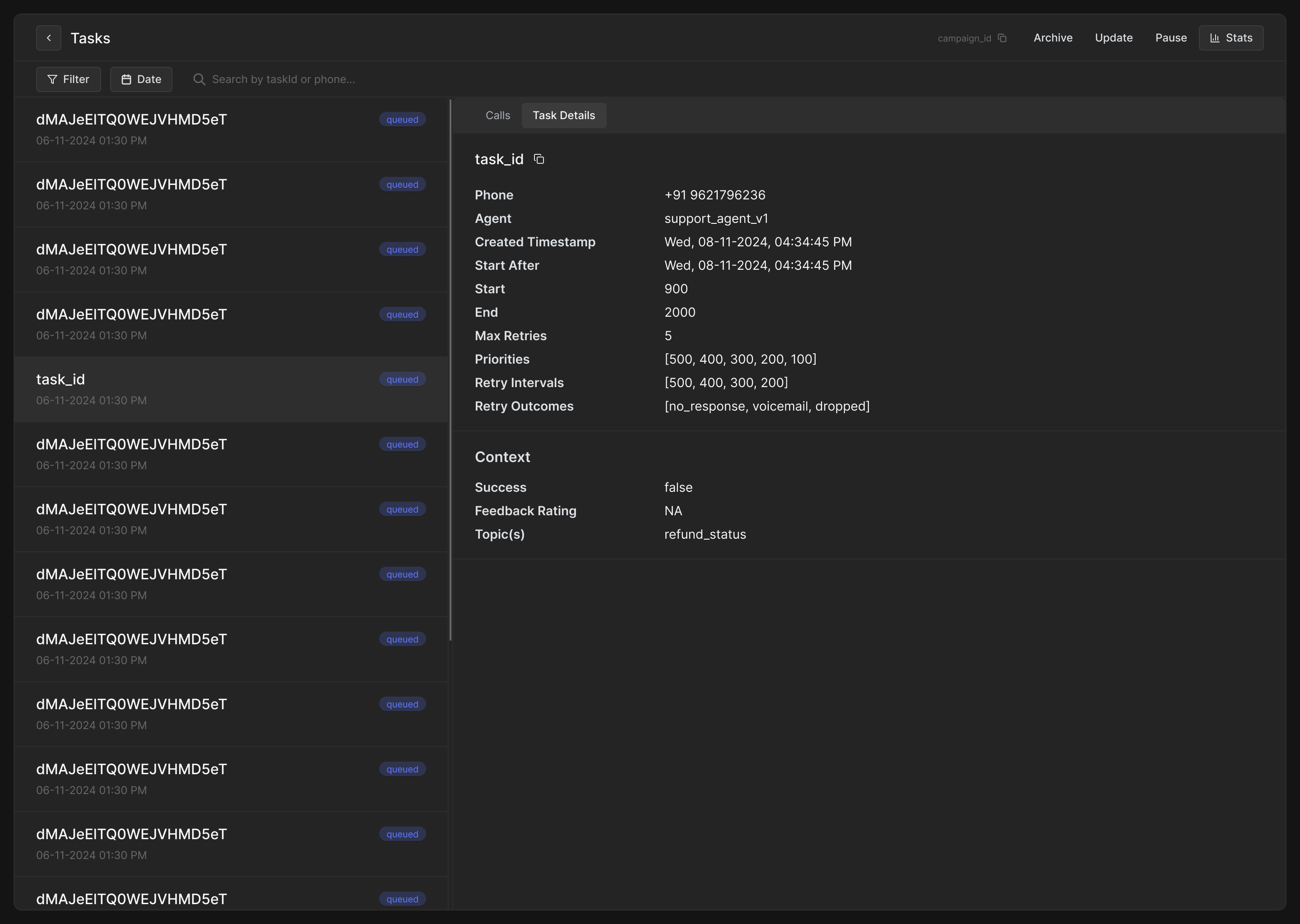
Task statuses
Each task can be in one of several states:
|
Status |
Meaning |
|---|---|
|
|
Task is waiting for its scheduled time |
|
|
A call attempt is currently being made |
|
|
Task finished, either successfully or after all retries |
|
|
Task paused manually |
|
|
No further call attempts will be made, task archived manually or campaign end time crossed |
Campaign-level controls
From the task monitoring screen, you can also:
-
Pause campaign – Marks all non-completed, non-running tasks as paused.
-
Resume campaign - Moves all paused tasks to queued.
-
Archive campaign – Marks all non-completed, non-running tasks as archived, ending the campaign permanently.
-
Update campaign – Adjust settings for non-completed, non-archived campaigns.