Chat Logs
Overview
The Chat Logs module is your central hub for monitoring, reviewing, and analyzing interactions between users and your AI agents. It allows you to read full transcripts, check conversational metadata, and export data for quality assurance. You can access it by navigating to Logs > Chat Logs on the left sidebar.
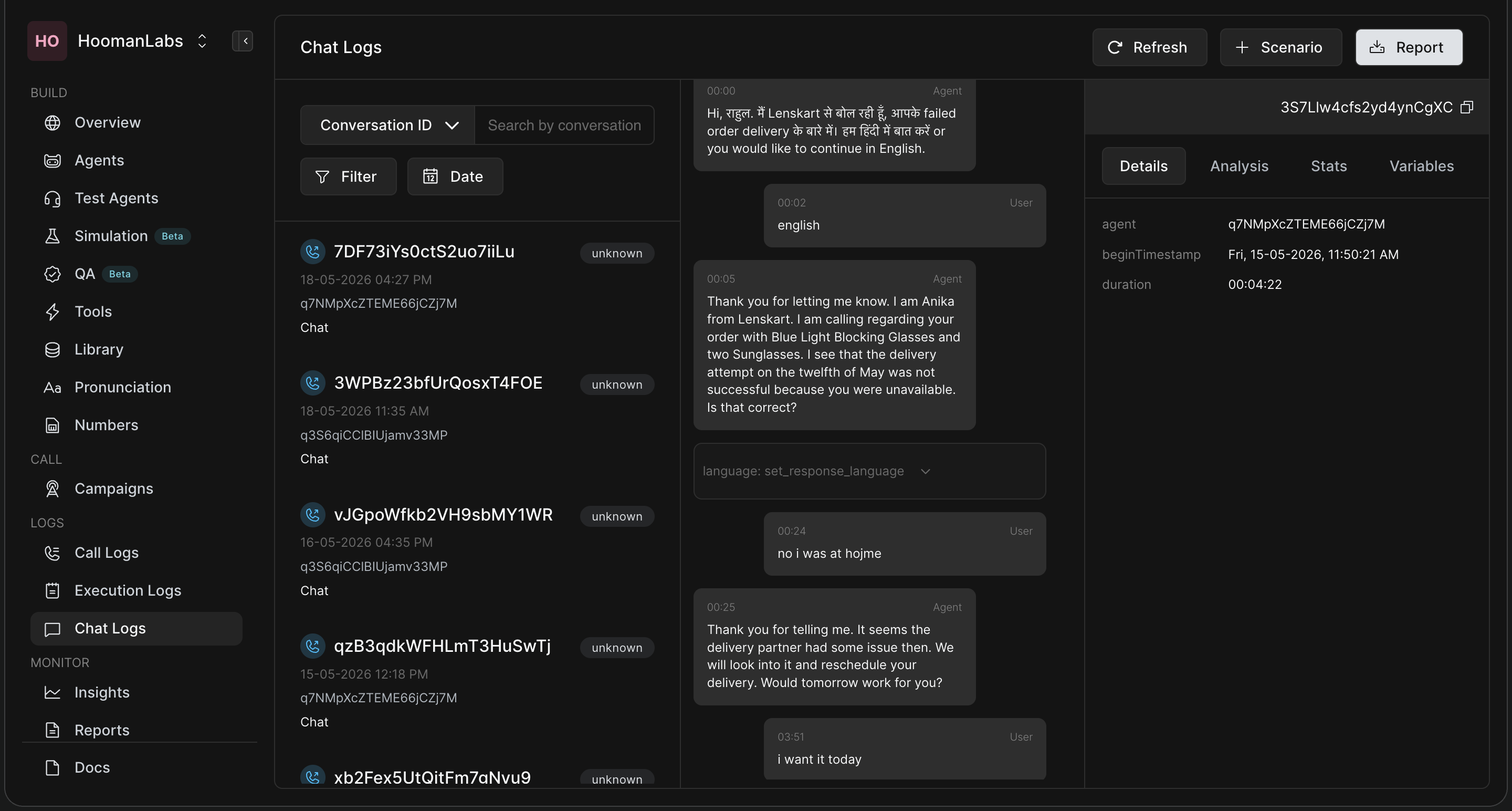
1. Navigating the Interface
-
Conversation List (Middle Panel): Displays a chronological list of chats with their unique Conversation IDs and agent details. You can easily find specific chats using the Search by conversation bar, or by applying Filter and Date parameters.
-
Chat Viewer & Insights (Right Panel): Clicking on any conversation loads the full transcript between the Agent and the User. This panel also includes tabs for deeper insights:
-
Details: View metadata like Agent ID, Begin Timestamp, and total Duration.
-
Analysis, Stats & Variables: Access AI-driven conversation breakdowns and extracted data points.
-
2. Key Actions At the top right of the screen, you have access to three primary actions:
-
Refresh: Updates the conversation list with the latest interactions.
-
+ Scenario: Captures the current conversation's context for testing. Note: Clicking this button redirects you to the Simulations section (under the Build menu).
-
Report: Opens the export modal to download chat data.
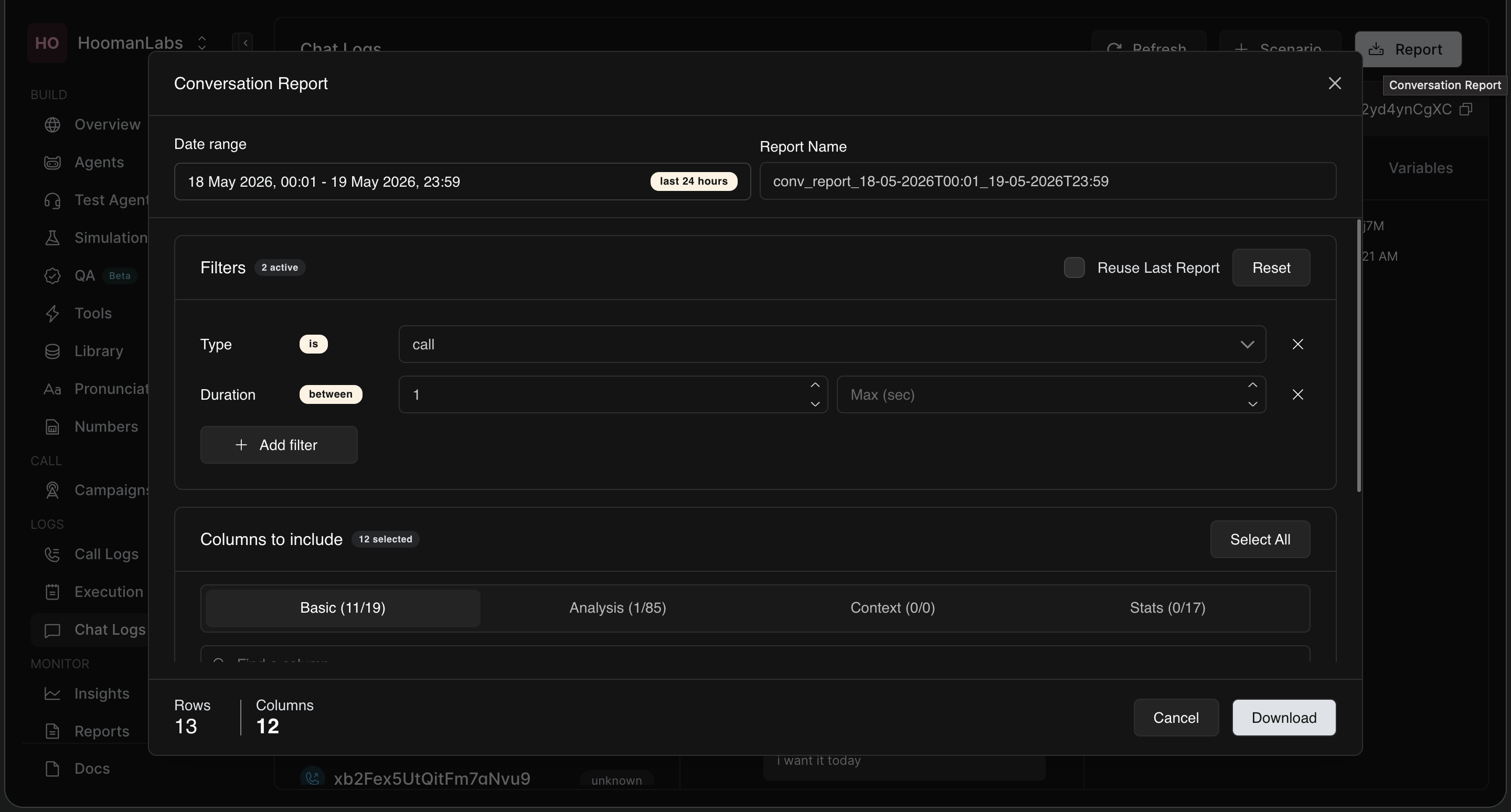
3. Generating a Conversation Report Clicking the Report button opens a detailed modal allowing you to export customized data:
-
Date Range & Name: Define the specific timeframe (e.g., last 24 hours) and give your report a custom name.
-
Filters: Apply specific rules, such as filtering by "Type" (e.g., call) or "Duration" (min/max seconds).
-
Columns to Include: Choose exactly what data points you want in your file, categorizing by Basic, Analysis, Context, or Stats. Hit Download to get your report.
Frequently Asked Questions (FAQ)
Q: What happens when I click the "+ Scenario" button?
A: Clicking "+ Scenario" automatically redirects you to the Simulations section. It allows you to use the current chat log's context to test and simulate alternate conversational flows.
Q: How do I find out exactly how long a conversation lasted?
A: Select the conversation from the middle list, then look at the right-hand panel. Under the Details tab, you will find the exact duration and beginTimestamp.
Q: Can I export a simple report without all the detailed AI analysis metrics?
A: Yes. When generating a report, go to the "Columns to include" section and select only the "Basic" attributes. You can leave the Analysis, Context, and Stats columns unchecked before downloading.