HoomanLabs Telephony
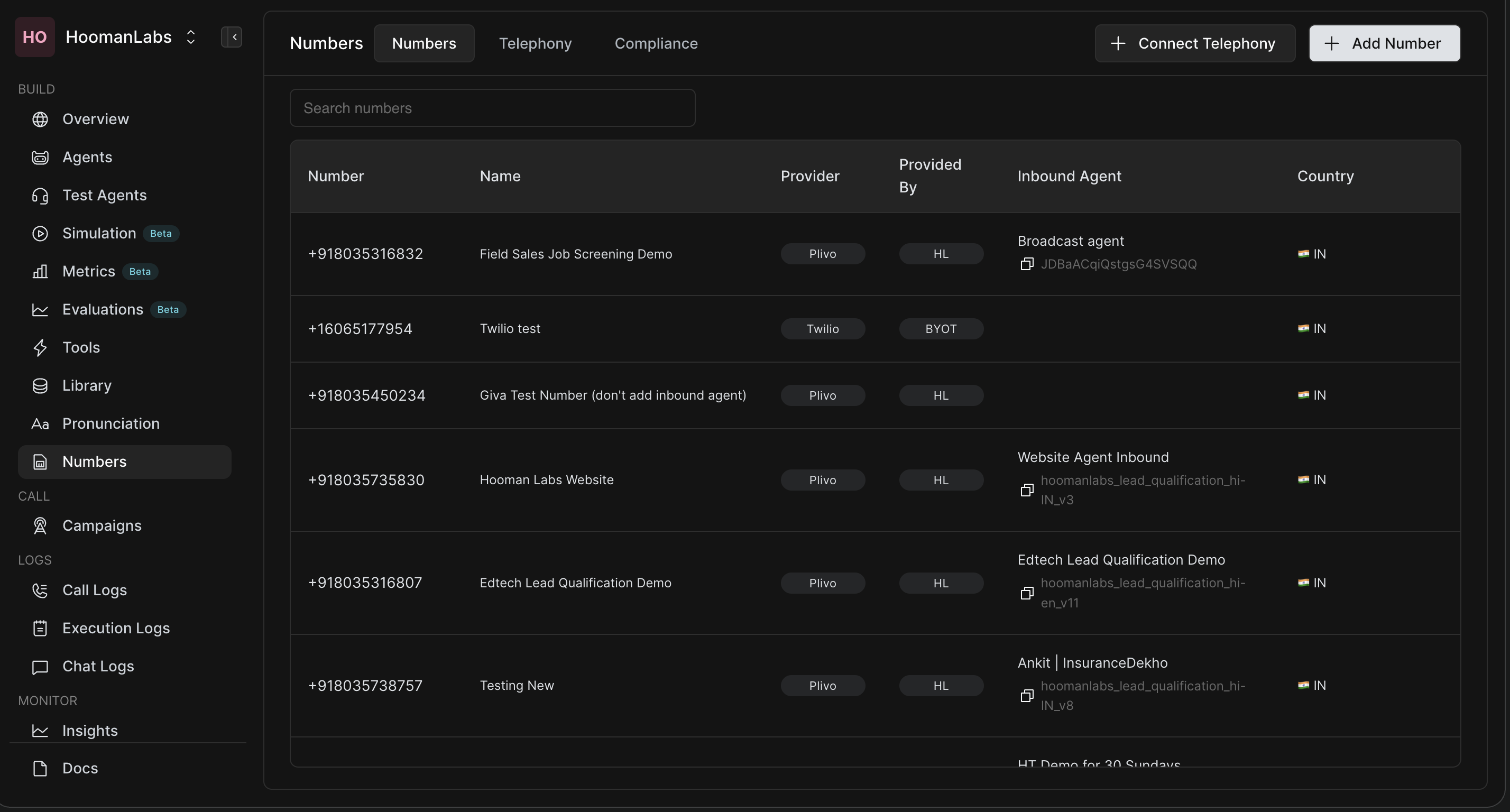
The Numbers tab lists all phone numbers active in your workspace. Each entry shows:
|
Column |
Description |
|---|---|
|
Number |
The full phone number (e.g. +918035316832) |
|
Name |
A label you assign to the number |
|
Provider |
The telephony provider (e.g. Plivo, Twilio) |
|
Provided By |
HL = Hooman Labs managed · BYOT = Bring Your Own Telephony |
|
Inbound Agent |
The AI agent assigned to handle incoming calls on this number |
|
Country |
The country flag and code |
Add a Number
Click + Add Number in the top-right corner. A modal will appear with two options:
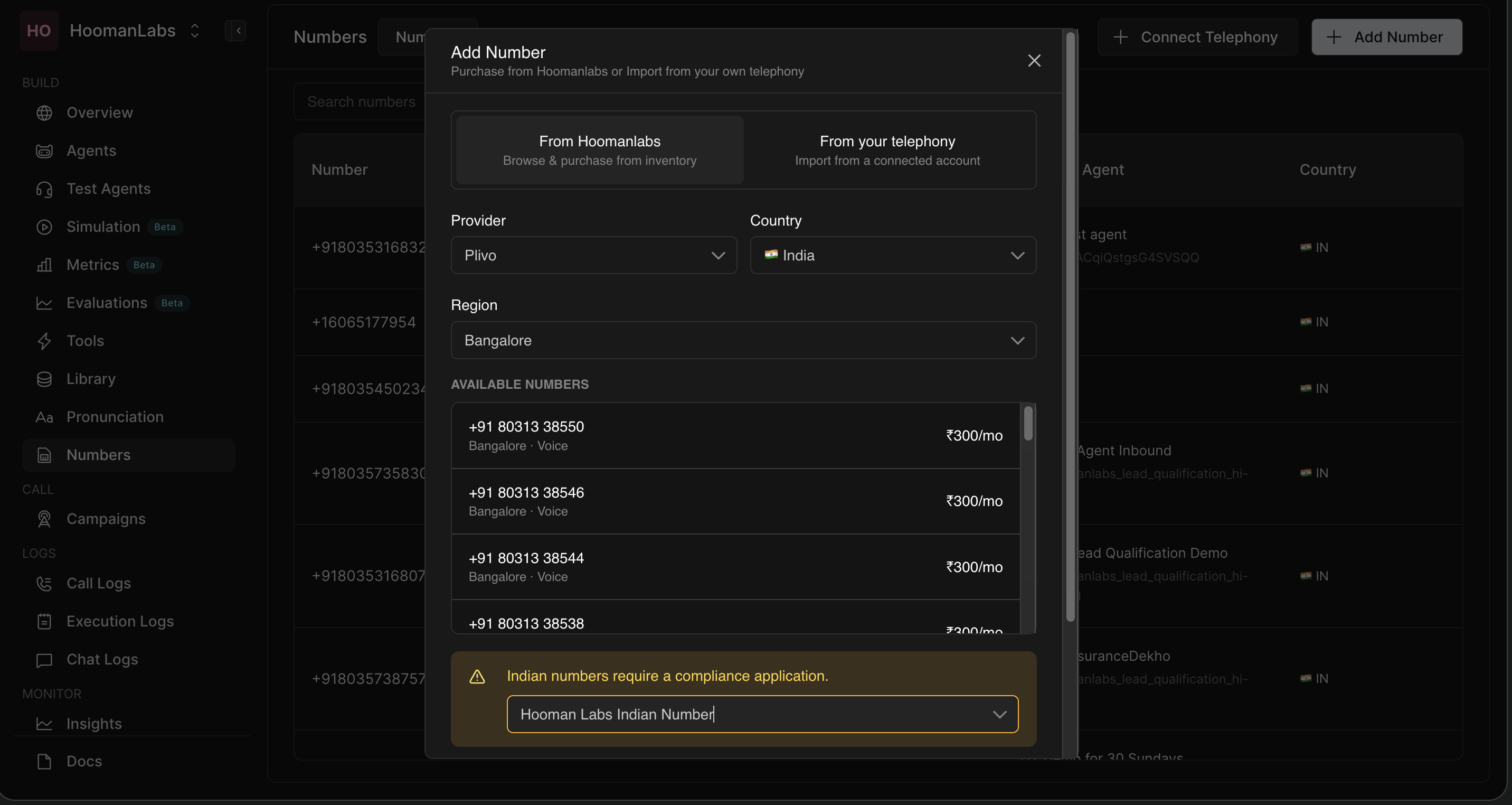
From Hoomanlabs
Purchase a number directly from the Hooman Labs inventory.
-
Click + Add Number → select From Hoomanlabs.
-
Choose a Provider from the dropdown (e.g.
Plivo). -
Select a Country and Region.
-
Browse the list of Available Numbers — each shows the number, region, capability (Voice), and monthly cost.
-
Select a number.
Important: Indian numbers require a compliance application. A warning banner will appear at the bottom of the modal prompting you to select an approved compliance application before proceeding. If you haven't submitted one yet, complete the Compliance step first.
Option B: From Your Telephony
Import a number from a telephony account you have already connected.
-
Click
+ Add Number→ select From your telephony. -
Choose the connected account to import from.
-
Select the number and confirm.
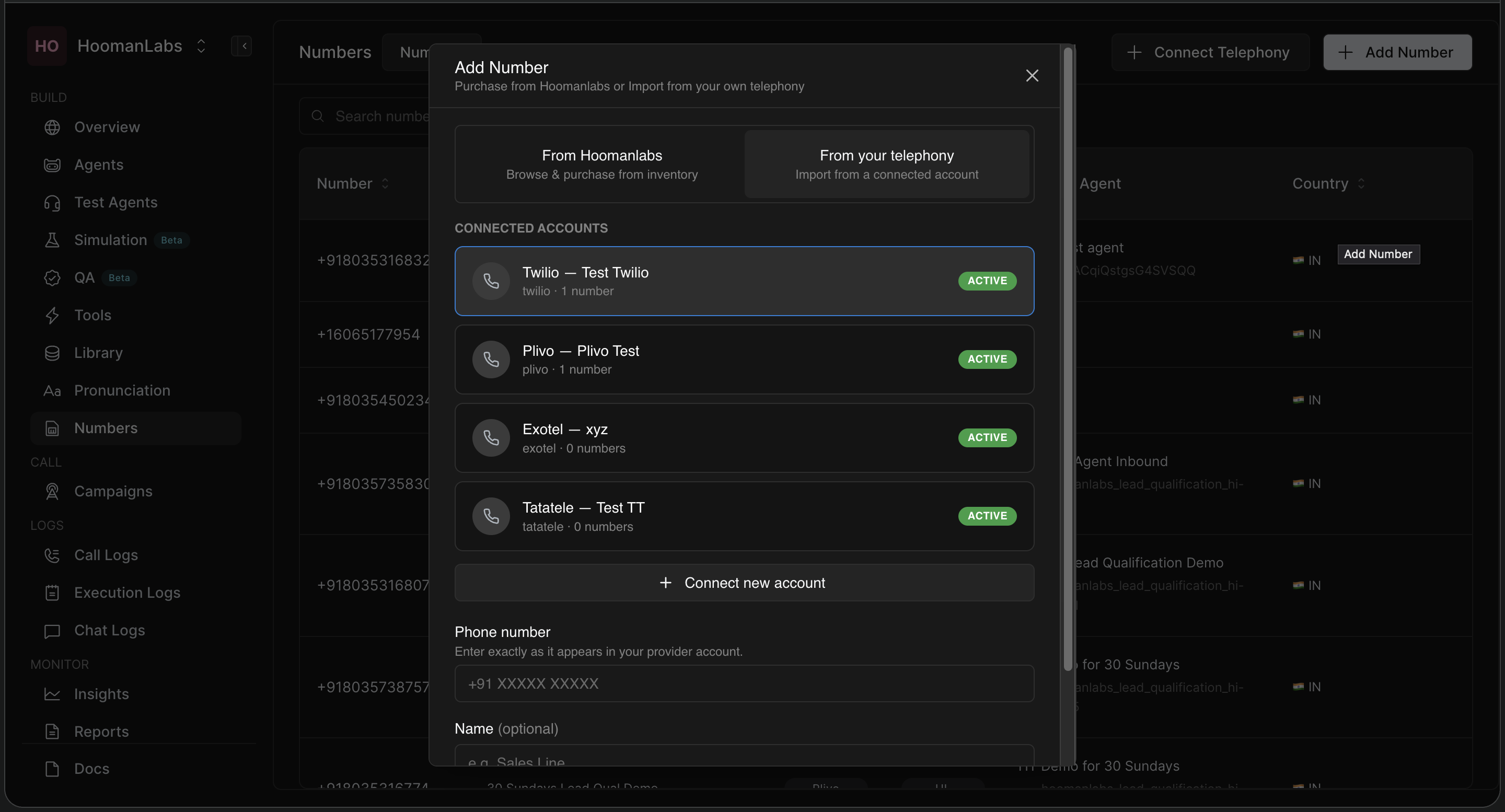
Numbers imported this way will show BYOT (Bring Your Own Telephony) under the Provided By column.
Compliance
The Compliance tab is required for Indian virtual numbers. It lists all compliance applications submitted for your workspace, along with their Name and Status (e.g. Accepted).
Submit a New Compliance Application
Click + New Application in the top-right corner. This opens a 2-step wizard:
Step 1 of 2 — Application Details
Fill in your business information for DLT registration (required for Indian numbers):
Fill in your business information for DLT registration (required for Indian numbers):
|
Field |
Notes |
|---|---|
|
Application name |
A label for this application (e.g. |
|
Business name |
Your registered company name (e.g. |
|
Registration number |
Your CIN or Udyam number |
|
Contact email |
A compliance point-of-contact email |
|
Address |
Address line 1, Address line 2 (optional), City, State, Postal code, Country |
Click Continue to proceed to document upload.
Step 2 of 2 — Documents
Upload the required documents for DLT registration.
|
Document |
Format |
Max Size |
|---|---|---|
|
Certificate of Incorporation / Udyam Registration |
PDF, JPG, PNG |
10 MB |
|
GST Registration Certificate |
PDF, JPG, PNG |
10 MB |
Note: Your application will be reviewed by the Hooman Labs team within 2–3 business days. Numbers cannot be assigned until the application is approved.
Click Submit application.
Once approved, the status will update to Accepted and you can use this application when adding Indian numbers.
End-to-End Setup Checklist
Follow this sequence to get a number fully operational:
-
Go to Numbers → Telephony → click + Connect Telephony and complete all 3 steps.
-
Go to Numbers → Compliance → click + New Application, fill in business details, upload documents, and submit.
-
Wait for compliance status to show Accepted (2–3 business days for Indian numbers).
-
Go to Numbers → Numbers → click + Add Number, choose your source, select a number, link your approved compliance application, and confirm.
Frequently Asked Questions
Can I connect multiple telephony accounts?
Yes. You can connect multiple accounts from different providers. Each will appear as a separate row in the Telephony tab.
What is the difference between HL and BYOT?
HL means the number is purchased through and managed by Hooman Labs. BYOT means you've imported a number from your own provider account.
Do I need a compliance application for international numbers?
Compliance applications are currently required for Indian numbers only. International numbers do not require DLT registration.
Can I assign a number to multiple agents?
Each number can have one Inbound Agent for incoming calls. For outbound, any agent can use a number configured as a From Number.
What happens if my compliance application is rejected?
You will need to resubmit a new application with corrected details or updated documents via + New Application.